
Website to PDF | Webpage PDF Conversion Tool
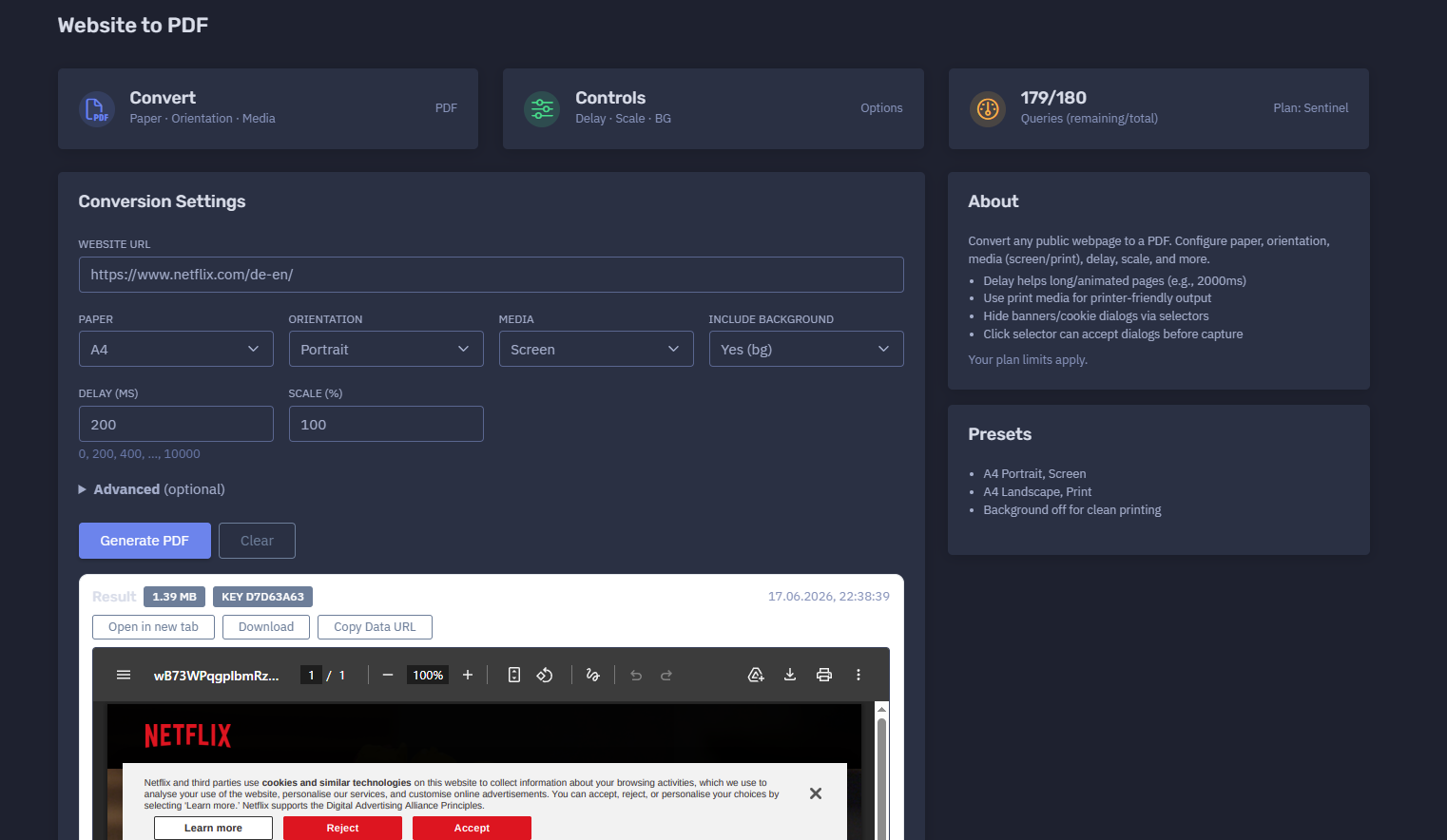
The platform available at https://dash.niamonx.io/web_topdf — known as Website to PDF — is a webpage-to-PDF conversion tool within the NiamonX platform. It allows users to convert public webpages into PDF documents with configurable paper size, orientation, rendering media mode, delay, scale, background rendering, cookies, language headers, custom user-agent, click selectors, and hidden elements.
Overview of the Service
Website to PDF is designed to help users convert public web pages into structured PDF files for documentation, investigation, evidence preservation, compliance review, QA testing, reporting, archiving, and sharing.
The tool loads a target webpage in a controlled rendering environment and exports it as a PDF document based on the selected conversion settings. Users can choose paper layout, orientation, screen or print rendering mode, background rendering, delay, scale, and several advanced options that help reproduce a specific page state.
Website to PDF is useful for OSINT analysts, SOC teams, cybersecurity investigators, compliance departments, brand protection teams, support teams, legal reviewers, QA engineers, developers, researchers, and documentation teams.
The module is especially helpful when users need a portable, timestamped, shareable PDF representation of a website instead of a screenshot image.
🔍 How the Tool Works
When a user enters a website URL and selects conversion settings, Website to PDF loads the page, waits according to the configured delay, optionally performs selector-based actions, applies rendering options, and generates a PDF file.
The tool can convert:
-
Public webpages
-
Landing pages
-
Documentation pages
-
Articles and blog posts
-
Product pages
-
Policy pages
-
Terms and privacy pages
-
Public dashboards
-
Printer-friendly pages
-
Suspicious or phishing pages
-
Brand impersonation pages
-
Pages that require simple cookie/banner handling
Example conversion configuration:
Website URL: https://www.netflix.com/de-en/
Paper: A4
Orientation: Portrait
Media: Screen
Include background: Yes
Delay: 200 ms
Scale: 100%
Example result:
PDF
1.39 MB
Key: d7d63a63
17.06.2026, 22:38:39
🧩 What Can Be Converted
Website to PDF supports complete public website URLs.
Valid examples:
https://www.netflix.com/de-en/
https://niamonx.io/
https://help.ubuntu.ru/wiki/nginx-phpfpm
https://www.netacad.com
Unsupported or invalid examples:
netflix.com
www.netflix.com/de-en/
localhost
file:///C:/page.html
192.168.1.1
For best results, users should enter a complete URL with http:// or https://.
Private, local, internal, or restricted resources may not be accessible from the conversion backend unless they are publicly reachable and authorized for capture.
⚙️ Conversion Settings
The Conversion Settings panel contains the main PDF generation options.
Website URL
The full URL of the page to convert into PDF.
Example:
https://www.netflix.com/de-en/
The URL should include the protocol and should point to a webpage that can be loaded by the backend.
Recommended format:
https://domain.com/path
The entered page should be publicly accessible or intentionally accessible through the provided authorized context, such as cookies.
Paper
The paper setting controls the target PDF page size.
Example:
Paper: A4
A4 is commonly used for reports, evidence exports, documentation, compliance archives, and printable records.
Common use cases for A4:
-
Investigation reports
-
Evidence bundles
-
Compliance documentation
-
Policy page exports
-
Legal review material
-
Support attachments
-
Printable documentation
Depending on backend configuration, additional paper sizes may be supported. The current interface example uses A4.
Orientation
Orientation controls whether the PDF page is generated vertically or horizontally.
Available orientation modes include:
-
Portrait
-
Landscape
Example:
Orientation: Portrait
Portrait mode is usually best for articles, policy pages, documentation pages, legal pages, and standard website exports.
Landscape mode is useful for wide layouts, dashboards, tables, admin panels, pricing comparisons, or pages with horizontal UI elements.
Example:
Orientation: Landscape
Recommended orientation:
| Page Type | Suggested Orientation |
|---|---|
| Article or blog post | Portrait |
| Terms or privacy policy | Portrait |
| Documentation page | Portrait |
| Wide dashboard | Landscape |
| Pricing table | Landscape |
| Data table | Landscape |
| Landing page | Portrait or Landscape |
Media
The media setting controls how the webpage is rendered before PDF generation.
Available media modes include:
-
Screen
-
Print
Example:
Media: Screen
Screen mode captures the page as it would normally appear in a browser.
Print mode uses the website’s print stylesheet when available. This can produce cleaner, more document-like output for pages that support printer-friendly layouts.
Example:
Media: Print
Recommended media mode:
| Goal | Suggested Media |
|---|---|
| Preserve visual browser appearance | Screen |
| Create printer-friendly PDF | |
| Capture marketing landing page | Screen |
| Export documentation | Print or Screen |
| Export policy or legal page | |
| Capture phishing or scam page | Screen |
| Remove unnecessary web UI naturally |
Important note: Print mode may change the appearance of the page because many websites hide navigation menus, banners, sidebars, videos, ads, and interactive elements in their print stylesheet.
Include Background
The Include Background option controls whether backgrounds are rendered in the PDF.
Example:
Include background: Yes
When enabled, the PDF includes background colors, background images, section backgrounds, hero blocks, styled buttons, and other visual design elements.
When disabled, the PDF may look cleaner and more printer-friendly.
Example:
Include background: No
Recommended usage:
| Goal | Include Background |
|---|---|
| Visual evidence | Yes |
| Brand impersonation documentation | Yes |
| Phishing page capture | Yes |
| Clean printing | No |
| Text-focused review | No |
| Smaller PDF size | No |
| UI/UX documentation | Yes |
For evidence workflows, background rendering should usually stay enabled because it preserves the page’s visual appearance more accurately.
Delay
Delay controls how long the tool waits before generating the PDF.
Example:
Delay: 200 ms
Supported delay values may include:
0, 200, 400, ..., 10000
Delay is useful when pages need time to load dynamic content, animations, external resources, cookie banners, fonts, images, API data, or lazy-loaded sections.
Recommended delay values:
| Page Type | Suggested Delay |
|---|---|
| Simple static page | 0–400 ms |
| Normal website | 1000–2000 ms |
| Dynamic landing page | 2000–3000 ms |
| Heavy page with animations | 3000–5000 ms |
| Complex dashboard | 3000–10000 ms |
| Page with cookie banner | 1000–3000 ms |
| Page with lazy-loaded content | 2000–5000 ms |
| Evidence capture | 2000 ms or more |
Example for a heavier page:
Delay: 2000 ms
A longer delay can improve completeness, but it may also increase processing time and resource usage.
Scale
Scale controls the rendering size of the webpage content inside the PDF.
Example:
Scale: 100%
Scale can be used to fit more content on each page or make content larger and easier to read.
Examples:
Scale: 80%
Scale: 100%
Scale: 120%
Recommended usage:
| Goal | Suggested Scale |
|---|---|
| Default PDF export | 100% |
| Fit more content per page | 70–90% |
| Improve readability | 110–125% |
| Capture wide layout on A4 | 70–90% |
| Preserve normal browser feel | 100% |
Scale affects layout, pagination, text size, and the number of PDF pages.
🧠 Advanced Options
The Advanced section allows more controlled webpage conversion.
Click Selector
The Click Selector option clicks a specific element before PDF generation.
Example:
.cookie-accept
#close
Use cases:
Example:
Click selector: .cookie-accept
This option is useful when a page blocks content with a banner or modal that can be handled with one simple click.
For evidence workflows, users should document the clicked selector because it changes the visible state of the page.
Hide Selectors
Hide Selectors allows users to hide unwanted elements before converting the page to PDF.
Example:
.ads, .cookie, #modal
Use cases:
-
Hide advertisements
-
Hide cookie banners
-
Hide newsletter popups
-
Hide floating chat widgets
-
Hide sticky headers
-
Hide overlays
-
Remove irrelevant UI elements
-
Create cleaner documentation PDFs
Common selectors:
.ads
.cookie
#modal
.newsletter
.chat-widget
.sticky-header
Example:
Hide selectors: .ads, .cookie, #modal
Users should use this option carefully when creating evidence. If elements were hidden, the report should mention it so the PDF remains transparent and reproducible.
Cookies
Format:
name1=value1;name2=value2
Example:
region=de;consent=yes
Use cases:
-
Preserve consent state
-
Set language or region preferences
-
Reproduce a specific page state
-
Capture pages that depend on cookie-based settings
-
Avoid repeated cookie banners
-
Capture authorized content when the user has permission
Important security note: Users should not paste sensitive session cookies unless they are authorized and fully understand the risk. Session cookies can provide access to accounts or private data.
For sensitive investigations, cookies should be handled as confidential data.
Accept-Language
Accept-Language controls the language preference sent with the webpage request.
Example:
Accept-Language: en-US
Other examples:
de-DE
uk-UA
ru-RU
This is useful when websites show different content depending on language settings.
Use cases:
-
Capture localized landing pages
-
Compare regional content
-
Investigate language-specific phishing pages
-
Export documentation in a specific language
-
Reproduce content shown to users from a certain locale
Example:
Accept-Language: de-DE
User-Agent
The User-Agent field allows custom browser identification during conversion.
Example:
Mozilla/5.0 (...)
Use cases:
-
Desktop browser emulation
-
Mobile browser behavior testing
-
Checking content variation by browser
-
Reproducing a specific client environment
-
Comparing bot-filtered or browser-specific content
-
Debugging rendering differences
Custom user-agent should be used responsibly and documented when the PDF is used as evidence.
📄 Result Section
After a successful conversion, the Result panel displays PDF output details.
Typical fields include:
| Field | Description |
|---|---|
| File size | Size of the generated PDF |
| Key | Cache or result identifier |
| Timestamp | Date and time of PDF generation |
| Output | Generated PDF document |
Example:
1.39 MB
Key d7d63a63
17.06.2026, 22:38:39
The result allows users to confirm that the conversion was completed and that the generated PDF is available for review, download, sharing, or reporting.
PDF file size depends on:
-
Page length
-
Images
-
Fonts
-
Backgrounds
-
Media mode
-
Scale
-
Paper size
-
Number of generated pages
-
Dynamic content
-
Website complexity
🕓 Local History
Website to PDF stores recent conversion requests locally in the user’s browser.
Example behavior:
Stores last 100 queries in your browser.
History entries may include:
-
Website URL
-
Paper size
-
Orientation
-
Media mode
-
Conversion timestamp
Example history item:
https://www.netflix.com/de-en/
A4
PORTRAIT
SCREEN
17.06.2026, 22:38:39
Another example:
https://www.netacad.com
A4
PORTRAIT
PRINT
12.10.2025, 23:12:38
Local history helps users repeat previous conversions with the same or similar settings.
Because history is stored locally, it may be cleared when users delete browser data, change browsers, use a different device, or switch browser profiles.
🚦 Query Limits and Plan Access
Website to PDF uses plan-based query limits.
Example:
179 / 180
Queries remaining / total
Plan: Sentinel
Important points:
-
Each conversion request may consume plan quota.
-
Limits depend on the active user plan.
-
Repeated conversions may consume additional queries.
-
Heavy pages may require more backend resources.
-
Long delays and complex pages may increase processing cost.
-
Failed conversions may still count depending on backend rules.
-
Plan limits apply to normal and advanced usage.
Users should monitor remaining queries when converting multiple pages for reports, investigations, evidence packages, compliance reviews, or bulk documentation.
🧠 Key Features
Webpage to PDF Conversion
Converts public webpages into portable PDF documents.
Paper Configuration
Supports paper-based PDF output such as A4.
Orientation Control
Allows Portrait or Landscape PDF layout.
Media Rendering
Supports Screen and Print media rendering modes.
Background Rendering
Can include or exclude webpage backgrounds.
Delay Control
Waits before conversion to allow dynamic content to load.
Scale Control
Adjusts webpage rendering size inside the PDF.
Selector Interaction
Can click a selected element before conversion.
Hide Selectors
Can hide unwanted page elements before PDF generation.
Cookie Support
Language Header Control
Supports Accept-Language customization.
User-Agent Control
Allows custom browser identification.
Result Metadata
Displays PDF size, result key, and timestamp.
Local History
Stores the last 100 conversion requests in the browser.
Plan-Based Limits
Access and query volume depend on the user’s plan.
🔎 Common Use Cases
Website to PDF supports many practical workflows.
OSINT Evidence Export
Convert public webpages into PDF documents for investigation notes and reports.
Phishing Page Documentation
Export suspicious login pages, clone pages, scam pages, or malicious landing pages as PDF evidence.
Brand Protection
Document fake websites, impersonation pages, counterfeit stores, unauthorized brand use, or misleading public pages.
SOC and Incident Response
Attach PDF evidence to incident tickets, case management systems, internal reports, or escalation workflows.
Compliance Review
Export terms, privacy policies, cookie notices, public disclosures, regulatory pages, or public-facing statements.
Legal and Audit Documentation
Create PDF records of public webpages for legal review, audit trails, or compliance archives.
QA and Web Testing
Check how pages render in screen or print mode and preserve output for bug reports.
Documentation Archiving
Convert technical documentation, help pages, guides, or knowledge base pages into PDF files.
Support Cases
Attach converted web pages to support tickets for easier review.
Research and Reporting
Save public articles, pages, and references as stable PDF documents for later analysis.
Printer-Friendly Output
Use print media and background control to create clean, readable PDF files.
📐 Paper, Orientation, and Media Recommendations
The best settings depend on the target page and intended use.
Standard Webpage Export
Recommended settings:
Paper: A4
Orientation: Portrait
Media: Screen
Include background: Yes
Delay: 1000–2000 ms
Scale: 100%
Best for:
-
Landing pages
-
Public websites
-
Visual evidence
-
Brand protection
-
Phishing pages
-
General webpage archiving
Clean Printable PDF
Recommended settings:
Paper: A4
Orientation: Portrait
Media: Print
Include background: No
Delay: 1000–2000 ms
Scale: 100%
Best for:
-
Articles
-
Policies
-
Terms pages
-
Documentation
-
Legal review
-
Text-focused reports
Wide Layout or Table Export
Recommended settings:
Paper: A4
Orientation: Landscape
Media: Screen
Include background: Yes
Delay: 2000 ms
Scale: 80–90%
Best for:
-
Dashboards
-
Pricing tables
-
Comparison pages
-
Wide UI layouts
-
Data tables
-
Admin panels
Heavy Dynamic Page
Recommended settings:
Paper: A4
Orientation: Portrait
Media: Screen
Include background: Yes
Delay: 3000–5000 ms
Scale: 100%
Best for:
-
JavaScript-heavy websites
-
Animated pages
-
Pages with lazy-loaded content
-
Pages with delayed API data
-
Complex landing pages
Evidence Collection
Recommended settings:
Paper: A4
Orientation: Portrait
Media: Screen
Include background: Yes
Delay: 2000 ms or higher
Scale: 100%
Recommended evidence notes:
URL
Timestamp
Paper size
Orientation
Media mode
Delay
Scale
Background setting
Click selector
Hide selectors
Cookies used
Accept-Language
User-Agent
Result key
For investigation work, PDF output should be stored together with conversion settings and supporting technical evidence.
🖨️ Screen Media vs Print Media
Website to PDF supports two major rendering modes: Screen and Print.
Screen Media
Screen media renders the webpage as it appears in a normal browser.
Best for:
-
Visual evidence
-
Phishing pages
-
Brand impersonation
-
Landing pages
-
Public web UI
-
Screenshot-like PDF exports
-
Design and QA review
Example:
Media: Screen
Screen mode is usually the best choice when visual appearance matters.
Print Media
Print media uses the website’s print stylesheet if available.
Best for:
-
Clean PDFs
-
Documentation
-
Articles
-
Policies
-
Terms pages
-
Legal review
-
Printer-friendly output
Example:
Media: Print
Print mode may remove or change:
Print mode can produce cleaner output, but it may not reflect what a normal user saw in the browser.
🧹 Cleaning the Page Before Conversion
Some websites display banners, overlays, popups, ads, or chat widgets that interfere with PDF output.
Website to PDF provides two main cleanup options:
Click Selector
Use Click Selector when an element needs to be clicked before conversion.
Example:
.cookie-accept
Common uses:
Hide Selectors
Use Hide Selectors when elements should be visually removed before conversion.
Example:
.ads, .cookie, #modal
Common elements to hide:
For evidence and compliance workflows, users should document all cleanup actions.
Example documentation note:
Before PDF generation, the selector .cookie-accept was clicked and .ads, #modal were hidden.
🌍 Language, Region, and Session Context
Webpages may show different content depending on language, region, cookies, browser type, or session context.
Website to PDF provides controls for:
Examples:
Accept-Language: en-US
Accept-Language: de-DE
Cookies: region=de;consent=yes
User-Agent: Mozilla/5.0 (...)
These settings help reproduce a more specific page state.
Use cases:
-
Region-specific content review
-
Localized phishing page investigation
-
Language-specific landing page capture
-
Cookie-consent state preservation
-
Browser-specific rendering comparison
-
Reproducing a user-reported issue
Important note: A PDF created with custom cookies, language, or user-agent reflects that specific request context, not necessarily the default version of the website.
📊 Result Interpretation
PDF output should be interpreted carefully.
Important notes:
-
A PDF captures a webpage at one point in time.
-
Dynamic content may change after conversion.
-
Screen and print media can produce different results.
-
Cookies can change what content is shown.
-
Accept-Language can change language and regional content.
-
User-Agent can affect layout and content.
-
Hidden selectors change the visible output.
-
Click selectors may change the page state.
-
Background disabled may remove important visual elements.
-
Scale can affect pagination and layout.
-
Some websites block automated rendering.
-
Some resources may fail to load.
-
Lazy-loaded content may be incomplete without enough delay.
-
A PDF does not prove who owns or controls a website.
For investigations, PDF evidence should be combined with:
-
Exact URL
-
Timestamp
-
HTTP headers
-
DNS records
-
WHOIS data
-
TLS certificate details
-
Screenshot evidence
-
HTML source when available
-
Redirect chain
-
IP information
-
Threat intelligence context
-
Analyst notes
✅ Recommended Conversion Workflow
A practical Website to PDF workflow should follow these steps.
1. Enter the Full Website URL
Use a complete URL with protocol.
Example:
https://www.netflix.com/de-en/
Avoid incomplete URLs such as:
www.netflix.com/de-en/
2. Select Paper Size
Use A4 for standard reports, documentation, and printable PDF output.
Example:
Paper: A4
3. Choose Orientation
Use Portrait for normal pages and Landscape for wide layouts.
Example:
Orientation: Portrait
4. Choose Media Mode
Use Screen for visual accuracy and Print for printer-friendly output.
Example:
Media: Screen
5. Decide Whether to Include Background
Use background enabled for visual evidence.
Example:
Include background: Yes
Use background disabled for clean printing.
Example:
Include background: No
6. Set Delay
Use a short delay for simple pages and a longer delay for dynamic pages.
Example:
Delay: 2000 ms
7. Set Scale
Start with 100%. Reduce scale if content is too large or too wide.
Example:
Scale: 100%
8. Handle Popups or Cookie Banners
Use Click Selector or Hide Selectors when needed.
Example:
Click selector: .cookie-accept
Example:
Hide selectors: .ads, .cookie, #modal
9. Add Language, User-Agent, or Cookies if Needed
Use advanced settings to reproduce a specific context.
Example:
Accept-Language: de-DE
Cookies: region=de;consent=yes
10. Generate and Review the PDF
Check the result size, key, timestamp, and output.
Example:
1.39 MB
Key d7d63a63
17.06.2026, 22:38:39
11. Store the PDF With Context
For professional workflows, store the PDF together with the conversion settings.
Recommended record:
URL: https://www.netflix.com/de-en/
Paper: A4
Orientation: Portrait
Media: Screen
Include background: Yes
Delay: 200 ms
Scale: 100%
Result key: d7d63a63
Timestamp: 17.06.2026, 22:38:39
🛡️ Security, Privacy & Responsible Use
Website to PDF is intended for lawful webpage conversion, documentation, OSINT, QA, compliance, support, cybersecurity, and evidence workflows.
Acceptable use cases include:
-
Converting your own websites
-
Exporting public pages for documentation
-
Capturing public evidence
-
Documenting phishing pages
-
Reviewing brand abuse
-
Archiving public policy pages
-
Creating support attachments
-
Testing print rendering
-
Generating compliance records
-
Saving public documentation as PDF
Users should follow responsible use principles:
-
Do not convert private pages without authorization.
-
Do not submit sensitive session cookies unless authorized.
-
Do not use the tool to bypass access controls.
-
Do not misuse user-agent or cookies to access restricted content.
-
Do not use generated PDFs for harassment, doxxing, impersonation, or abuse.
-
Document advanced settings when PDFs are used as evidence.
-
Treat local history as sensitive on shared devices.
-
Store PDFs securely when they contain investigative or confidential context.
-
Validate critical findings with additional technical evidence.
⚙️ Technical Highlights
-
Webpage to PDF conversion tool
-
Available at
dash.niamonx.io/web_topdf -
Converts public webpages into PDF documents
-
Supports A4 paper output
-
Supports Portrait and Landscape orientation
-
Supports Screen and Print media modes
-
Supports background rendering control
-
Delay control from 0 to 10000 ms
-
Scale percentage control
-
Click selector before conversion
-
Hide selectors before conversion
-
Cookie injection support
-
Accept-Language override
-
Custom User-Agent support
-
Result file size display
-
Result key generation
-
Timestamped output
-
Local browser history
-
Stores last 100 queries locally
-
Plan-based query limits
-
Suitable for OSINT, SOC, QA, compliance, documentation, support, legal review, and cybersecurity workflows
📌 Usage Hints
-
Use full URLs with
https://orhttp://. -
Use A4 Portrait Screen for standard webpage exports.
-
Use A4 Landscape for wide pages, dashboards, and tables.
-
Use Print media for cleaner printer-friendly documents.
-
Use Screen media when visual evidence matters.
-
Keep background enabled for phishing, brand abuse, and visual evidence.
-
Disable background for cleaner printing and smaller PDFs.
-
Use at least 2000 ms delay for dynamic pages.
-
Use longer delay for animated, lazy-loaded, or heavy pages.
-
Use scale 100% as the default.
-
Reduce scale to 80–90% for wide layouts.
-
Use Click Selector to accept cookie banners or close dialogs.
-
Use Hide Selectors to remove ads, banners, popups, or overlays.
-
Use Accept-Language to capture localized page versions.
-
Use Cookies only when authorized and necessary.
-
Use custom User-Agent responsibly.
-
Review generated PDFs before using them in reports.
-
Store conversion settings together with the PDF for reproducibility.
-
Remember that plan limits apply.
-
Local history stores the last 100 conversion requests in the browser.
🧾 Example Configurations
Basic PDF Export
Website URL: https://niamonx.io
Paper: A4
Orientation: Portrait
Media: Screen
Include background: Yes
Delay: 200 ms
Scale: 100%
Best for normal visual webpage export.
Printer-Friendly Export
Website URL: https://www.netacad.com
Paper: A4
Orientation: Portrait
Media: Print
Include background: No
Delay: 1000 ms
Scale: 100%
Best for clean reading and printing.
Investigation Evidence Export
Website URL: https://www.netflix.com/de-en/
Paper: A4
Orientation: Portrait
Media: Screen
Include background: Yes
Delay: 2000 ms
Scale: 100%
Click selector: .cookie-accept
Hide selectors: .ads, #modal
Accept-Language: de-DE
Best for documenting a specific visual page state.
Wide Page Export
Website URL: https://example.com/dashboard
Paper: A4
Orientation: Landscape
Media: Screen
Include background: Yes
Delay: 2000 ms
Scale: 80%
Best for dashboards, tables, and wide layouts.
📬 Contact Information
For technical, legal, abuse, privacy, or support-related inquiries, users can contact the NiamonX team directly:
support@niamonx.io — Technical Support
other@niamonx.io — General Inquiries
takedown@niamonx.io — Privacy or Data Removal Requests
legal@niamonx.io — Legal and Compliance Matters
Alternative contact channel:
🔗 Helpdesk: https://support.niamonx.io/
Summary
NiamonX Website to PDF is a flexible webpage PDF conversion tool for public websites. It supports paper configuration, Portrait and Landscape orientation, Screen and Print rendering modes, background control, delay, scale, selector-based clicking, selector hiding, cookies, Accept-Language, custom User-Agent, result metadata, local history, and plan-based limits.
The tool is designed for OSINT evidence export, phishing investigation, SOC workflows, brand protection, QA testing, compliance documentation, support cases, legal review, research, and web archiving. Generated PDFs should be treated as point-in-time webpage records and interpreted together with the exact URL, timestamp, conversion settings, result key, and supporting technical evidence.