
WebSite Screenshot | Web Capture & Device Emulation Tool
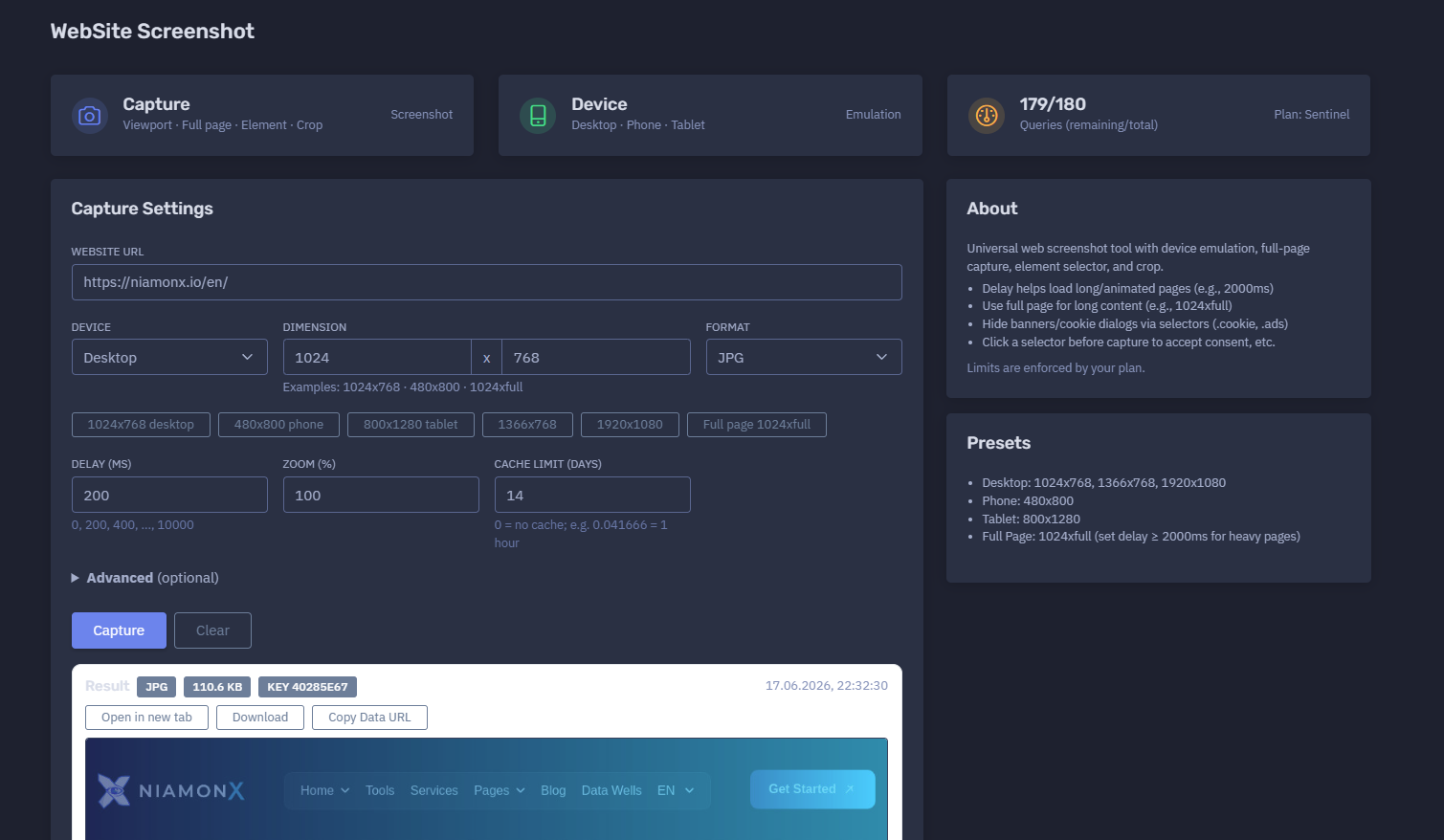
The platform available at https://dash.niamonx.io/webscreen — known as WebSite Screenshot — is a universal web screenshot and page-capture tool within the NiamonX platform. It allows users to capture visual snapshots of websites using desktop, phone, or tablet emulation, with support for viewport screenshots, full-page screenshots, DOM element capture, selector-based interaction, crop areas, custom headers, cookies, language settings, zoom, delay, cache control, and multiple output formats.
Overview of the Service
WebSite Screenshot is designed to help users capture accurate visual evidence of web pages, interfaces, landing pages, dashboards, public websites, suspicious pages, phishing pages, brand impersonation pages, documentation pages, and web content that needs to be reviewed, archived, or shared.
The tool can emulate different devices and screen sizes, wait for dynamic content to load, hide unwanted elements, click selectors before capture, crop a specific area, or capture the entire page. It is useful for OSINT analysts, SOC teams, brand protection teams, compliance departments, QA engineers, developers, investigators, content reviewers, and support teams.
The module supports several capture modes and configuration options, making it suitable for both quick screenshots and more controlled technical captures.
🔍 How the Tool Works
When a user enters a website URL and selects capture settings, WebSite Screenshot loads the page in a controlled rendering environment and creates a screenshot based on the selected options.
The tool can capture:
-
Standard viewport screenshots
-
Full-page screenshots
-
Mobile screenshots
-
Tablet screenshots
-
Desktop screenshots
-
Specific DOM elements
-
Cropped areas
-
Pages after clicking a selector
-
Pages after hiding selected elements
-
Pages with custom language, user-agent, or cookies
The result is returned as an image file with size, format, cache key, timestamp, and screenshot preview.
Example capture configuration:
Website URL: https://niamonx.io/en/
Device: Desktop
Dimension: 1024x768
Format: JPG
Delay: 200 ms
Zoom: 100%
Example result:
JPG
110.6 KB
Key: 40285e67
17.06.2026, 22:32:30
🧩 What Can Be Captured
WebSite Screenshot supports full website URLs.
Valid examples:
https://niamonx.io/en/
https://example.com/
https://docs.example.com/page
Unsupported or invalid examples:
example.com
niamonx.io/en/
localhost
file:///C:/page.html
For best results, users should enter a complete URL with http:// or https://.
⚙️ Capture Settings
The Capture Settings panel contains the main screenshot configuration options.
Website URL
The full URL of the page to capture.
Example:
https://niamonx.io/en/
The URL should include the protocol and should point to a page that can be loaded by the screenshot backend.
Device
The device setting controls browser emulation.
Available device modes may include:
-
Desktop
-
Phone
-
Tablet
Device emulation affects viewport size, user-agent behavior, layout rendering, and responsive design.
Example:
Device: Desktop
Dimension
The dimension field defines viewport width and height.
Example:
1024 x 768
Supported examples:
1024x768
480x800
1024xfull
The full height mode captures the full page instead of only the visible viewport.
Format
The output format controls the image type.
Example:
Format: JPG
Possible output formats may include:
-
JPG
-
PNG
-
WebP, depending on backend support
JPG is usually best for smaller file size. PNG is useful when sharper UI text, transparency, or lossless output is required.
Delay
Delay controls how long the tool waits before taking the screenshot.
Example:
Delay: 200 ms
Supported delay values may include:
0, 200, 400, ..., 10000
Delay is useful for pages that load content dynamically, show animations, fetch API data, display cookie banners, or need time for layout stabilization.
Recommended values:
| Page Type | Suggested Delay |
|---|---|
| Static page | 0–400 ms |
| Normal dynamic website | 1000–2000 ms |
| Heavy page / animations | 2000–5000 ms |
| Full-page capture | 2000 ms or more |
| Complex dashboards | 3000–10000 ms |
Zoom
Zoom controls the rendering scale.
Example:
Zoom: 100%
Zoom can be used when users need to capture a wider area, make text smaller or larger, or reproduce a specific visual layout.
Cache Limit
Cache limit controls how long a screenshot result may be reused.
Example:
Cache limit: 14 days
Special value:
0 = no cache
Example for one hour:
0.041666 = 1 hour
Caching improves speed and reduces repeated captures for the same URL and settings. When fresh visual evidence is required, cache should be disabled or reduced.
🖥️ Device Presets
The tool supports common device presets.
Desktop
Recommended sizes:
1024x768
1366x768
1920x1080
Desktop mode is useful for:
-
Standard website screenshots
-
Admin panels
-
Landing pages
-
Documentation pages
-
Full-width layouts
-
Web app interfaces
Phone
Recommended size:
480x800
Phone mode is useful for:
-
Mobile responsive testing
-
Mobile phishing page review
-
Mobile landing page capture
-
App-like web interface screenshots
-
Mobile UX documentation
Tablet
Recommended size:
800x1280
Tablet mode is useful for:
-
Tablet responsive testing
-
Mid-size layouts
-
Touch-oriented pages
-
Product QA workflows
Full Page
Example:
1024xfull
Full-page capture is useful for:
-
Long landing pages
-
Documentation pages
-
Terms and policy pages
-
Blog posts
-
Phishing kits
-
Evidence collection
-
Website archive snapshots
For heavy pages, a delay of at least 2000 ms is recommended.
🧠 Advanced Options
The Advanced section allows more precise control over the capture.
CSS Selector
The CSS Selector field captures a specific DOM element instead of the whole viewport.
Example:
#main-content
.article-body
Use cases:
-
Capture one component
-
Capture a login box
-
Capture a pricing table
-
Capture an article
-
Capture a modal
-
Capture a specific evidence block
Click Selector
The click selector is used to click an element before the screenshot is taken.
Examples:
.cookie-accept
#close
Use cases:
This option is useful for pages that require one simple interaction before capture.
Hide Selectors
Hide selectors remove or visually hide unwanted elements before capture.
Example:
.ads, .cookie, #modal
Use cases:
-
Hide advertisements
-
Hide cookie banners
-
Hide popups
-
Hide floating chat widgets
-
Hide overlays
-
Clean up screenshots for reports
Users should use this carefully when capturing evidence. If the screenshot is used for compliance, legal, or incident response, the report should mention that some elements were hidden.
Crop
The crop option captures a specific rectangle from the rendered page.
Format:
x,y,width,height
Example:
100,0,800,300
Use cases:
-
Capture header area
-
Capture only above-the-fold content
-
Capture one section of a page
-
Remove irrelevant page areas
-
Produce compact evidence images
Accept-Language
The Accept-Language field controls the language preference sent with the request.
Example:
en-US
This is useful when websites show different content based on language settings.
Examples:
en-US
de-DE
uk-UA
ru-RU
User-Agent
The User-Agent field allows custom browser identification.
Example:
Mozilla/5.0 (...)
Use cases:
-
Desktop browser emulation
-
Mobile browser emulation
-
Testing responsive behavior
-
Checking bot filtering behavior
-
Comparing content shown to different clients
Custom user-agent should be used responsibly and documented when screenshots are used as evidence.
Cookies
Format:
name1=value1;name2=value2
Use cases:
-
Capture authenticated-like states when authorized
-
Preserve consent state
-
Set language or region preferences
-
Reproduce a specific user session state
-
Capture pages that depend on cookie-based settings
📊 Result Section
After a successful capture, the result panel displays screenshot output details.
Typical fields include:
| Field | Description |
|---|---|
| Format | Output image format |
| File size | Size of generated screenshot |
| Key | Cache or result key |
| Timestamp | Capture time |
| Preview | Screenshot preview |
Example:
JPG
110.6 KB
Key 40285e67
17.06.2026, 22:32:30
The preview allows users to quickly verify that the capture looks correct before saving or using it in a report.
🕓 Local History
The tool stores recent capture requests locally in the user’s browser.
Example behavior:
Stores last 100 queries in your browser.
History entries may include:
-
Device mode
-
URL
-
Dimension
-
Output format
-
Capture timestamp
Example history item:
desktop
https://niamonx.io/en/
1024x768
JPG
17.06.2026, 22:32:30
Local history helps users repeat previous captures with the same settings.
Because history is stored locally, it may be cleared when users delete browser data, switch devices, or use a different browser profile.
🚦 Query Limits and Plan Access
WebSite Screenshot uses plan-based query limits.
Example:
179 / 180
Queries remaining / total
Plan: Sentinel
Important points:
-
Each capture request may consume plan quota.
-
Limits are enforced by the user’s plan.
-
Repeated captures with no cache may consume more requests.
-
Cached results may reduce repeated processing.
-
Large full-page captures may require more backend resources.
Users should monitor remaining queries when performing bulk captures or evidence collection.
🧠 Key Features
Universal Web Screenshot Capture
Captures public web pages and web interfaces into image format.
Device Emulation
Supports desktop, phone, and tablet modes.
Custom Viewport
Allows custom width and height values.
Full-Page Capture
Supports long-page screenshot capture using full height.
Element Capture
Captures a specific DOM element using a CSS selector.
Crop Capture
Captures a specific rectangle from the rendered page.
Delay Control
Waits before capture to allow dynamic content to load.
Zoom Control
Adjusts rendering scale.
Output Format Selection
Supports image output such as JPG and other configured formats.
Cookie and Header Control
Supports custom cookies, language headers, and user-agent.
Selector Interaction
Can click selectors before capture and hide selected elements.
Cache Control
Allows caching screenshot results for a configurable number of days.
Local History
Stores last 100 capture requests in the browser.
Plan-Based Limits
Access and query volume depend on the user’s plan.
🔎 Common Use Cases
WebSite Screenshot supports many practical workflows.
OSINT Evidence Capture
Capture public web pages for investigation notes.
Phishing Page Documentation
Capture suspicious login pages, clone pages, or malicious landing pages.
Brand Protection
Document impersonation pages, fake stores, fake login pages, or unauthorized brand use.
SOC and Incident Response
Attach visual evidence to security incidents and tickets.
Website QA
Test desktop, phone, and tablet rendering.
Compliance Review
Capture policy pages, consent banners, or public disclosures.
Content Monitoring
Create screenshots of public pages for review.
Support Documentation
Capture UI states for support tickets or user guides.
Archive Snapshots
Preserve visual appearance of pages at a specific time.
📸 Full-Page Capture
Full-page capture is useful when the content extends below the visible viewport.
Example:
1024xfull
Recommended settings for heavy pages:
Delay: 2000 ms or higher
Full-page screenshots are useful for:
-
Long product pages
-
Documentation
-
Blog posts
-
Terms pages
-
Phishing kits
-
Evidence reports
-
Landing pages
-
Marketing pages
Full-page captures may be larger and may take longer to process.
🧩 Element Capture
Element capture allows users to screenshot only a specific part of a page.
Example selector:
#pricing
This is useful when the user needs a clean image of one section without surrounding content.
Common selectors:
#main
.article
.login-form
.pricing-table
.hero
Element capture depends on valid CSS selectors and page structure. If the selector does not match any element, the capture may fail or return an empty result.
🧹 Cleaning the Page Before Capture
The tool can click and hide elements before capturing.
Click Selector
Use this to accept consent or close overlays.
Example:
.cookie-accept
Hide Selectors
Use this to remove visual clutter.
Example:
.ads, .cookie, #modal
Common elements to hide:
For evidence workflows, users should document any hidden or clicked elements so the screenshot remains transparent and reproducible.
🌍 Language, Region, and Session Context
Web pages may show different content depending on browser headers, cookies, region, and device.
WebSite Screenshot provides controls for:
-
Accept-Language
-
User-Agent
-
Cookies
-
Device mode
-
Viewport size
These settings help reproduce specific page states.
Examples:
Accept-Language: en-US
Device: Phone
Dimension: 480x800
Cookies: region=de;consent=yes
This is useful when investigating region-specific phishing pages, localized landing pages, or responsive layouts.
🧾 Cache Behavior
The cache limit controls how long the screenshot result can be reused.
Examples:
0 = no cache
14 = cache for 14 days
Cache is useful for:
-
Repeating the same capture
-
Reducing backend load
-
Faster access to previous results
-
Consistent screenshots for reports
No-cache mode is useful when:
-
The page changes frequently
-
Fresh evidence is required
-
Investigating live incidents
-
Verifying takedown status
-
Capturing time-sensitive content
⚠️ Result Interpretation
Screenshots should be interpreted carefully.
Important notes:
-
A screenshot captures only one point in time.
-
Dynamic pages may change after capture.
-
Ads, geolocation, cookies, and language can change page content.
-
Some pages detect automation or block rendering.
-
Delays may affect whether content appears.
-
Full-page screenshots can miss lazy-loaded content if it does not load properly.
-
Hidden selectors change the visible evidence.
-
Click selectors may alter the page state.
-
Cached screenshots may not show the latest page version.
-
A screenshot does not prove who controls the website.
For investigations, screenshots should be combined with timestamp, URL, DNS data, WHOIS, HTTP headers, TLS certificate data, and raw page evidence when available.
✅ Recommended Capture Workflow
A practical screenshot workflow should follow these steps.
1. Enter the Full URL
Use https:// or http:// and include the exact path.
2. Choose Device Mode
Select desktop, phone, or tablet depending on the page version you need.
3. Set Dimensions
Use a standard viewport such as 1024x768, 480x800, or 1024xfull.
4. Choose Format
Use JPG for small files or PNG when sharper UI quality is needed.
5. Set Delay
Use at least 2000 ms for heavy or dynamic pages.
6. Handle Popups
Use click selector or hide selectors for cookie banners, ads, or modals when appropriate.
7. Use Full Page or Crop
Use full page for long content or crop for a precise section.
8. Set Language and Cookies if Needed
Use Accept-Language, User-Agent, or Cookies to reproduce a specific state.
9. Review Preview
Confirm that the screenshot captured the correct content.
10. Save Evidence Securely
Store screenshots and settings together when used for investigations or reports.
🛡️ Security, Privacy & Responsible Use
WebSite Screenshot is intended for lawful web capture, documentation, OSINT, QA, compliance, support, and cybersecurity workflows.
Acceptable use cases include:
-
Capturing your own websites
-
Capturing public pages for documentation
-
Phishing page evidence collection
-
Brand abuse documentation
-
QA and responsive testing
-
Compliance screenshots
-
Support and bug reports
-
SOC and incident response evidence
-
Public OSINT investigation
Users should follow responsible use principles:
-
Do not capture private pages without authorization.
-
Do not submit sensitive session cookies unless authorized.
-
Do not use screenshots for harassment, doxxing, or impersonation.
-
Do not bypass access controls.
-
Do not misuse user-agent or cookies to access restricted content.
-
Document advanced settings when screenshots are used as evidence.
-
Treat screenshot history as sensitive on shared devices.
-
Validate critical findings with additional technical evidence.
⚙️ Technical Highlights
-
Universal web screenshot tool
-
Available at
dash.niamonx.io/webscreen -
Supports website URL capture
-
Desktop, phone, and tablet emulation
-
Custom viewport dimensions
-
Full-page capture with
fullheight -
JPG output support
-
Delay control from 0 to 10000 ms
-
Zoom percentage control
-
Cache limit in days
-
CSS selector element capture
-
Click selector before capture
-
Hide selectors before capture
-
Crop region support
-
Accept-Language override
-
Custom User-Agent support
-
Cookie injection support
-
Screenshot preview
-
Result key and timestamp
-
Local browser history
-
Stores last 100 queries locally
-
Plan-based query limits
-
Suitable for OSINT, SOC, QA, compliance, documentation, and support workflows
📌 Usage Hints
-
Use full URLs with
https://orhttp://. -
Use
1024x768for standard desktop screenshots. -
Use
480x800for phone screenshots. -
Use
800x1280for tablet screenshots. -
Use
1024xfullfor long pages. -
Set delay to at least 2000 ms for heavy full-page captures.
-
Use
.cookie,.ads, or#modalin hide selectors to clean screenshots. -
Use click selector to accept consent or close overlays.
-
Use crop when only one area is needed.
-
Use cache
0when fresh evidence is required. -
Be careful with cookies and session data.
-
Remember that limits are enforced by your plan.
-
Local history stores the last 100 capture requests in the browser.
📬 Contact Information
For technical, legal, abuse, privacy, or support-related inquiries, users can contact the NiamonX team directly:
support@niamonx.io — Technical Support
other@niamonx.io — General Inquiries
takedown@niamonx.io — Privacy or Data Removal Requests
legal@niamonx.io — Legal and Compliance Matters
Alternative contact channel:
🔗 Helpdesk: https://support.niamonx.io/
Summary
NiamonX WebSite Screenshot is a flexible screenshot capture and device emulation tool for public web pages. It supports desktop, phone, and tablet rendering, custom viewport dimensions, full-page capture, element capture, crop regions, delay, zoom, cache control, selector-based clicking, selector hiding, custom language, user-agent, cookies, screenshot preview, local history, and plan-based query limits.
The tool is designed for OSINT evidence collection, phishing investigation, SOC workflows, brand protection, QA testing, compliance documentation, support cases, and web archive snapshots. Screenshots should be treated as point-in-time visual evidence and interpreted together with the capture settings, timestamp, URL, and supporting technical data.