Wifi Map & Data Search | WiFi Hotspot Intelligence
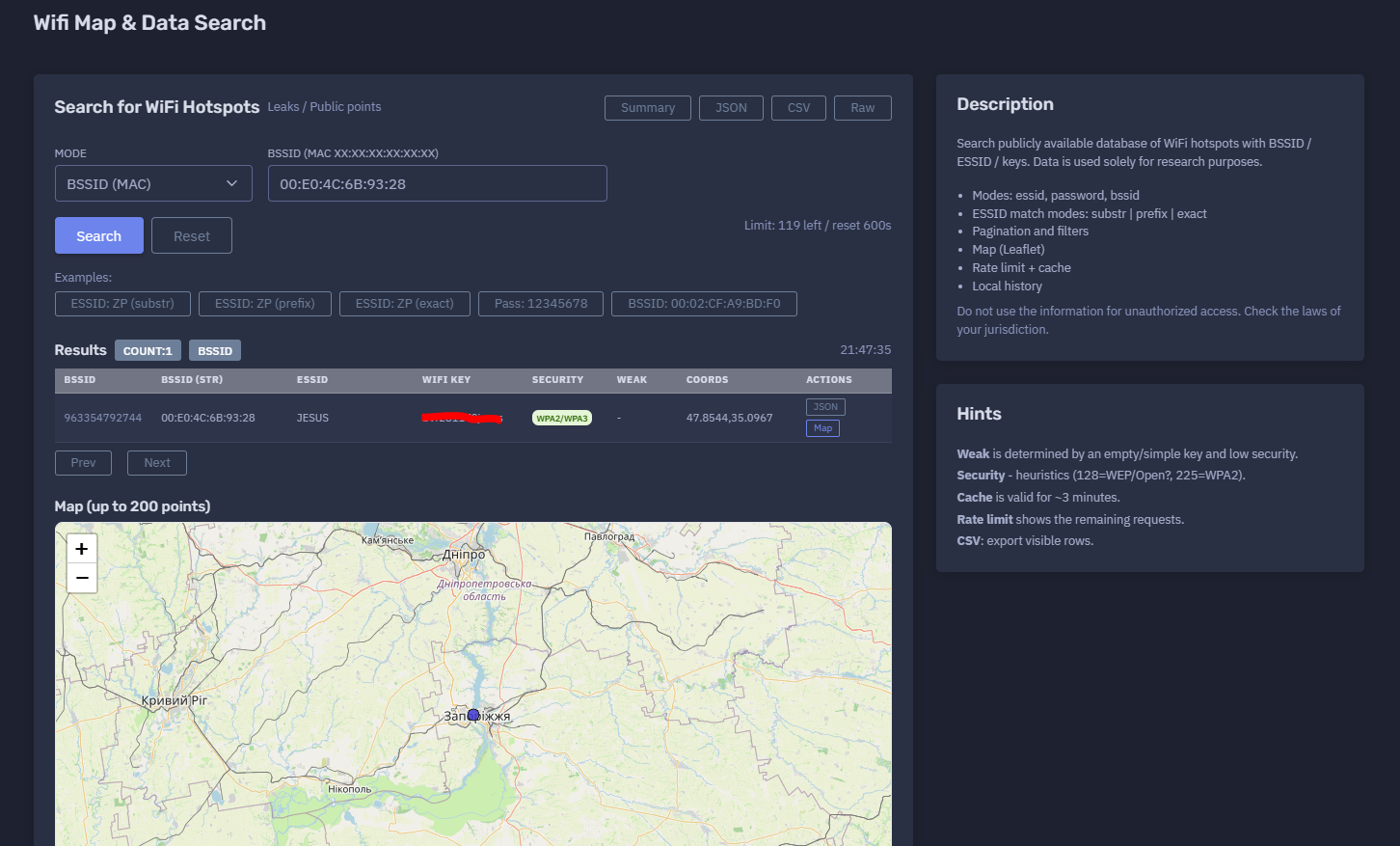
The platform available at https://dash.niamonx.io/wifi_data — known as Wifi Map & Data Search — is a WiFi hotspot intelligence and research tool within the NiamonX platform. It allows authorized users to search publicly available WiFi hotspot datasets by BSSID, ESSID, or WiFi key indicators and visualize matching access points on an interactive map.
Overview of the Service
Wifi Map & Data Search is designed for research, security analysis, wireless exposure review, and OSINT-style investigation of publicly available WiFi hotspot records.
The tool allows users to search known hotspot data using several search modes, including BSSID, ESSID, and WiFi key. Results may include network identifiers, security type, weak-key indicators, approximate coordinates, and map visualization.
The service is intended strictly for lawful research, defensive security, infrastructure audit, and awareness purposes. It must not be used to access networks without authorization.
WiFi data can be sensitive because it may include network names, access point identifiers, approximate locations, and historical credential-like values. Users must handle results responsibly and comply with local laws.
🔍 How the Search Works
When a user enters a query, the system searches a publicly available WiFi hotspot dataset using the selected mode.
Supported search modes include:
-
BSSID search
-
ESSID search
-
WiFi key search
The backend returns matching records, and the interface displays them in a structured results table. If coordinates are available, matching points can also be shown on a Leaflet map powered by OpenStreetMap.
The system supports rate limiting and short-term caching. Cache is typically valid for a few minutes, which helps reduce repeated backend requests for identical queries.
Example search flow:
-
Select a search mode.
-
Enter a BSSID, ESSID, or WiFi key indicator.
-
Submit the query.
-
Review matching hotspot records.
-
Check security type and weak-key indicators.
-
View approximate location on the map when coordinates are available.
-
Export visible rows when needed.
-
Use results only for lawful and authorized research.
🧩 What Can Be Searched
Wifi Map & Data Search supports several query types.
BSSID
BSSID is the MAC address of a wireless access point.
Example format:
00:11:22:33:44:55
BSSID search is useful when the analyst has a known access point identifier and wants to check whether it appears in the dataset.
ESSID
ESSID is the public WiFi network name, often shown as the visible WiFi name on devices.
Example:
Office_WiFi
ESSID searches may support different match modes:
-
substr -
prefix -
exact
This allows users to search for networks by full name, prefix, or partial string.
WiFi Key
WiFi key search allows checking whether a specific known key value appears in the dataset.
This mode should be used carefully and only for defensive or authorized research, such as verifying whether a weak or reused test password appears in public data.
Sensitive keys should be masked in documentation, reports, screenshots, and exports.
Example masked format:
********
⚙️ Search Modes
The tool supports multiple modes depending on the type of value being searched.
| Mode | Description |
|---|---|
bssid |
Search by access point MAC address |
essid |
Search by WiFi network name |
wifikey / password |
Search by WiFi key indicator |
Depending on the interface version, the WiFi key mode may be shown as password, wifikey, or similar internal naming.
🔎 ESSID Match Modes
ESSID search can use different matching modes.
| Match Mode | Description |
|---|---|
substr |
Finds ESSIDs containing the entered text |
prefix |
Finds ESSIDs starting with the entered text |
exact |
Finds only exact ESSID matches |
Examples:
substr: finds "Office_WiFi_Main" when searching "WiFi"
prefix: finds "Office_5G" when searching "Office"
exact: finds only "Office_WiFi"
Using exact mode reduces noise. Substring mode is useful for broad discovery but may return unrelated results.
📊 Results Table
After a successful search, matching records are shown in a structured table.
Typical columns include:
| Column | Description |
|---|---|
| BSSID | Numeric or internal BSSID representation |
| BSSID string | Standard MAC address format |
| ESSID | WiFi network name |
| WiFi Key | Key value, if present and permitted |
| Security | Detected or inferred security type |
| Weak | Weak-key or weak-security indicator |
| Coords | Latitude and longitude, if available |
| Actions | Available record actions |
Sensitive fields such as WiFi keys should be masked when screenshots, reports, or documentation are shared.
Example safe display format:
BSSID: 00:11:22:33:44:55
ESSID: Example_Network
WiFi Key: ********
Security: WPA2/WPA3
Coords: 47.0000, 35.0000
🗺️ Map View
The tool includes a map view for records with coordinates.
The map is based on Leaflet and OpenStreetMap.
The interface may display up to a limited number of points, for example:
Map: up to 200 points
The map helps users visually understand the geographic distribution of matching access points.
Map use cases:
-
Reviewing hotspot concentration
-
Checking approximate network location
-
Validating whether a BSSID appears in an expected area
-
Identifying exposed or outdated records
-
Supporting wireless infrastructure audits
Coordinates should be treated as sensitive. They may represent approximate or historical locations and should not be used for harassment, trespassing, or unauthorized access.
🧠 Key Features
Public WiFi Dataset Search
The tool searches publicly available WiFi hotspot records for research and analysis.
BSSID Lookup
Users can search for a specific access point MAC address.
ESSID Lookup
Users can search by network name with substring, prefix, or exact matching.
WiFi Key Indicator Search
Users can check whether known key values appear in the dataset for authorized security review.
Security Heuristics
The tool displays inferred security information such as WPA2, WPA3, WEP, or open-network indicators when available.
Weak Indicator
The system may mark a record as weak when the key is empty, simple, reused, or when the detected security configuration appears low-security.
Coordinates
Records may include latitude and longitude.
Leaflet Map
Matching records with coordinates can be visualized on an interactive map.
Rate Limit
The interface shows remaining requests and reset timing.
Cache
Repeated searches may be cached for a short time.
Local Request History
Recent searches are stored locally in the browser.
CSV Export
Visible rows can be exported to CSV.
🚦 Rate Limit and Cache
Wifi Map & Data Search includes rate limiting and caching.
Example rate-limit format:
Limit: 119 left / reset 600s
This means the user has a certain number of requests remaining until the reset window.
Cache behavior:
Cache is valid for approximately 3 minutes.
Caching helps reduce repeated backend lookups for identical queries and improves response speed.
Rate limits help protect the service from abuse and ensure fair access.
🕓 Request History
The Request History panel stores recent searches locally in the browser.
History entries may include:
-
Search mode
-
Query value
-
ESSID match mode
-
Timestamp
Example safe history format:
bssid
00:11:22:33:44:55
17.06.2026, 21:47:35
Local history is useful for repeating previous searches, but it may contain sensitive search values.
Users should clear browser data or local history when working on shared or public devices.
📤 CSV Export
The tool can export visible rows to CSV.
CSV export may include:
-
BSSID
-
ESSID
-
Security type
-
Weak indicator
-
Coordinates
-
Other visible record fields
Sensitive values such as WiFi keys should be masked or excluded before sharing externally.
CSV exports should be stored securely and used only for authorized research, reporting, or internal audit workflows.
🔐 Security Field Interpretation
The Security column is based on heuristics and available dataset values.
Possible security labels may include:
-
Open
-
WEP
-
WPA
-
WPA2
-
WPA3
-
WPA2/WPA3
-
Unknown
Some internal numeric values may map to security guesses.
Example interpretation:
128 = possible WEP / Open
225 = possible WPA2
These values are heuristic and should not be treated as guaranteed technical truth.
Manual validation is recommended for security audits.
⚠️ Weak Indicator
The Weak field helps identify potentially risky hotspot records.
A network may be marked weak when:
-
The key is empty
-
The key is very short
-
The key is simple or common
-
The key appears in weak-password patterns
-
The security type is low
-
The network appears open or outdated
-
The encryption method is weak or uncertain
Weak indicators should be treated as triage signals, not final conclusions.
Organizations should review their own networks and replace weak configurations with strong WPA2/WPA3 security and unique passwords.
🧠 Result Interpretation
WiFi dataset results should be interpreted carefully.
Important notes:
-
Records may be historical.
-
Coordinates may be approximate.
-
ESSID names are not unique.
-
BSSID values can be spoofed or replaced.
-
WiFi keys may be outdated.
-
Security labels are heuristic.
-
A record appearing in the dataset does not guarantee current network availability.
-
A matching WiFi key must not be used for unauthorized access.
-
Map points may not represent the current physical location of an access point.
The tool should be used for research, verification, and defensive awareness, not for intrusion or unauthorized connectivity.
✅ Recommended Research Workflow
A responsible workflow should follow these steps.
1. Select the Correct Mode
Use BSSID for access point identifiers, ESSID for network names, and WiFi key search only for authorized security review.
2. Use Exact Search When Possible
Exact search reduces false positives, especially for ESSID values.
3. Review Security and Weak Indicators
Check whether the record suggests weak security or risky configuration.
4. Check Coordinates Carefully
Use map data as approximate context, not absolute proof.
5. Avoid Exposing Keys
Mask WiFi keys in reports, screenshots, and documentation.
6. Export Only What Is Needed
Use CSV export only for authorized workflows.
7. Remediate Owned Networks
If a network you control appears with a weak key or exposed record, rotate credentials and update security settings.
8. Validate Before Action
Do not assume that dataset records are current or fully accurate.
🛡️ Security, Privacy & Responsible Use
Wifi Map & Data Search is a sensitive OSINT and research tool. It must be used responsibly.
Acceptable use cases include:
-
Auditing your own WiFi networks
-
Checking whether known BSSIDs appear in public datasets
-
Reviewing exposure of organizational hotspots
-
Researching weak or reused WiFi configurations
-
Defensive wireless security assessment
-
Academic or statistical analysis of public WiFi data
-
Mapping public hotspot exposure trends
-
Supporting compliance and risk reviews
Strictly prohibited use includes:
Users must comply with the laws of their jurisdiction and platform rules. Misuse may result in account restriction or termination.
🔧 Remediation Recommendations
If an owned or authorized network appears in search results with risky data, recommended actions include:
Change the WiFi Password
Immediately rotate exposed or weak credentials.
Use WPA2/WPA3
Avoid WEP, open networks, and outdated encryption.
Use a Strong Unique Key
Use a long, random password that is not reused elsewhere.
Disable WPS
WPS can introduce additional attack surface.
Rename Sensitive ESSIDs
Avoid exposing company names, addresses, personal names, or device roles in the ESSID.
Segment Guest Networks
Keep guest WiFi separate from internal systems.
Review Router Firmware
Update access point firmware and apply security patches.
Monitor for Re-Exposure
Recheck periodically after remediation.
⚙️ Technical Highlights
-
WiFi hotspot intelligence tool
-
Available at
dash.niamonx.io/wifi_data -
Searches publicly available WiFi hotspot datasets
-
Supports BSSID search
-
Supports ESSID search
-
Supports WiFi key indicator search
-
ESSID match modes: substring, prefix, exact
-
Results table with BSSID, ESSID, security, weak indicator, coordinates, and actions
-
Leaflet map visualization
-
OpenStreetMap base layer
-
Map displays up to a limited number of points
-
Rate-limit counter
-
Short-term cache of approximately 3 minutes
-
Local browser request history
-
CSV export for visible rows
-
Security heuristics
-
Weak-key heuristics
-
Intended for research, audit, OSINT, and defensive security workflows
📌 Usage Hints
-
Use BSSID mode for exact access point MAC lookup.
-
Use ESSID exact mode when searching for a precise network name.
-
Use ESSID prefix or substring mode for broader discovery.
-
Treat coordinates as approximate or historical.
-
Do not use discovered keys for unauthorized access.
-
Mask WiFi keys in reports and screenshots.
-
Use the Weak field as a triage signal.
-
Use Security as a heuristic, not a guaranteed classification.
-
Cache is valid for approximately 3 minutes.
-
Rate limit shows remaining requests.
-
CSV export includes visible rows.
-
Clear local history on shared devices.
-
Check local laws before using WiFi dataset intelligence.
📬 Contact Information
For technical, legal, abuse, privacy, or support-related inquiries, users can contact the NiamonX team directly:
support@niamonx.io — Technical Support
other@niamonx.io — General Inquiries
takedown@niamonx.io — Privacy or Data Removal Requests
legal@niamonx.io — Legal and Compliance Matters
Alternative contact channel:
🔗 Helpdesk: https://support.niamonx.io/
Summary
NiamonX Wifi Map & Data Search is a WiFi hotspot intelligence tool for searching publicly available hotspot records by BSSID, ESSID, or WiFi key indicators. It provides structured results, security heuristics, weak-key indicators, coordinates, Leaflet map visualization, rate limiting, short-term caching, local browser history, and CSV export.
The tool is intended for lawful research, wireless security auditing, OSINT analysis, exposure review, and defensive remediation. It must never be used for unauthorized network access, harassment, credential misuse, or privacy-invasive activity.