Phishing Check | URL Threat Inspection
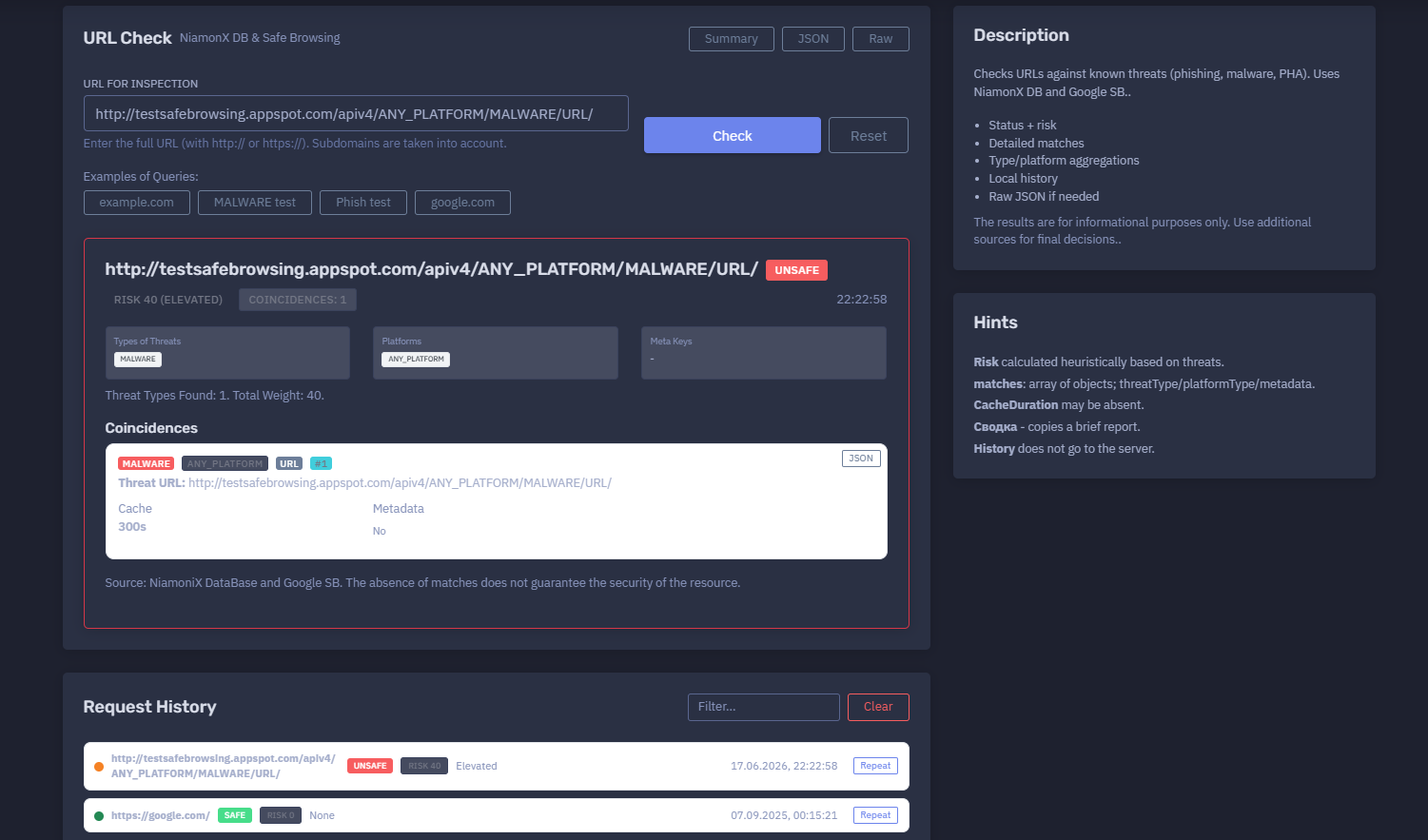
The platform available at https://dash.niamonx.io/phishing_check — known as Phishing Check — is a URL threat inspection tool within the NiamonX platform. It checks submitted URLs against known phishing, malware, unwanted software, and social engineering indicators using NiamonX threat intelligence data and Google Safe Browsing signals.
Overview of the Service
Phishing Check helps users quickly evaluate whether a URL appears in known threat datasets.
The tool is designed for cybersecurity analysts, SOC teams, incident responders, fraud investigators, compliance teams, brand protection specialists, and general users who need to inspect suspicious links before opening, sharing, or escalating them.
Phishing Check returns a structured result that includes:
-
Safety status
-
Risk score
-
Risk level
-
Threat type matches
-
Platform matches
-
Match count
-
Threat URL
-
Cache information
-
Metadata availability
-
Source information
-
Local browser request history
-
Raw JSON when needed
The tool is informational. A SAFE result does not guarantee that the resource is harmless, and an UNSAFE result should be validated with additional sources before high-impact decisions.
🔍 How the Tool Works
The user enters a full URL, including protocol.
Example:
https://example.com/
or:
http://testsafebrowsing.appspot.com/apiv4/ANY_PLATFORM/MALWARE/URL/
The tool checks the URL against threat intelligence sources, including:
-
NiamonX Database
-
Google Safe Browsing signals
The system then returns a result such as:
-
SAFE
-
UNSAFE
-
Unknown / no matches
-
Error or unavailable, depending on backend response
If matches are found, the tool displays threat type, affected platform, match details, risk score, and cache information.
🧩 What Can Be Checked
Phishing Check accepts full URLs.
Supported input format:
http://example.com/path
https://sub.example.com/login
The URL must include:
-
http:// -
or
https://
Subdomains are taken into account during inspection.
Unsupported or invalid inputs:
example.com
sub.example.com/login
1.1.1.1
just-text
For accurate inspection, users should paste the complete URL exactly as received.
⚙️ Interface Structure
The Phishing Check interface contains several main areas.
URL for Inspection
The input field where the user enters the full URL.
Example:
https://example.com/
The interface reminds users to enter the full URL with http:// or https://.
Examples of Queries
The interface may provide example URLs for testing safe browsing behavior or known test patterns.
Result Panel
The result panel displays:
-
Safety status
-
Risk score
-
Risk level
-
Match count
-
Timestamp
-
Threat types
-
Platforms
-
Metadata keys
-
Detailed coincidences
-
Cache duration
-
Source
Request History
The request history stores previous URL checks locally in the browser.
📊 Result Status
The main result status indicates whether the submitted URL matched known threat intelligence data.
Common statuses:
| Status | Meaning |
|---|---|
| SAFE | No known threat match was found |
| UNSAFE | One or more threat matches were found |
| UNKNOWN | The result could not be clearly determined |
| ERROR | The check failed or backend response was unavailable |
Example unsafe result:
UNSAFE
Risk 40
Elevated
Coincidences: 1
Example safe result:
SAFE
Risk 0
None
A safe result should not be interpreted as a guarantee of security. It means the URL did not match the known threat sources used for that check.
🚦 Risk Score
The tool calculates a heuristic risk score based on detected threats.
Example:
Risk 40 (Elevated)
Risk score may consider:
-
Threat type
-
Number of matches
-
Source confidence
-
Platform type
-
Metadata indicators
-
Threat weight
-
Known malicious classification
Example interpretation:
| Risk Level | Meaning |
|---|---|
| None | No known threat match |
| Low | Weak or limited indicators |
| Elevated | Known threat match or moderate risk |
| High | Strong threat evidence |
| Critical | Severe or multiple high-confidence indicators |
The exact score is calculated by the platform’s internal heuristic logic.
🧬 Threat Types
The Types of Threats section lists the threat categories found for the URL.
Possible threat types may include:
Example:
Types of Threats
MALWARE
Threat type helps analysts understand the nature of the risk.
Malware
The URL may be associated with malware delivery, payload hosting, infection chains, or malicious downloads.
Social Engineering / Phishing
The URL may be associated with credential theft, impersonation, fake login pages, payment fraud, or deceptive content.
Potentially Harmful Application
The URL may be associated with harmful applications or mobile threats.
🖥️ Platform Types
The Platforms section shows which platform category the threat applies to.
Example:
ANY_PLATFORM
Possible platform values may include:
-
ANY_PLATFORM
-
WINDOWS
-
LINUX
-
OSX
-
ANDROID
-
IOS
-
CHROME
-
Other backend-supported platform categories
ANY_PLATFORM means the threat is not limited to a specific operating system or device type.
🎯 Coincidences / Matches
The Coincidences section displays detailed matches returned by the threat intelligence check.
A match may include:
| Field | Description |
|---|---|
| Threat type | Malware, phishing, social engineering, or other category |
| Platform | Affected platform category |
| Entry type | URL or other supported indicator type |
| Threat URL | URL that matched threat intelligence |
| Metadata | Additional threat details, if available |
| Cache | Cache duration, when returned |
Example match:
Threat Type: Malware
Platform: ANY_PLATFORM
Entry Type: URL
Threat URL: http://example.test/malware/
The match details help analysts understand exactly what triggered the unsafe classification.
🧾 Metadata
The metadata section indicates whether additional metadata was returned.
Example:
Metadata: No
When metadata is available, it may contain additional context such as:
-
Threat labels
-
Provider-specific attributes
-
Match properties
-
Threat confidence
-
Campaign indicators
-
Source-specific fields
Metadata availability depends on the backend source and threat type.
🕒 Cache
The tool may show cache duration for the result.
Example:
Cache: 300s
Cache duration means the result may be reused for a short period to reduce repeated lookups and improve performance.
Important notes:
-
Cached results may not reflect the very latest reputation state.
-
A URL’s reputation can change quickly.
-
Repeat checks may use cached data until the cache expires.
-
Cache duration may be absent in some responses.
🧾 Raw JSON
The tool can provide Raw JSON when needed.
Raw JSON may include:
-
Result status
-
Risk score
-
Risk level
-
Threat matches
-
Threat type
-
Platform type
-
Metadata fields
-
Cache duration
-
Source indicators
-
Backend response details
Raw JSON is useful for:
-
SOC workflows
-
Case management
-
Automation
-
Evidence preservation
-
Incident response
-
Threat intelligence pipelines
-
Internal reporting
Raw output should be handled carefully when it contains suspicious URLs, investigation notes, or threat indicators.
🕓 Request History
Phishing Check stores URL check history locally in the browser.
History entries may include:
-
URL
-
Safety status
-
Risk score
-
Risk level
-
Timestamp
Example history item:
https://example.com/
SAFE
Risk 0
None
Important privacy behavior:
History does not go to the server.
Local history is useful for repeating checks and reviewing past inspections.
Because the history is browser-local, it may be cleared when users delete browser data or switch devices.
🧠 Key Features
URL Threat Check
Checks full URLs against known threat indicators.
NiamonX Database
Uses NiamonX threat intelligence data.
Google Safe Browsing Signals
Uses Google Safe Browsing-style threat classifications.
Status and Risk
Shows SAFE / UNSAFE status, risk score, and risk level.
Detailed Matches
Displays threat type, platform type, entry type, and matched threat URL.
Aggregations
Shows threat type and platform aggregations.
Cache Awareness
Displays cache duration when available.
Metadata Support
Shows metadata when returned by the backend.
Local History
Stores previous URL checks locally in the browser.
Raw JSON
Provides structured technical data for advanced review.
Summary Copy
Allows copying a brief report for sharing or documentation.
🔎 Common Use Cases
Phishing Check can support many defensive workflows.
Suspicious Link Review
Check a URL before opening it.
SOC Triage
Inspect URLs from alerts, emails, chat messages, endpoint logs, or proxy logs.
Phishing Investigation
Confirm whether a URL is associated with social engineering or credential theft.
Malware URL Review
Check whether a link is associated with malware delivery.
User Report Validation
Analyze URLs reported by employees or customers.
Brand Protection
Check suspicious domains or URLs impersonating a company.
Incident Response
Document known malicious URLs during security incidents.
Email Security Review
Inspect links extracted from suspicious messages.
Threat Intelligence Enrichment
Add URL reputation information to internal cases or watchlists.
⚠️ Result Interpretation
Phishing Check results should be interpreted carefully.
Important points:
-
Absence of matches does not guarantee that a URL is safe.
-
New phishing pages may not yet appear in threat databases.
-
A safe result may become unsafe later.
-
An unsafe result should be validated if it will be used for legal, HR, or customer-facing action.
-
URL reputation can vary by path, subdomain, and query string.
-
Subdomains are taken into account.
-
Shortened links should be expanded and checked carefully.
-
Cache may temporarily return a previous result.
-
Some malicious pages show different content by region, device, browser, or time.
-
A URL may redirect after inspection.
For high-risk cases, combine Phishing Check with sandbox analysis, DNS review, WHOIS, certificate inspection, HTTP header review, screenshot analysis, and endpoint telemetry.
✅ Recommended Analyst Workflow
A practical phishing review workflow should follow these steps.
1. Copy the Full URL
Include the full http:// or https:// URL exactly as received.
2. Run the Check
Submit the URL for inspection.
3. Review Status
Check whether the result is SAFE or UNSAFE.
4. Review Risk Score
Use risk score and level for triage.
5. Check Threat Types
Identify whether the match is malware, phishing, social engineering, or another category.
6. Review Platform Types
Check whether the threat is platform-specific or applies to any platform.
7. Inspect Coincidences
Review detailed match objects and threat URL.
8. Copy Summary
Use the summary copy function for tickets or incident reports.
9. Use Raw JSON When Needed
Open Raw JSON for automation, evidence, or deeper analysis.
10. Validate With Additional Sources
Use multiple security sources before making final decisions.
🛡️ Security, Privacy & Responsible Use
Phishing Check is intended for lawful cybersecurity, fraud prevention, incident response, and URL safety analysis.
Acceptable use cases include:
-
Checking suspicious URLs
-
Investigating phishing reports
-
SOC alert triage
-
Malware link review
-
Email security analysis
-
Brand protection
-
Threat intelligence enrichment
-
Incident documentation
-
User safety checks
Users should follow responsible use rules:
-
Do not open suspicious URLs directly in a normal browser.
-
Do not submit private tokens, session URLs, or sensitive internal links unless authorized.
-
Do not use results as the only source for high-impact decisions.
-
Do not weaponize threat data for phishing, malware distribution, or social engineering.
-
Validate malicious classifications before public reporting.
-
Treat URL history as potentially sensitive on shared devices.
-
Use safe environments when investigating live malicious content.
⚙️ Technical Highlights
-
URL threat inspection tool
-
Available at
dash.niamonx.io/phishing_check -
Requires full URL with
http://orhttps:// -
Subdomains are taken into account
-
Uses NiamonX Database
-
Uses Google Safe Browsing signals
-
Detects known threats such as phishing, malware, social engineering, and PHA
-
Displays SAFE / UNSAFE status
-
Calculates heuristic risk score
-
Displays risk level
-
Shows threat type aggregation
-
Shows platform aggregation
-
Shows detailed match objects
-
Shows matched threat URL
-
Shows cache duration when available
-
Shows metadata when available
-
Supports Raw JSON
-
Supports brief summary copying
-
Stores request history locally in browser
-
History is not sent to server
-
Suitable for SOC triage, phishing investigation, malware URL review, and threat intelligence workflows
📌 Usage Hints
-
Enter the full URL with
http://orhttps://. -
Include the exact suspicious path when possible.
-
Subdomains are included in the inspection.
-
Risk is calculated heuristically based on threats.
-
matchesmay includethreatType,platformType, and metadata. -
CacheDurationmay be absent. -
A SAFE result does not guarantee that the resource is safe.
-
Use additional sources for final decisions.
-
Use summary copy for quick reports.
-
Use Raw JSON for technical workflows.
-
Local history stays in the browser and is not sent to the server.
-
Avoid opening suspicious URLs outside a safe environment.
📬 Contact Information
For technical, legal, abuse, privacy, or support-related inquiries, users can contact the NiamonX team directly:
support@niamonx.io — Technical Support
other@niamonx.io — General Inquiries
takedown@niamonx.io — Privacy or Data Removal Requests
legal@niamonx.io — Legal and Compliance Matters
Alternative contact channel:
🔗 Helpdesk: https://support.niamonx.io/
Summary
NiamonX Phishing Check is a URL threat inspection tool that checks full URLs against NiamonX Database and Google Safe Browsing signals.
It returns SAFE / UNSAFE status, heuristic risk score, risk level, threat types, platform types, detailed matches, cache information, metadata, local history, summary copy, and Raw JSON.
The tool is designed for phishing investigation, malware URL review, SOC triage, brand protection, incident response, email security analysis, and threat intelligence enrichment. Results are informational and should be validated with additional sources before final decisions.