IP / Domain Explorer | IP and Domain Geolocation & Network Intelligence
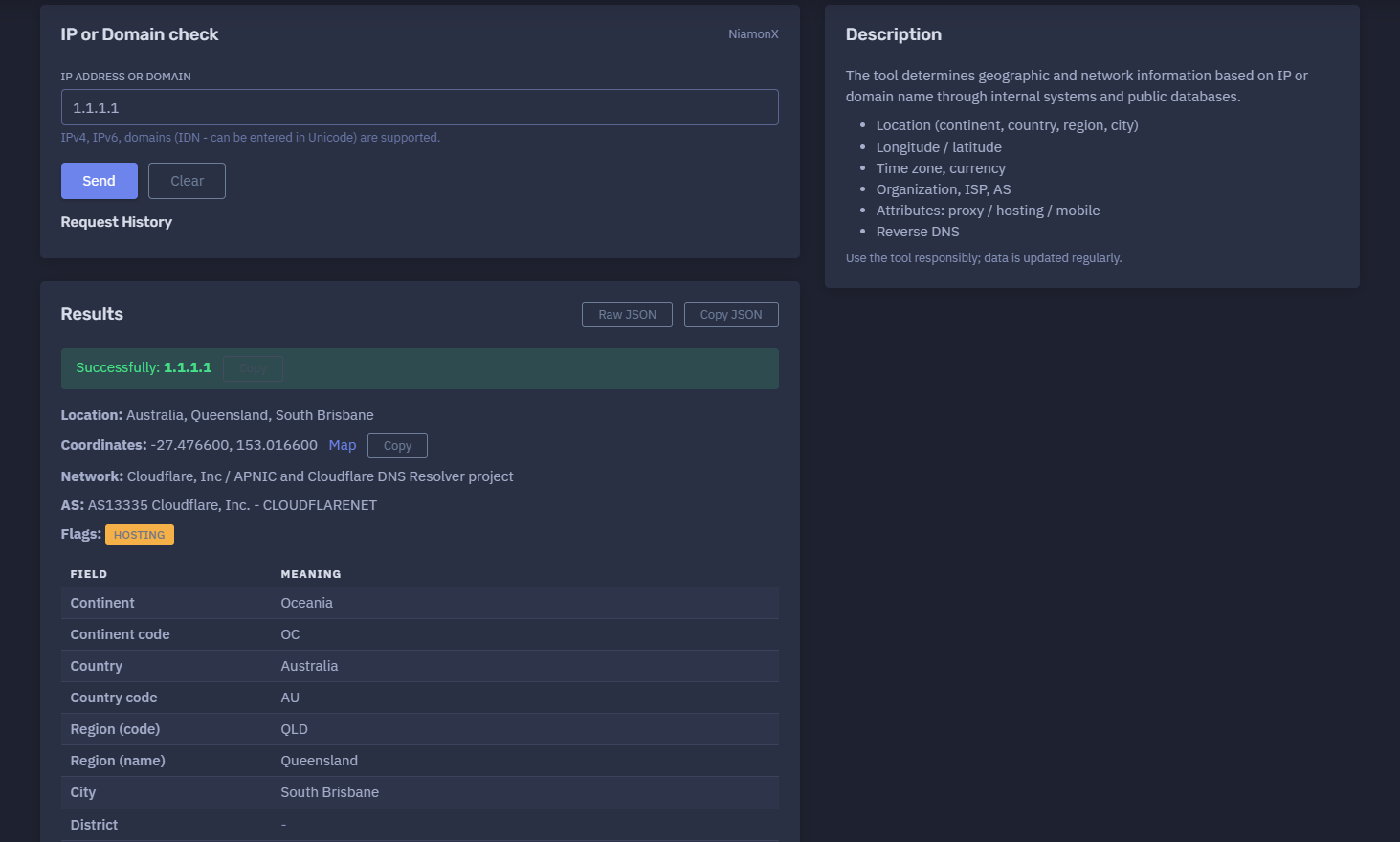
The platform available at https://dash.niamonx.io/ipexplorer — known as IP / Domain Explorer — is a lightweight IP and domain intelligence tool within the NiamonX platform. It allows users to check geographic, network, ASN, ISP, reverse DNS, and infrastructure attributes for an IPv4 address, IPv6 address, or domain name.
Overview of the Service
IP / Domain Explorer is designed to quickly identify where an IP address or domain is located from a network intelligence perspective and which organization, ISP, Autonomous System, and infrastructure attributes are associated with it.
The tool combines internal NiamonX systems with public databases to provide a structured overview of IP or domain metadata. It is useful for cybersecurity analysts, SOC teams, system administrators, fraud investigators, OSINT researchers, compliance teams, and technical users who need a fast way to understand the basic network profile of an address or domain.
The module supports:
-
IPv4 addresses
-
IPv6 addresses
-
Domains
-
Internationalized domain names entered in Unicode
The result includes location, coordinates, timezone, currency, network ownership, ASN, reverse DNS, and classification flags such as proxy, hosting, or mobile network.
🔍 How the Tool Works
When a user enters an IP address or domain name, IP / Domain Explorer performs a lookup through internal systems and public intelligence databases.
For domain input, the tool resolves or analyzes the domain and returns the available network and geolocation information. For IP input, the tool directly checks the IP address against available IP intelligence sources.
The returned result is displayed as a structured report containing:
-
Location
-
Coordinates
-
Network owner
-
ISP
-
Organization
-
Autonomous System
-
Reverse DNS
-
Hosting / proxy / mobile flags
-
Timezone
-
Currency
-
HTTP status
-
Source information
The result is intended to provide quick situational awareness, not a final legal or attribution conclusion.
🧩 What Can Be Searched
IP / Domain Explorer accepts the following input types.
IPv4 Address
Example:
1.1.1.1
IPv6 Address
Example:
2606:4700:4700::1111
Domain Name
Example:
example.com
Internationalized Domain Name
Domains with Unicode characters are supported when accepted by the backend.
Example:
пример.рф
The tool should not be used with full URLs, URL paths, or unrelated search operators.
Invalid examples:
https://example.com/login
example.com/path/page.html
1.1.1.1:443
For best results, users should enter only a clean IP address or domain name.
⚙️ Search Interface
The main interface contains a simple input field.
IP Address or Domain
The user enters an IPv4 address, IPv6 address, or domain.
Example:
1.1.1.1
The interface indicates that IPv4, IPv6, and domains are supported, including IDN domains entered in Unicode.
After submission, the tool returns a structured result panel.
📊 Result Overview
A successful lookup displays a short summary at the top of the result.
Example structure:
Successfully: 1.1.1.1
Location: Australia, Queensland, South Brisbane
Coordinates: -27.476600, 153.016600
Network: Cloudflare, Inc / APNIC and Cloudflare DNS Resolver project
AS: AS13335 Cloudflare, Inc. - CLOUDFLARENET
Flags: Hosting
This summary gives the user a quick understanding of:
-
Whether the lookup succeeded
-
Where the IP is geographically mapped
-
Which organization or ISP operates it
-
Which AS network it belongs to
-
Whether it is marked as hosting, proxy, or mobile infrastructure
🌍 Location Information
The tool returns geographic fields associated with the IP or resolved domain.
Possible location fields include:
| Field | Description |
|---|---|
| Continent | Continent name |
| Continent code | Short continent code |
| Country | Country name |
| Country code | ISO country code |
| Region code | Short region or state code |
| Region name | Full region or state name |
| City | City associated with the IP |
| District | District or area, if available |
| Postal code | Postal or ZIP code, if available |
| Latitude | Approximate latitude |
| Longitude | Approximate longitude |
Example:
Continent: Oceania
Country: Australia
Region: Queensland
City: South Brisbane
Latitude: -27.476600
Longitude: 153.016600
Geolocation data should be treated as approximate. It may represent a network registration location, provider infrastructure, routing endpoint, cloud region, or database estimate rather than the exact physical location of a device or user.
🗺️ Coordinates and Map
When latitude and longitude are available, the result can show a map link or map view.
Coordinates are useful for:
-
Approximate location review
-
Network region analysis
-
Fraud investigation context
-
Infrastructure mapping
-
SOC triage
-
OSINT enrichment
-
Regional routing analysis
Important interpretation:
-
IP coordinates are not GPS coordinates of a person.
-
Cloud and CDN IPs often map to provider infrastructure.
-
VPN, proxy, and hosting IPs may not represent the real user location.
-
Geolocation accuracy varies by provider and region.
Coordinates should be used as context, not as proof of physical presence.
🏢 Network and Organization
The tool displays network ownership and provider details.
Possible fields include:
| Field | Description |
|---|---|
| ISP | Internet Service Provider |
| Organization | Organization associated with the IP |
| AS | Autonomous System Number and organization |
| AS Name | Autonomous System name |
| Network | Combined provider and organization information |
Example:
ISP: Cloudflare, Inc
Organization: APNIC and Cloudflare DNS Resolver project
AS: AS13335 Cloudflare, Inc.
AS Name: CLOUDFLARENET
This information is useful for identifying whether an address belongs to a hosting provider, corporate network, residential ISP, CDN, DNS resolver, mobile operator, cloud platform, or other infrastructure type.
🔢 ASN Information
The AS field identifies the Autonomous System associated with the IP.
An Autonomous System is a network or group of networks operated under a single routing policy.
Example:
AS13335 Cloudflare, Inc.
ASN information is useful for:
-
Network attribution
-
Routing analysis
-
Threat intelligence enrichment
-
Provider identification
-
Abuse reporting
-
Firewall and allowlist decisions
-
Infrastructure mapping
ASN ownership should not be confused with end-user identity. Many users, services, and customers can share infrastructure under the same ASN.
🔁 Reverse DNS
The Reverse DNS field shows the PTR hostname associated with the IP address when available.
Example:
one.one.one.one
Reverse DNS is useful for:
-
Identifying service naming
-
Confirming provider ownership
-
Enriching logs
-
Detecting mail infrastructure
-
Reviewing hosting patterns
-
Investigating suspicious IPs
Reverse DNS is not always present, and when present, it may be outdated, generic, or controlled by the network operator.
🏷️ Flags and Attributes
IP / Domain Explorer can display infrastructure attributes.
Common flags include:
| Flag | Meaning |
|---|---|
| Mobile Network | Indicates whether the IP appears to belong to a mobile network |
| Proxy | Indicates whether the IP may be associated with proxy infrastructure |
| Hosting | Indicates whether the IP appears to belong to hosting, cloud, CDN, or data center infrastructure |
Example:
Mobile Network: false
Proxy: false
Hosting: true
These attributes help users quickly understand the type of infrastructure behind an IP.
Important: flags are based on available intelligence and heuristics. They should be used as indicators, not absolute proof.
🕒 Time Zone and UTC Offset
The tool returns timezone information based on the geolocation result.
Possible fields:
-
Time zone
-
UTC offset
Example:
Time zone: Australia/Brisbane
Offset: UTC+10
Timezone information is useful for:
-
Event correlation
-
Log analysis
-
Regional context
-
Fraud review
-
Incident timeline construction
-
Travel or access pattern analysis
Because IP geolocation may be approximate, timezone data should also be treated as contextual.
💱 Currency
The result may include the local currency for the detected country.
Example:
Currency: AUD
Currency is useful for enrichment and regional context, especially in fraud analysis, compliance workflows, and user-location review.
🌐 HTTP Code and Source
The result can include request-level metadata such as HTTP code and data source.
Example:
HTTP Code: 200
Source: niamonx.io
The HTTP code indicates whether the lookup request succeeded at the service level.
The source field identifies the platform or internal lookup provider used for the result display.
🧠 Key Features
IP and Domain Lookup
Supports IPv4, IPv6, and domain names.
IDN Support
Internationalized domain names can be entered in Unicode when supported.
Geolocation
Returns continent, country, region, city, postal code, latitude, and longitude.
Map Link
Coordinates can be used for map-based location review.
Network Ownership
Shows ISP, organization, ASN, and AS name.
Reverse DNS
Returns PTR hostname when available.
Infrastructure Flags
Displays proxy, hosting, and mobile network indicators.
Timezone and Currency
Adds regional context for investigations and analysis.
Local Request History
The interface includes request history for previous lookups.
Regularly Updated Data
Data is updated regularly through internal systems and public databases.
🧾 Results Table
The detailed results table provides field-by-field explanations.
Typical fields include:
| Field | Meaning |
|---|---|
| Continent | Geographic continent |
| Continent code | Short continent identifier |
| Country | Country name |
| Country code | ISO country code |
| Region code | State or region abbreviation |
| Region name | Full state or region |
| City | City name |
| District | District, if available |
| Postal code | Postal code, if available |
| Latitude | Approximate latitude |
| Longitude | Approximate longitude |
| Time zone | Timezone name |
| Offset UTC | UTC offset |
| Currency | Local currency |
| ISP | Internet service provider |
| Organization | Owning or related organization |
| AS | Autonomous System |
| AS Name | AS network name |
| Reverse DNS | PTR hostname |
| Mobile Network | Mobile network indicator |
| Proxy | Proxy indicator |
| Hosting | Hosting / cloud / data center indicator |
| Requested | Original query |
| HTTP Code | Lookup response code |
| Source | Data source identifier |
The table is useful for copying values into reports, incident notes, or enrichment workflows.
🔍 Common Use Cases
IP / Domain Explorer can support many legitimate workflows.
SOC Triage
Quickly enrich suspicious IPs from alerts, logs, SIEM events, or EDR telemetry.
Threat Intelligence
Identify ASN, organization, and hosting flags for IPs connected to suspicious infrastructure.
Fraud Analysis
Check whether a user IP appears to be a proxy, hosting provider, or mobile network.
Access Review
Compare login IP geolocation with expected user location.
Infrastructure Audit
Check how owned domains or IPs appear in public geolocation and network databases.
Abuse Reporting
Identify the responsible ISP or ASN before submitting abuse reports.
OSINT Investigation
Enrich IPs and domains during lawful public-source investigations.
Compliance and Risk Review
Document regional and infrastructure attributes of network indicators.
🧠 Result Interpretation
IP and domain intelligence should be interpreted carefully.
Important notes:
-
IP geolocation is approximate.
-
Hosting and proxy flags are indicators, not proof.
-
Reverse DNS may be missing or outdated.
-
Domains may resolve to CDN or cloud infrastructure.
-
CDN IPs may represent provider edge locations, not the real origin server.
-
Mobile and proxy classifications may vary by data source.
-
ASN identifies network ownership, not necessarily the person or organization using the service.
-
A domain may use different IPs over time.
-
Results should be correlated with logs, DNS records, threat intelligence, and internal context.
The tool is best used as an enrichment layer, not as a single source of truth.
✅ Recommended Analyst Workflow
A practical workflow should follow these steps.
1. Enter the IP or Domain
Use a clean IPv4 address, IPv6 address, or domain name.
2. Review Location
Check country, region, city, coordinates, timezone, and map.
3. Review Network Ownership
Check ISP, organization, ASN, and AS name.
4. Check Flags
Look for hosting, proxy, or mobile network indicators.
5. Review Reverse DNS
Use PTR data to understand service naming or provider context.
6. Compare With Logs
Correlate the lookup result with timestamps, user activity, SIEM events, or application logs.
7. Avoid Overclaiming
Do not treat geolocation as exact physical attribution.
8. Document Findings
Use the field table in reports or case notes when appropriate.
9. Repeat if DNS Changes
For domains, repeat the lookup if DNS records may have changed.
10. Validate Critical Conclusions
Use additional sources before making security, compliance, or legal decisions.
🛡️ Security, Privacy & Responsible Use
IP / Domain Explorer is intended for lawful network intelligence, cybersecurity, troubleshooting, and OSINT enrichment.
Acceptable use cases include:
-
Checking your own IP or domain
-
Enriching security logs
-
Investigating suspicious IPs
-
Reviewing infrastructure ownership
-
Fraud and abuse analysis
-
Network troubleshooting
-
SOC triage
-
Threat intelligence enrichment
-
Compliance reporting
-
Domain and DNS investigation
Users should follow responsible use rules:
-
Do not use geolocation data for stalking, harassment, or physical targeting.
-
Do not claim exact personal location from IP geolocation.
-
Do not use proxy or hosting flags as final proof of wrongdoing.
-
Do not harass network owners or abuse contacts based on weak indicators.
-
Validate important findings with additional evidence.
-
Treat local lookup history as potentially sensitive on shared devices.
-
Use the tool only for lawful and ethical analysis.
⚙️ Technical Highlights
-
IP and domain intelligence lookup
-
Available at
dash.niamonx.io/ipexplorer -
Supports IPv4
-
Supports IPv6
-
Supports domains
-
Supports IDN domains in Unicode
-
Uses internal systems and public databases
-
Returns continent, country, region, city, district, and postal code
-
Provides latitude and longitude
-
Map link for coordinates
-
Timezone and UTC offset
-
Currency enrichment
-
ISP and organization
-
Autonomous System Number
-
AS name
-
Reverse DNS
-
Proxy indicator
-
Hosting indicator
-
Mobile network indicator
-
HTTP response code
-
Source field
-
Request history
-
Regularly updated data
-
Suitable for SOC, OSINT, fraud analysis, network troubleshooting, and infrastructure review
📌 Usage Hints
-
Enter only an IP address or domain name.
-
Do not enter full URLs or paths.
-
Use IPv4 or IPv6 for direct IP lookup.
-
Use domain lookup when you need resolved network context.
-
Treat geolocation as approximate.
-
Check ASN and organization for network ownership.
-
Use hosting and proxy flags as indicators, not final proof.
-
Review reverse DNS for additional context.
-
For CDN-backed domains, remember that the IP may belong to the CDN, not the origin server.
-
Correlate results with logs and other intelligence sources.
-
Use the tool responsibly; data is updated regularly.
📬 Contact Information
For technical, legal, abuse, privacy, or support-related inquiries, users can contact the NiamonX team directly:
support@niamonx.io — Technical Support
other@niamonx.io — General Inquiries
takedown@niamonx.io — Privacy or Data Removal Requests
legal@niamonx.io — Legal and Compliance Matters
Alternative contact channel:
🔗 Helpdesk: https://support.niamonx.io/
Summary
NiamonX IP / Domain Explorer is a fast IP and domain intelligence tool for checking geolocation, ASN, ISP, organization, reverse DNS, proxy status, hosting status, mobile network status, timezone, currency, and related network metadata.
It supports IPv4, IPv6, standard domains, and Unicode IDN domains. The tool is designed for SOC triage, OSINT enrichment, fraud analysis, infrastructure review, network troubleshooting, and compliance workflows. Results should be interpreted as contextual intelligence and validated with additional sources when used for important decisions.