GlobeLine Ping | High-Level IP Availability & RTT Check
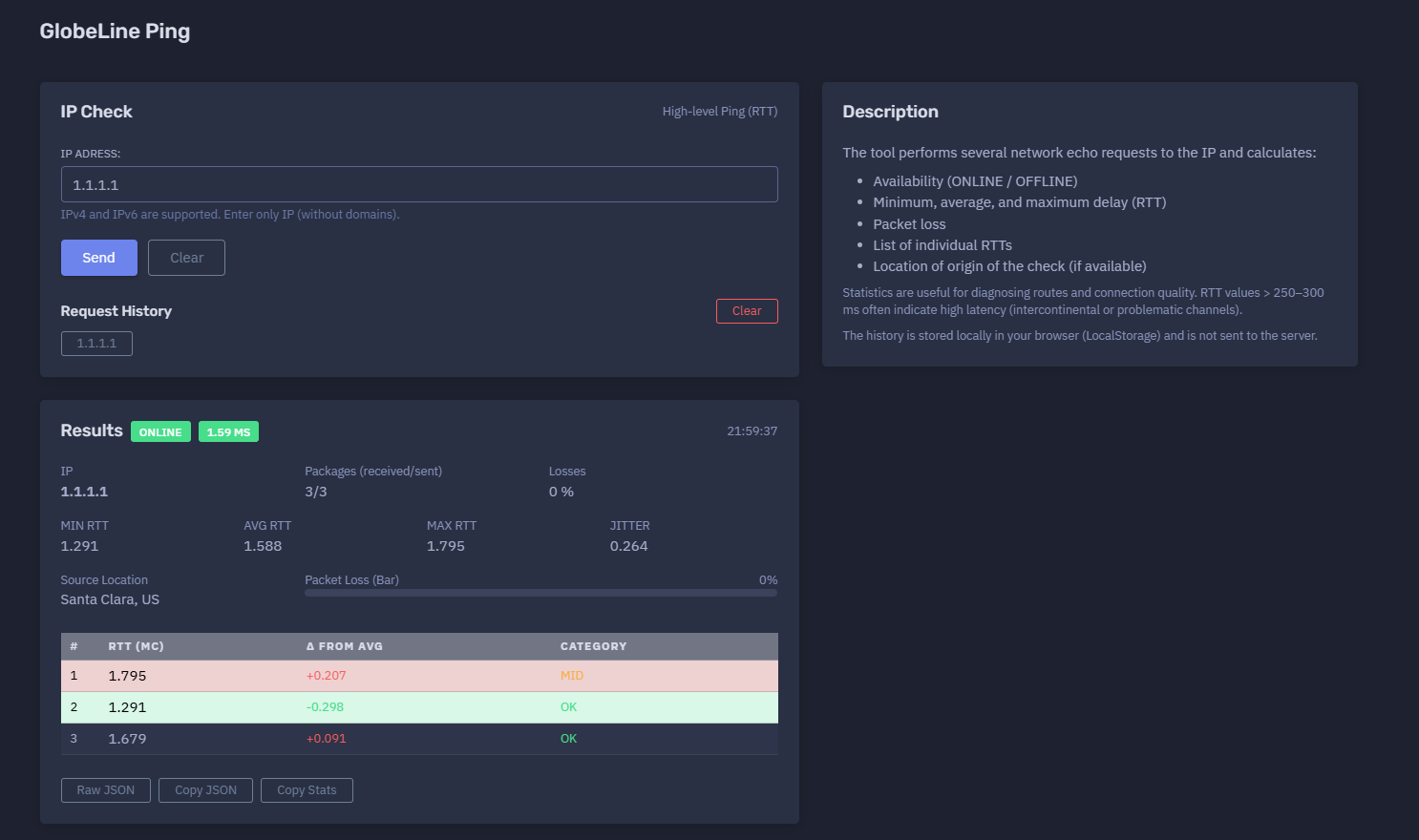
The platform available at https://dash.niamonx.io/gl_ping — known as GlobeLine Ping — is a high-level network availability and latency diagnostic tool within the NiamonX platform. It allows users to check whether an IPv4 or IPv6 address is reachable and measure connection quality through network echo requests.
Overview of the Service
GlobeLine Ping is designed to provide a fast and clear health check for an IP address. The tool sends several network echo requests to the selected IP and calculates key network quality metrics, including availability, packet loss, minimum latency, average latency, maximum latency, jitter, and individual RTT values.
The tool is useful for system administrators, SOC analysts, DevOps engineers, network engineers, infrastructure owners, cybersecurity teams, and technical users who need to quickly verify whether a host is online and how stable the connection is from the checking location.
GlobeLine Ping is a high-level diagnostic utility. It does not perform port scanning, service enumeration, exploitation, or deep packet inspection. It only checks reachability and latency characteristics for the submitted IP address.
🔍 How the Tool Works
When a user enters an IPv4 or IPv6 address, GlobeLine Ping sends several network echo requests from the NiamonX checking infrastructure.
The tool then calculates and displays:
-
Availability status
-
Number of packets sent
-
Number of packets received
-
Packet loss percentage
-
Minimum RTT
-
Average RTT
-
Maximum RTT
-
Jitter
-
Individual RTT values
-
Difference from average latency
-
RTT quality category
-
Source location of the check, when available
Example result summary:
ONLINE
1.59 ms
Packets: 3/3
Losses: 0%
MIN RTT: 1.291 ms
AVG RTT: 1.588 ms
MAX RTT: 1.795 ms
JITTER: 0.264 ms
Source Location: Santa Clara, US
This gives the user a quick understanding of whether the IP is reachable and whether the connection appears stable.
🧩 What Can Be Checked
GlobeLine Ping supports direct IP address checks.
Supported input types:
-
IPv4 address
-
IPv6 address
Examples:
1.1.1.1
8.8.8.8
2606:4700:4700::1111
Unsupported input types:
example.com
https://example.com
1.1.1.1:443
example.com/path
The tool expects only a clean IPv4 or IPv6 address. Domains and URLs are not accepted in this module.
⚙️ Search Interface
The interface contains a simple IP input field.
IP Address
The user enters the target IP address.
Example:
1.1.1.1
The interface states that IPv4 and IPv6 are supported and that the user should enter only the IP address, without domains or URLs.
After the check is completed, GlobeLine Ping displays the result status, summary metrics, packet statistics, RTT table, and source location.
📊 Result Overview
The main result panel gives a fast status summary.
Possible status values:
| Status | Meaning |
|---|---|
| ONLINE | The IP responded to the network echo requests |
| OFFLINE | The IP did not respond or could not be reached |
| UNKNOWN | The result could not be confidently determined |
Example:
ONLINE
1.59 ms
The large latency value shown next to the status usually represents the average RTT or primary response time.
📦 Packet Statistics
The tool displays packet delivery statistics.
Example:
Packages received/sent: 3/3
Losses: 0%
Received / Sent
Shows how many echo responses were received compared to how many requests were sent.
Example:
3/3
This means all three requests received responses.
Packet Loss
Packet loss shows the percentage of requests that did not receive a response.
Example:
0%
Packet loss is one of the most important indicators of connection reliability.
⏱️ RTT Metrics
RTT means Round-Trip Time. It measures how long it takes for a request to reach the target and for the response to return.
GlobeLine Ping calculates several RTT values.
Minimum RTT
The fastest response time observed during the check.
Example:
MIN RTT: 1.291 ms
Average RTT
The average response time across all received packets.
Example:
AVG RTT: 1.588 ms
Maximum RTT
The slowest response time observed during the check.
Example:
MAX RTT: 1.795 ms
Together, these values help users understand the connection’s speed and stability.
📉 Jitter
Jitter measures variation between response times.
Example:
JITTER: 0.264 ms
Low jitter means responses are consistent.
High jitter means latency is unstable, which may indicate:
-
Network congestion
-
Routing instability
-
Wireless interference
-
Provider-level issues
-
Intercontinental routing
-
Packet scheduling delays
-
Saturated links
-
Temporary infrastructure problems
Jitter is especially important for real-time services such as VoIP, video calls, gaming, remote desktops, and streaming.
🌍 Source Location
The result may include the source location of the check.
Example:
Source Location: Santa Clara, US
This tells the user where the ping check was performed from.
Source location matters because latency depends strongly on distance and routing. A target may respond quickly from one region and slowly from another.
For example:
-
A US server may respond quickly from a US checking node.
-
The same server may show higher latency from Europe or Asia.
-
CDN and anycast services may route users to different nearby nodes.
📊 Individual RTT Table
GlobeLine Ping displays individual packet measurements.
Example table:
| # | RTT ms | Δ from AVG | Category |
|---|---|---|---|
| 1 | 1.795 | +0.207 | MID |
| 2 | 1.291 | -0.298 | OK |
| 3 | 1.679 | +0.091 | OK |
RTT
The measured round-trip time for each individual request.
Δ from AVG
Shows how far the individual RTT differs from the average RTT.
Positive values mean the packet was slower than average.
Negative values mean the packet was faster than average.
Category
A simple quality label for the individual response.
Possible labels may include:
-
OK
-
MID
-
SLOW
-
LOST
-
ERROR
The exact label depends on the tool’s internal classification logic.
📶 Packet Loss Bar
The packet loss bar visualizes the percentage of lost packets.
Example:
Packet Loss: 0%
Interpretation:
| Packet Loss | Meaning |
|---|---|
| 0% | Excellent packet delivery |
| 1–2% | Minor loss, usually acceptable but worth watching |
| 3–5% | Noticeable instability |
| 5–10% | Significant network quality issue |
| 10%+ | Serious connectivity problem |
Even small packet loss can affect real-time applications.
🧠 Latency Interpretation
RTT values depend on distance, routing, network congestion, and target infrastructure.
General interpretation:
| Average RTT | Interpretation |
|---|---|
| 0–20 ms | Very low latency |
| 20–60 ms | Good latency |
| 60–120 ms | Moderate latency |
| 120–250 ms | High but often normal for long-distance routing |
| 250–300+ ms | Very high latency, often intercontinental or problematic |
| Timeout / no response | Host may be offline, filtered, or blocking echo requests |
RTT values above 250–300 ms often indicate intercontinental routing, unstable paths, overloaded networks, or problematic channels.
Important: a high RTT does not always mean the target is broken. It may simply be far away or routed through a distant network path.
🧠 Key Features
IP Availability Check
The tool determines whether an IP address appears reachable.
IPv4 and IPv6 Support
Both modern IPv4 and IPv6 targets are supported.
High-Level Ping
The tool performs several echo requests and calculates summary statistics.
RTT Measurement
Minimum, average, and maximum round-trip time are displayed.
Packet Loss Calculation
The tool shows packet delivery success and loss percentage.
Jitter Calculation
Latency variation is calculated to help evaluate connection stability.
Individual Packet Details
Each request is listed with RTT, difference from average, and quality category.
Source Location
The origin location of the check is shown when available.
Local Request History
Search history is stored locally in the browser through LocalStorage.
Lightweight Diagnostic Design
The tool is simple, fast, and focused on availability and latency rather than deep service analysis.
🕓 Request History
GlobeLine Ping stores request history locally in the user’s browser.
Important behavior:
The history is stored locally in your browser and is not sent to the server.
History may include:
-
Checked IP address
-
Result status
-
Average RTT
-
Packet loss
-
Timestamp
-
Source location, when available
Because history is local, it may be cleared if the user clears browser data, switches devices, or uses another browser profile.
✅ Recommended Diagnostic Workflow
A practical troubleshooting workflow should follow these steps.
1. Enter the IP Address
Use only IPv4 or IPv6. Do not enter a domain, URL, port, or path.
2. Check Availability
Look at the main status: ONLINE or OFFLINE.
3. Review Packet Loss
If packet loss is above 0%, repeat the test and compare results.
4. Review RTT Values
Check minimum, average, and maximum RTT.
5. Review Jitter
High jitter may indicate unstable routing or network congestion.
6. Check Individual Packets
Look for spikes, inconsistent values, or lost responses.
7. Consider Source Location
Compare the source region with the target’s expected location.
8. Repeat From Other Tools if Needed
If the result is critical, verify from another network or monitoring system.
9. Correlate With Other Signals
Use logs, traceroute, service checks, uptime monitoring, firewall rules, and provider status pages to confirm the issue.
10. Document the Result
Use the metrics in incident notes or troubleshooting reports.
🔎 Common Use Cases
GlobeLine Ping can support many technical workflows.
Server Availability Check
Quickly confirm whether a server IP responds.
Network Troubleshooting
Check whether latency or packet loss is affecting connectivity.
Incident Response
Verify if an IP is reachable during outage investigation.
Route Quality Review
Use RTT and jitter as a first indicator of network path quality.
Infrastructure Monitoring
Perform quick spot checks on public infrastructure.
CDN and Anycast Testing
Compare response behavior from the tool’s source location.
Firewall Validation
Determine whether ICMP-style echo requests are allowed or blocked.
ISP or Hosting Issue Review
Use packet loss and RTT data as basic evidence for support tickets.
⚠️ Result Interpretation Notes
Ping results should be interpreted carefully.
Important limitations:
-
Some hosts block ICMP or echo requests.
-
OFFLINE does not always mean the service is down.
-
A web server may be online even if ping is blocked.
-
Firewalls may drop echo requests.
-
Packet loss can be temporary.
-
RTT depends on distance and routing.
-
Source location affects latency.
-
Anycast IPs may route to different nodes from different regions.
-
A small sample size gives a quick check, not long-term monitoring.
For critical systems, use additional checks such as TCP connection tests, HTTP status checks, traceroute, DNS checks, and continuous monitoring.
🛡️ Security, Privacy & Responsible Use
GlobeLine Ping is intended for lawful network diagnostics and infrastructure monitoring.
Acceptable use cases include:
-
Checking your own servers
-
Testing authorized infrastructure
-
Verifying network reachability
-
Diagnosing latency and packet loss
-
Supporting incident response
-
Troubleshooting routing issues
-
Monitoring public service availability
-
Creating basic network reports
Users should follow responsible use principles:
-
Do not use the tool to harass or overload third-party systems.
-
Do not repeatedly test targets without a legitimate reason.
-
Do not treat ping failure as proof of compromise or outage.
-
Do not use results as the only source for critical operational decisions.
-
Respect applicable laws and network policies.
-
Treat local history as potentially sensitive on shared devices.
⚙️ Technical Highlights
-
High-level IP ping tool
-
Available at
dash.niamonx.io/gl_ping -
Supports IPv4
-
Supports IPv6
-
IP-only input
-
No domains or URLs accepted
-
Availability status: ONLINE / OFFLINE
-
Multiple echo requests per check
-
Packets received / sent
-
Packet loss percentage
-
Minimum RTT
-
Average RTT
-
Maximum RTT
-
Jitter calculation
-
Individual RTT table
-
Delta from average RTT
-
Quality category per packet
-
Packet loss visualization
-
Source location display when available
-
Local browser history through LocalStorage
-
History is not sent to the server
-
Suitable for network diagnostics, infrastructure checks, SOC workflows, DevOps, and troubleshooting
📌 Usage Hints
-
Enter only an IPv4 or IPv6 address.
-
Do not enter domains, URLs, ports, or paths.
-
ONLINE means the IP responded to the echo requests.
-
OFFLINE may also mean ICMP is blocked.
-
Check packet loss before judging connection quality.
-
Compare MIN, AVG, and MAX RTT for latency stability.
-
Use jitter to identify unstable connections.
-
RTT above 250–300 ms usually indicates high-latency routing.
-
Repeat the check if results are inconsistent.
-
Consider the source location when interpreting latency.
-
Use other diagnostics for critical systems.
-
Local history stays in the browser and is not sent to the server.
📬 Contact Information
For technical, legal, abuse, privacy, or support-related inquiries, users can contact the NiamonX team directly:
support@niamonx.io — Technical Support
other@niamonx.io — General Inquiries
takedown@niamonx.io — Privacy or Data Removal Requests
legal@niamonx.io — Legal and Compliance Matters
Alternative contact channel:
🔗 Helpdesk: https://support.niamonx.io/
Summary
NiamonX GlobeLine Ping is a high-level IP availability and latency diagnostic tool for IPv4 and IPv6 addresses. It sends several network echo requests, determines whether the target is online, and calculates packet loss, minimum RTT, average RTT, maximum RTT, jitter, individual response times, and source location.
The tool is designed for lawful network diagnostics, infrastructure monitoring, DevOps workflows, SOC triage, and incident response. Results should be interpreted as quick network health indicators and confirmed with additional diagnostics when used for critical decisions.