Exif Remove and Metadata Privacy | Local Image Metadata Cleaner
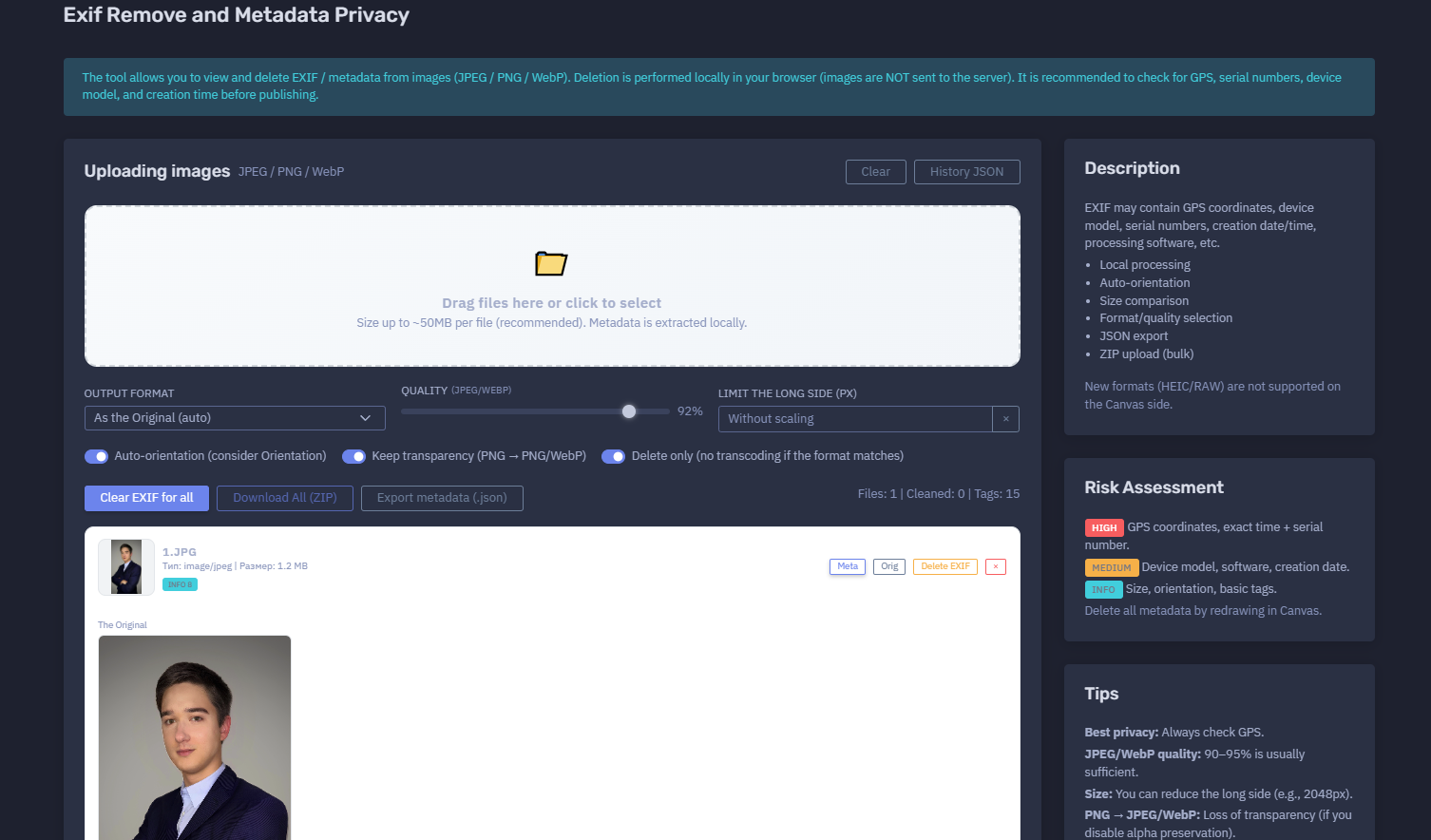
The platform available at https://dash.niamonx.io/exif_remove — known as Exif Remove and Metadata Privacy — is a privacy-focused image metadata inspection and cleaning tool within the NiamonX platform. It allows users to view, assess, export, and remove EXIF / metadata from images directly inside the browser, without sending image files to the server.
Overview of the Service
Exif Remove and Metadata Privacy is designed to help users protect themselves from accidental metadata exposure before publishing or sharing images online.
Images often contain hidden technical metadata, including device model, camera settings, software name, creation date, orientation, thumbnails, GPS coordinates, serial numbers, and editing history. This information can reveal sensitive details about the person, device, location, or workflow behind the image.
The tool allows users to inspect this metadata locally, assess privacy risk, remove metadata, optionally re-encode the image, and download a cleaned version.
The main privacy advantage of this module is that processing happens locally in the user’s browser. Images are not uploaded to the NiamonX server for metadata extraction or deletion.
🔍 How the Tool Works
When a user selects or drags an image into the tool, the browser reads the file locally and extracts available metadata.
The tool then displays detected tags, risk indicators, file type, file size, and metadata categories. The user can review the information before cleaning the file.
When metadata removal is requested, the tool redraws the image through the browser Canvas API. This creates a new image output without the original embedded EXIF metadata.
Depending on the selected output settings, the tool can:
-
Keep the original format when possible
-
Convert to JPEG, PNG, or WebP
-
Adjust JPEG / WebP quality
-
Limit the long side of the image
-
Apply auto-orientation
-
Preserve transparency when supported
-
Remove metadata without unnecessary transcoding when the format matches
-
Export detected metadata as JSON
-
Process multiple files in bulk
The cleaned file can then be downloaded and safely used for publishing, sharing, reporting, or documentation.
🧩 Supported File Types
Exif Remove and Metadata Privacy supports common web image formats.
Supported formats:
-
JPEG
-
PNG
-
WebP
The interface may also accept common browser-supported image representations depending on browser capabilities, but the recommended formats are JPEG, PNG, and WebP.
Recommended file size:
Up to approximately 50 MB per file
Unsupported or limited formats:
-
HEIC
-
RAW camera formats
-
Some proprietary image formats
-
Formats not supported by browser-side Canvas processing
Newer formats such as HEIC and RAW are not supported on the Canvas side.
📁 Uploading Images
The upload area allows users to drag files into the interface or click to select files manually.
Example interface text:
Drag files here or click to select
Metadata is extracted locally after the file is selected.
Important privacy behavior:
Images are not sent to the server.
Metadata is extracted locally.
This makes the tool suitable for privacy-sensitive workflows where users need to inspect image metadata before publishing or transferring files.
⚙️ Output Settings
The tool provides several output configuration options.
Output Format
Users can choose how the cleaned file should be saved.
Typical option:
As the Original (auto)
This means the tool attempts to preserve the original format where possible.
Other possible output formats may include:
-
JPEG
-
PNG
-
WebP
Format choice affects file size, quality, transparency, and compatibility.
Quality
For JPEG and WebP outputs, users can select image quality.
Example:
92%
Recommended privacy-friendly and quality-balanced range:
90–95%
Higher quality preserves more visual detail but may produce larger files. Lower quality reduces size but can introduce compression artifacts.
Limit the Long Side
Users can resize the image by limiting its longest side in pixels.
Example:
Without scaling
A practical option before publishing online is to reduce the long side to a value such as:
2048 px
This can reduce file size and limit unnecessary visual detail while preserving enough quality for web publishing.
Auto-Orientation
The tool can apply image orientation based on the original Orientation metadata.
This is important because many photos rely on EXIF Orientation to display correctly. If metadata is removed without applying orientation, the image may appear rotated incorrectly.
Auto-orientation helps preserve the visible appearance of the image after cleaning.
Keep Transparency
For images with transparency, such as PNG files, the tool can preserve alpha transparency when possible.
Important note:
If PNG is converted to JPEG, transparency is lost because JPEG does not support alpha channels.
Recommended behavior:
-
Use PNG or WebP when transparency must be preserved.
-
Use JPEG when transparency is not required and smaller file size is preferred.
Delete Only
The “Delete only” option avoids unnecessary transcoding when the output format matches the original format.
This is useful when the user wants to remove metadata with minimal visual change.
However, depending on the browser and image format, some re-encoding may still be required to fully remove embedded metadata.
📊 File Summary
After upload, the tool displays a quick summary.
Example structure:
Files: 1
Cleaned: 0
Tags: 15
For each image, the interface may show:
-
File name
-
MIME type
-
File size
-
Metadata tag count
-
Original metadata
-
Cleaned status
-
Risk category
-
Detected sensitive fields
Example file information:
Type: image/jpeg
Size: 1.2 MB
Metadata: 15 tags
🧾 Metadata Viewer
The metadata viewer displays detected EXIF and image metadata in a structured format.
Possible metadata fields include:
-
Orientation
-
Resolution
-
Resolution unit
-
Software
-
EXIF version
-
Color space
-
Pixel dimensions
-
Scene capture type
-
Thumbnail data
-
GPS coordinates
-
Device manufacturer
-
Device model
-
Lens information
-
Serial number
-
Creation date and time
-
Modification date and time
-
Editing software
-
Embedded preview or thumbnail
Example metadata categories:
Software
Orientation
PixelXDimension
PixelYDimension
thumbnail
The metadata view is useful because it allows users to understand exactly what hidden information exists before removing it.
🚨 Why Metadata Removal Matters
Image metadata can reveal more information than expected.
Possible privacy-sensitive metadata:
| Metadata Type | Privacy Risk |
|---|---|
| GPS coordinates | Can reveal home, workplace, travel route, or private location |
| Device model | Can identify the camera or phone used |
| Serial number | Can link multiple images to the same physical device |
| Creation date/time | Can reveal when the photo was taken |
| Software name | Can reveal editing tools or workflow |
| Embedded thumbnail | Can contain an older version of the image |
| Orientation and dimensions | Usually low risk but still technical metadata |
| Author or copyright fields | Can reveal identity or organization |
| File history | May reveal editing or export chain |
Before publishing images online, it is strongly recommended to check for GPS coordinates, serial numbers, device model, and creation time.
🧠 Risk Assessment
The tool includes a metadata risk assessment system.
Risk levels help users understand how sensitive the detected metadata may be.
High Risk
High-risk metadata may include:
-
GPS coordinates
-
Exact location data
-
Serial number
-
Exact time combined with device identifiers
-
Sensitive embedded thumbnails
-
Private author or owner fields
Example risk interpretation:
High: GPS coordinates, exact time + serial number
High-risk images should be cleaned before publishing or sharing.
Medium Risk
Medium-risk metadata may include:
-
Device model
-
Camera manufacturer
-
Software name
-
Creation date
-
Editing date
-
Lens or device details
Example risk interpretation:
Medium: Device model, software, creation date
Medium-risk fields may not reveal location directly, but they can still support tracking, correlation, or device fingerprinting.
Info
Informational metadata may include:
-
File size
-
Orientation
-
Resolution
-
Basic image dimensions
-
Color profile
-
Non-sensitive technical tags
Example risk interpretation:
Info: Size, orientation, basic tags
Informational metadata is usually lower risk but can still be removed for maximum privacy.
🧹 Metadata Removal Method
Exif Remove and Metadata Privacy removes metadata by redrawing the image in the browser Canvas.
This process creates a clean image output from pixel data rather than copying the original file structure with embedded metadata.
In practice, this helps remove:
Important note:
Some browser-generated outputs may still contain minimal format-level information required for valid images, but sensitive EXIF metadata is removed through the redraw/export process.
🔐 Local Processing and Privacy
The tool is designed around local browser-side processing.
Main privacy guarantees:
-
Images are processed locally in the browser.
-
Metadata extraction happens locally.
-
Metadata removal happens locally.
-
Images are not uploaded to the server.
-
Metadata is not sent to the server.
-
Request history is stored locally in the browser.
This makes the tool suitable for privacy-conscious users, journalists, investigators, security teams, and anyone who needs to clean images before sharing them.
🕓 Request History
The tool includes a local request history panel.
Important behavior:
Stored only locally in the browser.
No files or metadata are sent to the server.
The history may store up to a limited number of recent entries, such as:
Up to 50 entries
History entries may include:
-
File name
-
File size
-
Risk level
-
Detected metadata categories
-
Processing timestamp
Example categories shown in history may include:
-
Info
-
Medium
-
Date
-
Device
-
Software
The history is useful for reviewing recent local cleaning activity, but it should still be treated as sensitive local metadata on shared devices.
📤 JSON Export
The tool can export detected metadata as JSON.
This is useful for:
-
Documentation
-
Security review
-
Privacy audits
-
Before/after comparison
-
Evidence preservation
-
Developer testing
-
Internal reporting
JSON exports may contain sensitive metadata. They should be stored securely and deleted when no longer needed.
📦 ZIP Upload and Bulk Processing
The tool supports ZIP upload or bulk processing workflows when available.
Bulk processing is useful when users need to clean multiple images before:
-
Publishing a gallery
-
Sending documentation
-
Uploading screenshots
-
Sharing evidence
-
Preparing website assets
-
Submitting images to public platforms
When cleaning many files, users should still review high-risk images manually, especially those that may contain GPS or device identifiers.
📉 Size Comparison
After cleaning or re-encoding images, the tool can help compare original and output file sizes.
Size differences may occur because of:
-
Metadata removal
-
JPEG / WebP quality settings
-
Image resizing
-
Format conversion
-
Transparency preservation
-
Canvas re-encoding
-
Thumbnail removal
A cleaned image may be much smaller if the original file contained large embedded metadata or thumbnail previews.
🖼️ Format and Quality Considerations
JPEG
Best for photos and general publishing.
Pros:
-
Small file size
-
Broad compatibility
-
Adjustable quality
Cons:
-
Lossy compression
-
No transparency
-
Repeated compression can reduce quality
PNG
Best for screenshots, logos, graphics, and transparency.
Pros:
-
Supports transparency
-
Lossless visual quality
-
Good for UI images and graphics
Cons:
-
Larger file size for photos
-
May not be ideal for large camera images
WebP
Best for modern web publishing.
Pros:
-
Good compression
-
Supports transparency
-
Often smaller than JPEG or PNG
Cons:
-
Compatibility depends on platform or workflow
-
Some older tools may not support it
⚠️ Re-Compression Warning
Repeated compression can degrade image quality.
For best results:
-
Clean and save the image once.
-
Avoid repeatedly opening and exporting the same JPEG.
-
Use quality around 90–95% for JPEG/WebP.
-
Keep the original private copy separately if needed.
-
Use PNG or WebP when transparency must be preserved.
✅ Recommended Privacy Workflow
A careful image-cleaning workflow should follow these steps.
1. Upload the Image Locally
Drag the file into the tool or select it manually.
2. Review Metadata
Check all detected metadata before cleaning.
3. Look for High-Risk Tags
Prioritize GPS, serial number, device model, creation time, and embedded thumbnails.
4. Choose Output Settings
Select format, quality, orientation, resizing, and transparency options.
5. Remove Metadata
Generate the cleaned image.
6. Compare File Size
Review whether the cleaned image size changed significantly.
7. Download the Cleaned File
Use the cleaned version for publishing or sharing.
8. Recheck If Needed
Upload the cleaned image again to confirm that metadata was removed.
9. Store Originals Safely
Keep original images private if they contain sensitive metadata.
10. Clear Local History on Shared Devices
🛡️ Security, Privacy & Ethics
Exif Remove and Metadata Privacy is designed for privacy protection, responsible publishing, and safe image sharing.
Acceptable use cases include:
-
Removing GPS coordinates before publishing photos
-
Cleaning screenshots before sharing them
-
Protecting device information
-
Preparing images for public websites
-
Reducing metadata exposure in reports
-
Sanitizing investigation images
-
Removing editing history from exported graphics
-
Checking images before social media upload
-
Cleaning images before sending to third parties
Users should use the tool responsibly:
-
Do not rely on metadata removal to hide illegal activity.
-
Do not alter evidence in contexts where original metadata must be preserved.
-
Keep original files when forensic integrity is required.
-
Do not publish sensitive images without consent.
-
Do not remove metadata from files that must remain legally auditable.
-
Use proper evidence-handling workflows for legal, compliance, or forensic cases.
For forensic or legal investigations, metadata removal should be performed only on working copies, never on original evidence.
⚙️ Technical Highlights
-
EXIF and metadata viewer
-
Metadata removal for images
-
Local browser-side processing
-
Images are not sent to the server
-
Metadata is not sent to the server
-
Supports JPEG, PNG, and WebP
-
Recommended size up to approximately 50 MB per file
-
Output format selection
-
JPEG / WebP quality control
-
Long-side resize option
-
Auto-orientation support
-
Transparency preservation for PNG / WebP workflows
-
Delete-only mode when format matches
-
Metadata tag counter
-
Risk assessment system
-
JSON metadata export
-
Size comparison
-
Local request history
-
History stored only in browser local storage
-
Up to 50 local history entries
-
Bulk / ZIP workflow support
-
Canvas-based metadata deletion
-
HEIC and RAW not supported on Canvas side
📌 Usage Hints
-
Always check for GPS before publishing photos.
-
Check device model, serial numbers, software, and creation time.
-
Use quality 90–95% for JPEG/WebP in most cases.
-
Reduce the long side, such as 2048 px, for web publishing.
-
Preserve transparency when cleaning PNG logos or screenshots.
-
Avoid PNG to JPEG conversion if transparency matters.
-
Avoid repeated recompression.
-
Save only once when possible.
-
Re-upload the cleaned file to verify metadata removal.
-
Clear local history on shared devices.
-
Keep original evidence unchanged if forensic integrity matters.
📬 Contact Information
For technical, legal, abuse, privacy, or takedown-related inquiries, users can contact the NiamonX team directly:
support@niamonx.io — Technical Support
other@niamonx.io — General Inquiries
takedown@niamonx.io — Data Removal / Privacy Takedown Requests
legal@niamonx.io — Legal and Compliance Matters
Alternative contact channel:
🔗 Helpdesk: https://support.niamonx.io/
Summary
NiamonX Exif Remove and Metadata Privacy is a local browser-based privacy tool for inspecting and removing EXIF / metadata from JPEG, PNG, and WebP images.
It helps users detect sensitive metadata such as GPS coordinates, device model, serial number, software, creation time, thumbnails, and other hidden tags before publishing images online.
The tool processes files locally, does not send images or metadata to the server, supports output format and quality control, provides risk assessment, enables JSON export, and stores only local browser history. It is designed for privacy protection, safer publishing, security workflows, and responsible image handling.