Identity Intelligence
Identity Intelligence
- Identity360 Report | Digital Footprint Intelligence
- Alias Radar | Username Intelligence
- Google Footprint | Google Account & Drive Intelligence
- CrossTrace | Username & Email Intelligence
Identity360 Report | Digital Footprint Intelligence
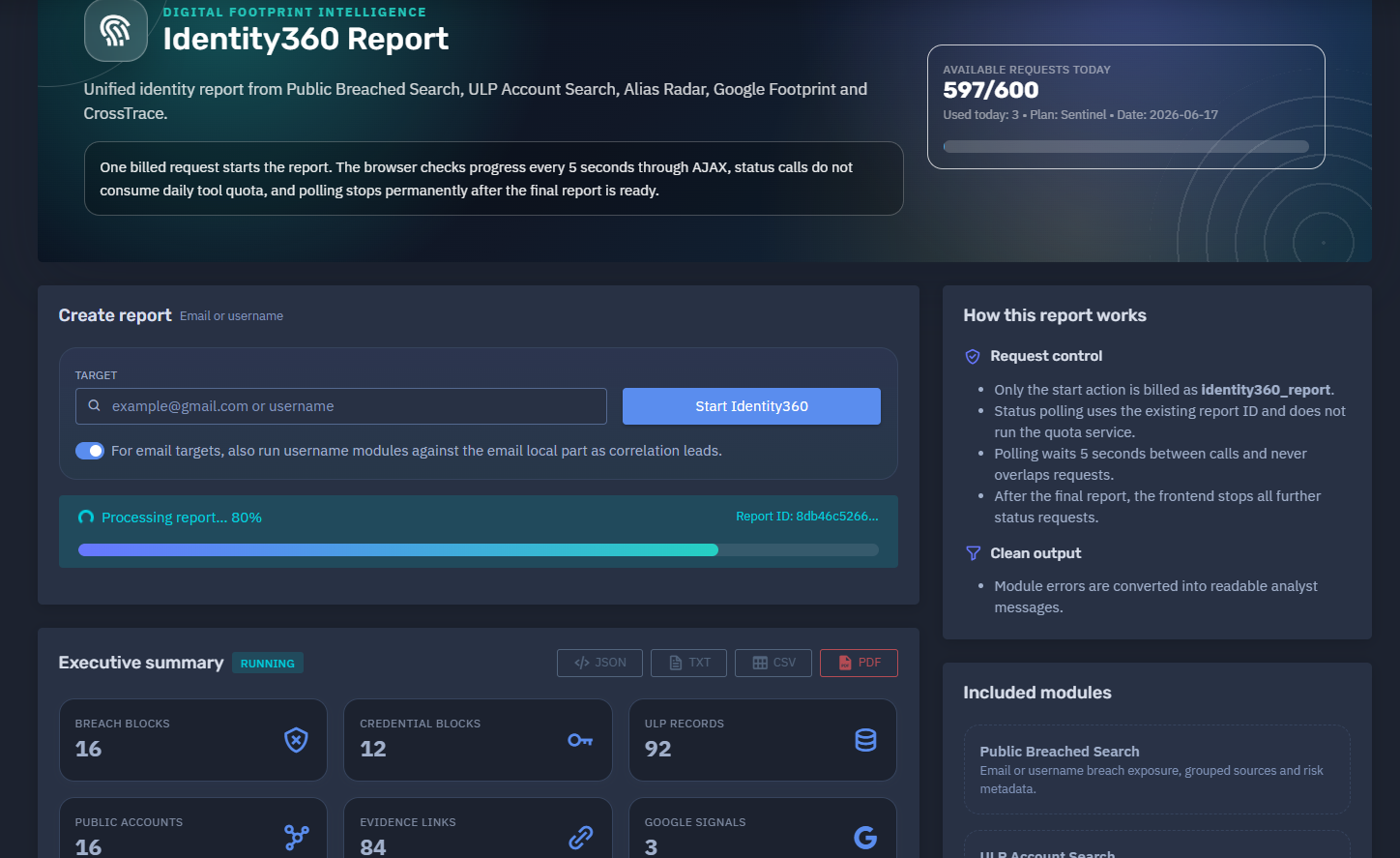
The platform available at dash.niamonx.io/identity360_report
Overview of the Service
Digital Footprint Intelligence is an advanced identity intelligence tool within the NiamonX platform. The main report generated by this module is called Identity360 Report.
Identity360 Report provides a unified digital identity overview by combining results from multiple NiamonX intelligence modules:
-
Public Breached Search
-
ULP Account Search
-
Alias Radar
-
Google Footprint
-
CrossTrace
The tool is designed to help individuals, cybersecurity analysts, SOC teams, compliance departments, investigators, and authorized security professionals understand how a specific email address or username appears across public breach datasets, stealer log evidence, public account traces, username reconnaissance sources, and Google ecosystem signals.
The report is built as a consolidated identity profile. Instead of checking each module manually, the user starts one report and receives a structured overview of exposure, related identifiers, public accounts, evidence links, breach blocks, ULP records, and analytical risk indicators.
🔍 How the Report Works
When a user creates an Identity360 report, the platform starts a multi-module investigation for the submitted target.
Supported target types:
-
Email address
-
Username
For email-based targets, the system may also derive the email local part and run username-focused modules against it as a correlation lead.
For example, if the target is:
example.name@domain.com
the platform may also check:
example.name
This derived username should be treated only as a correlation lead, not as confirmed ownership.
One billed request starts the report. After that, the browser checks the report progress through AJAX polling every few seconds. Status checks do not consume additional daily tool quota, and polling stops permanently after the final report is ready.
This design allows long-running intelligence modules to continue processing while the user sees real-time progress inside the interface.
🧩 Main Purpose
Identity360 Report helps answer questions such as:
-
Has this email address appeared in public breach datasets?
-
Are there credential-related records connected to this identity?
-
Are there ULP or stealer-log records for the email or username?
-
Are there public accounts connected to the identifier?
-
Are there usernames, names, phone numbers, domains, or other related identifiers?
-
Are there public profile traces across platforms?
-
What is the overall exposure risk?
-
Which evidence links support the findings?
-
Which modules found the strongest signals?
The tool is especially useful for identity exposure analysis, account compromise investigation, personal digital footprint review, employee risk monitoring, and incident response.
⚙️ Report Creation Interface
The report creation interface includes the following main elements.
Available Requests Today
Shows the number of remaining report requests available under the current plan.
Example format:
Available requests today
597 / 600
Used today: 3
Plan: Sentinel
Date: 2026-06-17
Create Report
Starts a new Identity360 report.
Target Type
The user selects or enters an email address or username.
Supported examples:
user@example.com
username
Email Local-Part Correlation
For email targets, the system can also run username modules against the email local part.
This is useful because many users reuse the same nickname across multiple public platforms.
However, these matches must be interpreted carefully.
A username match does not automatically prove that the account belongs to the same person.
📊 Report Progress
After the report starts, the interface displays processing status.
Example status elements:
Processing report… 60%
Report ID: ************
Executive summary: running
The report may show:
-
Processing percentage
-
Report ID
-
Module status
-
Executive summary status
-
Number of completed modules
-
Number of running modules
-
Number of pending modules
-
Error or skipped module indicators
The report is considered final only after all required modules finish, fail, or are skipped according to the backend state.
🧠 Processing Modules
Identity360 Report combines several intelligence modules into one unified profile.
Public Breached Search
Public Breached Search checks indexed public breach datasets for the submitted target.
It may return:
-
Breach blocks
-
Credential blocks
-
Source names
-
Personal identifiers
-
Exposed emails
-
Related phones
-
Related names
-
Password-related indicators
-
Risk signals
This module is useful for understanding whether the target appears in historical public breach collections.
ULP Account Search
ULP Account Search checks stealer-log and ULP-style account evidence by email or username.
It may return:
-
ULP records
-
Hosts
-
Account identities
-
Password evidence
-
URLs
-
Indexed dates
-
Related services
-
Evidence links
This module is especially important because ULP records may indicate that credentials were captured from infected devices, browser storage, or other compromise sources.
Alias Radar
Alias Radar performs detailed username reconnaissance across public platforms.
It may return:
-
Public profile matches
-
Platform names
-
Display names
-
Profile URLs
-
Avatars or profile images
-
Account metadata
-
Confidence scores
-
Extracted profile details
When Alias Radar is run from an email local part, matches should be treated as possible correlation leads rather than confirmed identity ownership.
Google Footprint
Google Footprint checks public Google account and Google ecosystem signals.
It may return:
If the module is skipped, pending, or incomplete, the report should clearly show that Google Footprint data is not available yet.
CrossTrace
CrossTrace performs fast public account-presence checks by email or username.
It may return:
-
Direct account presence traces
-
Platform-level signals
-
Public account indicators
-
Profile URLs
-
Confidence scores
-
Related usernames
-
Avatars or public images
CrossTrace is useful for fast identity correlation across public platforms.
📌 Executive Summary
The Executive Summary provides a high-level interpretation of the report.
It may include:
-
Overall risk level
-
Analytical risk score
-
Main exposure drivers
-
Number of breach blocks
-
Number of credential blocks
-
Number of ULP records
-
Number of public accounts
-
Number of evidence links
-
Number of Google signals
-
Key findings from completed modules
The summary helps users quickly understand whether the target has low, medium, high, or critical exposure.
🚨 Analytical Risk Score
Identity360 Report includes an Analytical Risk Score.
The score is calculated from multiple risk drivers, such as:
-
Credential exposure in breach blocks
-
ULP records containing password evidence
-
Public breach appearances
-
Public account footprint across platforms
-
Number of evidence links
-
Presence of sensitive identifiers
-
Cross-platform identity correlation
-
Volume and quality of confirmed signals
Example risk levels may include:
-
Low
-
Medium
-
High
-
Critical
A critical score means that the report contains strong exposure indicators, such as credential-related records, multiple breach appearances, or high-confidence public identity traces.
The risk score is an analytical indicator. It should support investigation, not replace human validation.
👤 Profile Summary
The Profile Summary aggregates identifiers discovered during the report.
Possible identifier types include:
-
Email addresses
-
Usernames
-
Phone numbers
-
Names
-
Domains
-
Public account handles
-
Related services
-
Evidence-linked platforms
This section helps analysts understand the broader digital identity graph connected to the target.
🔗 Evidence Links
The Evidence Links section collects links and source references discovered by the report.
Evidence links may come from:
-
ULP records
-
Public breach evidence
-
Alias Radar profiles
-
CrossTrace account traces
-
Google Footprint signals
-
Public platform checks
Each evidence link helps the user understand where a signal came from.
Evidence links may point to:
-
Public profiles
-
Service login pages
-
Account presence endpoints
-
Historical breach-related URLs
-
ULP-related hosts
-
Platform-specific account traces
Evidence links should be handled carefully and used only for lawful investigation and validation.
🌐 Public Accounts and Traces
The Public Accounts and Traces section displays public profile or account-presence findings.
A result may include:
| Field | Description |
|---|---|
| Platform | Name of the detected service or platform |
| Category | Social, media, Google, other, or another category |
| Display name | Public name found on the platform |
| Username | Username or handle, if available |
| Source module | Alias Radar, CrossTrace, or another module |
| Confidence | Estimated confidence score |
| Profile link | Link for manual validation |
Confidence scores help analysts prioritize review.
For example:
-
100 may indicate a strong direct signal.
-
70–80 may indicate a useful but still reviewable correlation.
-
Lower scores should be treated as weaker leads.
Public account traces do not always prove ownership. They should be validated before being used in legal, compliance, or operational decisions.
🧱 Breach Exposure
The Breach Exposure section summarizes public breach dataset appearances.
It may include:
-
Total breach blocks
-
Credential blocks
-
Risk level
-
Source names
-
Whether password-related data exists
-
Whether personal data exists
-
Field counts
-
Group counts
A breach block represents a structured group of fields from a particular breach source or collection.
Credential blocks are especially important because they may contain password-related evidence or login-related exposure.
🔐 ULP Account Evidence
The ULP Account Evidence section shows stealer-log or ULP-style account records connected to the target.
It may include:
| Column | Description |
|---|---|
| Date | Indexed or observed date |
| Host | Related service, domain, or application |
| Identity | Matched email or username |
| Password | Password field, if available and permitted |
| URL | Evidence or related service URL |
The section may also show summary counters:
-
Total ULP records
-
Loaded records
-
Unique hosts
-
Records with passwords
ULP evidence should be considered high-risk because it may indicate credential capture, malware compromise, browser credential theft, or reused credentials.
🔎 Filtering and Review
The report interface may include filters for accounts, traces, records, and evidence.
Users can review:
-
Public accounts
-
Breach sources
-
Credential blocks
-
ULP hosts
-
Evidence links
-
Related identifiers
-
Google signals
-
Module-specific findings
Filtering helps analysts focus on the most relevant signals, especially in large reports with many records.
🧾 Clean Report JSON
Identity360 Report can expose a clean structured JSON representation of the report.
This JSON may include:
-
Report status
-
Report ID
-
Target
-
Target type
-
Created timestamp
-
Updated timestamp
-
Finished timestamp
-
Polling interval
-
Module states
-
Progress
-
Counters
-
Risk score
-
Risk drivers
-
Identifiers
-
Evidence links
-
Public accounts
-
Photos
-
Timeline
-
Module-specific raw or normalized data
Clean JSON is useful for:
-
API integrations
-
SOC workflows
-
Internal dashboards
-
Case management systems
-
Threat intelligence pipelines
-
Compliance evidence
-
Automated reporting
Sensitive values should be masked or protected depending on user permissions, session security, and export policy.
🕒 Timeline
The report may include a timeline of discovered events and sources.
Timeline entries may include:
-
Breach source names
-
ULP record dates
-
Public account discovery events
-
Evidence timestamps
-
Module processing milestones
This helps analysts understand the chronological order of exposure indicators.
For example, ULP evidence dated recently may require more urgent response than older historical breach appearances.
🖼️ Photos and Avatars
Some modules may detect public profile images or avatars.
These may come from:
-
Public profiles
-
Avatar services
-
Social platforms
-
Account metadata
-
CrossTrace results
-
Alias Radar results
Profile images are useful for manual correlation, but they must not be treated as proof of identity without additional evidence.
🧠 Correlation Logic
Identity360 Report is built around correlation, not blind certainty.
The system combines multiple signal types:
-
Direct breach matches
-
Credential evidence
-
Email-based account traces
-
Username-based account traces
-
Public profile metadata
-
Evidence links
-
Related identifiers
-
Domain and host appearances
-
Module confidence scores
Strong findings usually come from multiple independent signals pointing to the same target.
Weak findings may be useful leads but should be validated before action.
🔐 Password and Sensitive Data Handling
Some records may contain password evidence or other sensitive fields.
Users must handle this data carefully.
Passwords and sensitive values must only be used for:
-
Defensive verification
-
Account recovery
-
Password reset decisions
-
Incident response
-
Internal security review
-
Authorized employee exposure investigation
Users must not:
When screen sharing, reporting, or exporting, sensitive values should be masked unless full visibility is strictly required and authorized.
🛡️ Security, Privacy & Ethics
Digital Footprint Intelligence is intended for lawful security work and authorized identity exposure analysis.
Acceptable use cases include:
-
Checking your own email or username
-
Investigating employee exposure with authorization
-
Supporting incident response
-
Reviewing public account footprint
-
Validating breach exposure
-
Detecting credential compromise
-
Monitoring executive or VIP exposure
-
Performing compliance and security audits
-
Helping users secure compromised accounts
Users must follow strict rules:
-
Search only targets you own or are authorized to investigate.
-
Do not use the report to stalk, harass, deanonymize, or target individuals.
-
Do not use exposed credentials for unauthorized access.
-
Do not redistribute leaked personal data.
-
Do not publish private identifiers or passwords.
-
Do not bypass platform limits, access controls, or masking.
-
Treat all findings as sensitive intelligence.
-
Validate results before legal, HR, compliance, or operational action.
Abuse of the system may result in account restriction, suspension, or termination.
✅ Recommended Remediation Workflow
When the report shows meaningful exposure, users should follow a structured response process.
1. Review the Executive Summary
Start with the risk score, risk level, and risk drivers.
2. Check Credential Blocks
Prioritize breach blocks that contain credential exposure.
3. Review ULP Evidence
ULP records with passwords should be treated as high priority.
4. Validate Public Accounts
Check public accounts and traces manually before drawing conclusions.
5. Reset Exposed Passwords
Reset affected passwords and remove reused credentials.
6. Enable MFA
Enable or enforce multi-factor authentication on affected accounts.
7. Review Login History
Check account activity, IAM logs, SSO events, VPN access, email logs, and cloud service logs.
8. Check for Password Reuse
Identify whether exposed passwords were reused across corporate or personal accounts.
9. Notify Affected Users
Notify the affected person or internal team when appropriate and legally permitted.
10. Save Evidence Securely
Store the report only in secure internal systems with restricted access.
11. Continue Monitoring
Repeat checks periodically or enable continuous monitoring for high-risk identities.
⚙️ Technical Highlights
-
Unified digital identity report
-
Combines Public Breached Search, ULP Account Search, Alias Radar, Google Footprint, and CrossTrace
-
Supports email and username targets
-
Email local-part correlation for username modules
-
One billed request starts the report
-
AJAX progress polling every few seconds
-
Status polling does not consume daily quota
-
Executive summary
-
Analytical risk score
-
Risk drivers
-
Breach blocks
-
Credential blocks
-
ULP account evidence
-
Public accounts and traces
-
Evidence links
-
Google ecosystem signals
-
Profile summary
-
Related identifiers
-
Public profile confidence scores
-
Photos and avatar collection
-
Timeline of evidence
-
Clean report JSON
-
Module-level status tracking
-
Suitable for SOC, OSINT, compliance, incident response, and identity exposure workflows
📌 Usage Hints
-
Use an email or username as the target.
-
For email targets, review local-part username matches as correlation leads only.
-
Start with the risk score and risk drivers.
-
Treat ULP records with passwords as high priority.
-
Validate public account traces manually.
-
Review confidence scores before making conclusions.
-
Use evidence links for verification.
-
Check module status to understand whether the report is complete.
-
Do not assume pending or skipped modules found nothing.
-
Use Clean Report JSON for integrations and internal workflows.
-
Mask sensitive values when exporting or sharing reports.
-
Treat every report as confidential security intelligence.
📬 Contact Information
For technical, legal, abuse, privacy, or takedown-related inquiries, users can contact the NiamonX team directly:
support@niamonx.io — Technical Support
other@niamonx.io — General Inquiries
takedown@niamonx.io — Data Removal / Privacy Takedown Requests
legal@niamonx.io — Legal and Compliance Matters
Alternative contact channel:
🔗 Helpdesk: https://support.niamonx.io/
Summary
NiamonX Digital Footprint Intelligence / Identity360 Report is a unified identity exposure report that combines breach intelligence, ULP account evidence, public username reconnaissance, Google ecosystem signals, and public account tracing into one structured profile.
The tool helps users understand whether an email or username is connected to public breaches, credential exposure, stealer-log records, public accounts, evidence links, and cross-platform identity traces.
It is designed for lawful defensive cybersecurity, personal exposure checks, employee risk monitoring, incident response, compliance review, and digital footprint analysis. All findings should be validated before action and handled as sensitive security intelligence.
Alias Radar | Username Intelligence
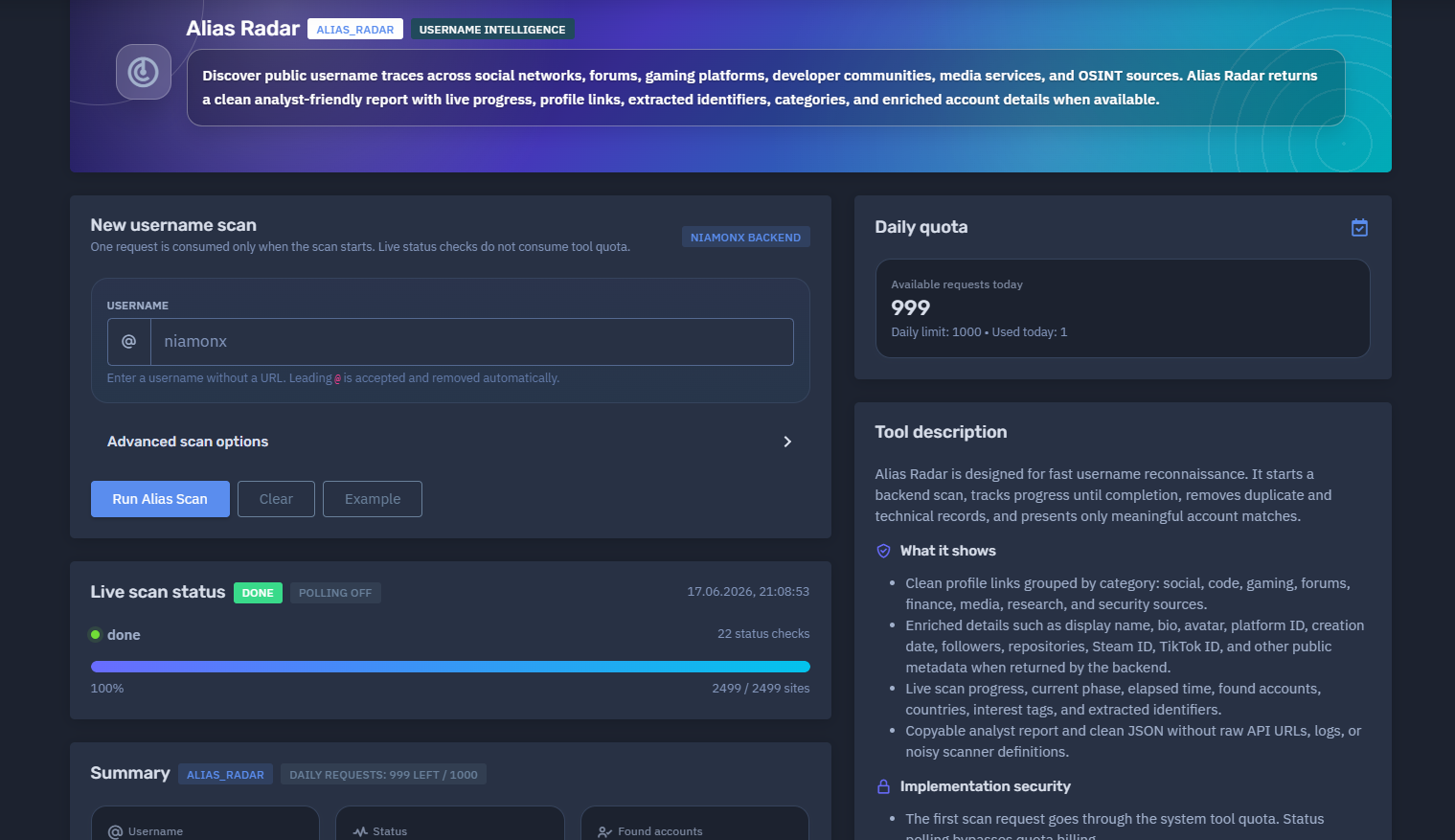
The platform available at dash.niamonx.io/alias_radar — known as Alias Radar — is an advanced username intelligence module within the NiamonX platform. It is designed to discover public username traces across social networks, forums, gaming platforms, developer communities, media services, financial platforms, OSINT sources, and other publicly accessible digital spaces.
Overview of the Service
Alias Radar helps analysts investigate whether a username appears across public platforms and online communities. The tool performs a backend-powered username scan, tracks progress in real time, removes duplicate and technical scanner noise, and returns a clean analyst-friendly report with meaningful account matches only.
The service is intended for cybersecurity analysts, OSINT researchers, SOC teams, fraud investigators, compliance teams, brand protection specialists, and authorized users who need to identify public username presence across multiple online sources.
Alias Radar is not designed to prove identity ownership automatically. A matching username should be treated as an investigative lead and verified manually by comparing public profile content, avatars, creation dates, platform IDs, bios, linked accounts, activity patterns, and other contextual signals.
🔍 How the Scan Works
When a user submits a username, Alias Radar starts a backend scan through the NiamonX infrastructure.
The scan checks the submitted username across thousands of supported sites and services. The system then processes raw matches, removes technical API noise, deduplicates repeated results, enriches profiles where possible, and presents only useful clickable findings.
One request is consumed only when the scan starts. Live status checks do not consume additional tool quota.
The browser checks scan progress every few seconds and stops polling permanently after the backend returns a final status.
Typical scan flow:
-
User enters a username.
-
The scan request is sent to the NiamonX backend.
-
The backend checks supported public platforms.
-
Live progress is displayed in the browser.
-
Raw results are cleaned and deduplicated.
-
Enriched account details are extracted when available.
-
The final report is generated with categories, scores, identifiers, and profile links.
🧩 What Can Be Searched
Alias Radar accepts usernames only.
Valid examples:
niamonx
@niamonx
If a username starts with @, the symbol is accepted and removed automatically before scanning.
The tool does not accept:
-
Full URLs
-
Email addresses
-
Phone numbers
-
Domains
-
IP addresses
-
Search operators
-
Wildcards
-
Full names
-
Passwords
-
Multi-field composite queries
Input rules:
| Rule | Requirement |
|---|---|
| Input type | Username only |
| Allowed characters | Letters, numbers, dot, underscore, hyphen |
| Length | 2–64 characters |
Leading @ |
Accepted and removed automatically |
| URLs | Not allowed |
| Email addresses | Not allowed |
⚙️ Scan Interface
The Alias Radar interface contains the following main sections.
New Username Scan
This section allows the user to start a new scan.
Main fields:
-
Username input
-
Advanced scan options
-
Scan start button
-
Backend source indicator
-
Quota information
The interface reminds users to enter a username without a URL.
Advanced Scan Options
Advanced scan options may allow the system to adjust how the username scan is performed.
Depending on platform configuration, these options may control scan depth, enrichment behavior, supported source groups, or backend processing preferences.
Advanced settings are designed for users who need more detailed reconnaissance while keeping the final output clean and analyst-friendly.
Live Scan Status
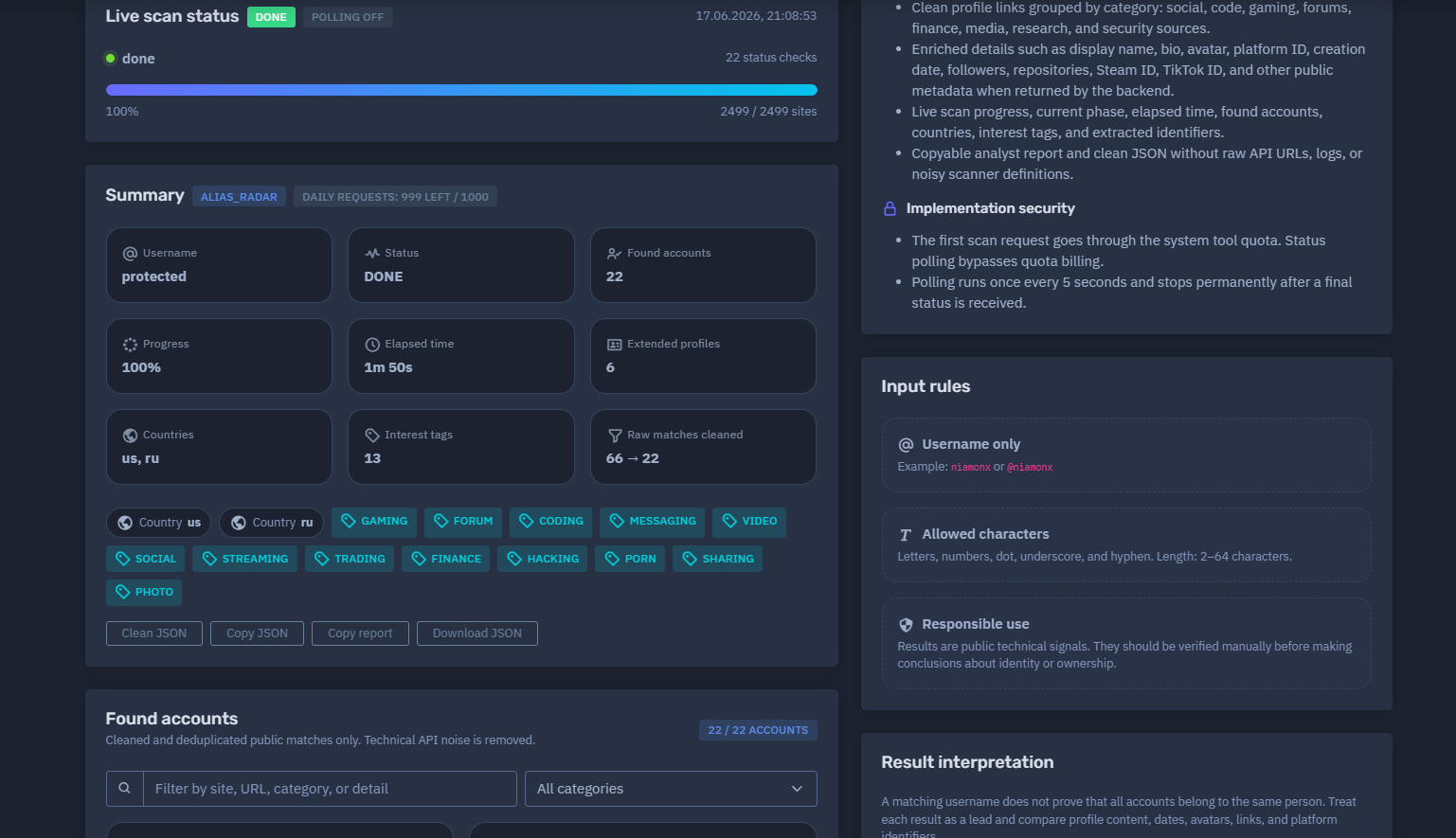
The live scan status panel shows the current state of the scan.
It may display:
-
Current status
-
Current phase
-
Polling state
-
Number of status checks
-
Scan percentage
-
Number of checked sites
-
Completion timestamp
-
Elapsed time
Example status values:
DONE
Polling off
100%
2499 / 2499 sites
Polling runs once every few seconds and stops permanently after a final scan status is received.
📊 Summary Section
After a scan is completed, Alias Radar generates a structured summary.
The summary may include:
-
Tool name
-
Daily request quota
-
Submitted username
-
Scan status
-
Found accounts
-
Progress percentage
-
Elapsed time
-
Extended profiles
-
Countries
-
Interest tags
-
Raw matches before and after cleaning
Example summary structure:
Tool: alias_radar
Status: DONE
Found accounts: 22
Progress: 100%
Elapsed time: 1m 50s
Extended profiles: 6
Raw matches cleaned: 66 → 22
The “raw matches cleaned” value is important because automated username scans often return noisy technical responses. Alias Radar filters those raw results and keeps only useful public matches.
🧠 Key Features
Public Username Reconnaissance
Alias Radar checks whether a username appears across public platforms and online communities.
Large Source Coverage
The scan can check thousands of supported sites and services.
Example interface output may show:
2499 / 2499 sites
Live Progress Tracking
The user can follow the scan in real time while the backend processes supported platforms.
Quota-Safe Polling
Only the initial scan request consumes tool quota. Status polling does not consume additional daily requests.
Cleaned Results
Technical API noise, duplicate records, scanner definitions, and low-value diagnostic responses are removed before the final report is displayed.
Deduplication
The system merges duplicate matches and presents clean account-level findings.
Analyst-Friendly Report
Results are displayed as readable account cards with profile links, categories, scores, and extracted details.
Enriched Account Details
Where available, Alias Radar extracts useful public metadata, such as:
-
Display name
-
Bio
-
Avatar
-
Platform user ID
-
Username
-
Account creation date
-
Follower count
-
Following count
-
Repository count
-
Steam ID
-
Channel ID
-
Profile URL
-
Public platform-specific identifiers
Categories and Interest Tags
The tool groups results by categories and interest tags to help analysts understand the target’s public footprint.
Possible categories may include:
Country Signals
When available, the report may show country indicators inferred from public platform data or source metadata.
Country signals should be treated as contextual hints, not confirmed residence or nationality.
Extracted Identifiers
Alias Radar extracts useful identifiers from public profiles and enriched records.
Examples:
-
Username
-
Platform user ID
-
Steam ID
-
Twitch channel ID
-
Gravatar hash
-
GitHub user ID
-
Profile URL
-
Display name
Copyable Report and Clean JSON
The tool can provide a copyable analyst report and clean JSON output without raw API URLs, scanner logs, or noisy technical definitions.
📋 Found Accounts
The Found Accounts section displays cleaned and deduplicated public matches only.
Each account card may include:
| Field | Description |
|---|---|
| Site | Platform or service where the username was found |
| Category | Platform category such as Social, Code, Gaming, Forum, Finance, or Media |
| Display name | Public name shown on the profile, if available |
| Username | Matched username |
| Score | Confidence or relevance score |
| Avatar | Public profile image, if available |
| Profile link | Clickable link to the public profile |
| Metadata | Extracted public details returned by the backend |
The interface may also include a filter field.
Users can filter results by:
-
Site
-
URL
-
Category
-
Detail
-
Username
-
Public metadata
🧮 Score and Confidence
Each found account may include a score.
The score helps analysts prioritize results.
Higher scores usually indicate stronger signals, such as:
-
Exact username match
-
Direct public profile
-
Enriched platform metadata
-
Public avatar
-
Stable platform identifier
-
Matching display name
-
Strong profile availability
Lower scores may still be useful but should be reviewed more carefully.
Example interpretation:
| Score Range | Meaning |
|---|---|
| 90–100 | Strong match or highly relevant public profile |
| 70–89 | Good match, usually worth manual review |
| 50–69 | Possible match or weaker public signal |
| Below 50 | Low-confidence signal, if shown |
A score does not prove that all accounts belong to the same person. It only helps prioritize manual investigation.
🧬 Extended Profiles
Some platforms return richer public data than others.
An extended profile may include:
-
Public avatar
-
Display name
-
Bio
-
Creation date
-
Platform ID
-
Follower count
-
Following count
-
Public repositories
-
Public gists
-
Channel ID
-
Nickname
-
Account-specific metadata
Examples of enriched platforms may include social networks, developer communities, gaming platforms, media services, and avatar providers.
Extended profiles are especially useful for correlation because they provide additional public context beyond a simple username match.
🏷️ Categories and Interest Tags
Alias Radar groups discovered accounts into categories and interest tags.
Categories help analysts understand where the username appears.
Possible categories:
| Category | Description |
|---|---|
| Social | Social networking platforms |
| Code | Developer platforms and code communities |
| Gaming | Gaming profiles and game-related services |
| Forum | Public forums and discussion boards |
| Messaging | Messaging or communication platforms |
| Video | Video platforms |
| Streaming | Streaming services |
| Finance | Finance, trading, donation, or payment-related platforms |
| Media | Media, avatar, and content platforms |
| Security | Cybersecurity, breach, or OSINT-related sources |
| Other | Platforms that do not fit a primary category |
-
gaming
-
forum
-
coding
-
messaging
-
video
-
social
-
streaming
-
trading
-
finance
-
security
-
sharing
-
photo
-
media
🌍 Country Signals
Alias Radar may show country indicators when country-related signals are available.
Example format:
Countries: us, ru
Country indicators can come from public platform data, source metadata, or backend enrichment.
They should be interpreted carefully. A country signal may reflect platform region, profile metadata, content language, account history, or source classification. It does not necessarily confirm the person’s nationality, current location, or legal residence.
🔎 Extracted Identifiers
The Extracted Identifiers section collects useful identifiers discovered during the scan.
Possible extracted identifiers include:
| Identifier Type | Example Use |
|---|---|
| Username | Confirms the matched alias |
| Steam ID | Useful for gaming profile correlation |
| GitHub ID | Useful for developer profile correlation |
| Twitch Channel ID | Useful for streaming or gaming analysis |
| Gravatar hash | Useful for avatar and email-hash correlation |
| Platform UID | Stable account identifier on a specific service |
| Profile URL | Direct link for manual verification |
Extracted identifiers help analysts connect results across platforms, but they must be validated before conclusions are made.
💾 Clean Analyst Report
Alias Radar is designed to provide a clean report that can be copied into internal notes, SOC cases, OSINT documentation, or compliance workflows.
The report may include:
-
Username
-
Scan status
-
Found accounts
-
Categories
-
Scores
-
Profile links
-
Enriched details
-
Countries
-
Interest tags
-
Extracted identifiers
-
Cleaned match count
-
Scan metadata
The clean report intentionally avoids unnecessary scanner internals, noisy logs, raw API definitions, and irrelevant technical records.
🧾 Clean JSON Output
In addition to the visual report, Alias Radar can provide clean JSON output.
This is useful for:
-
API workflows
-
Internal dashboards
-
Case management systems
-
Threat intelligence pipelines
-
SOC automation
-
Evidence storage
-
Compliance reporting
-
Repeated monitoring
Clean JSON should contain meaningful normalized results rather than noisy low-level scanner output.
🚦 Daily Quota
Alias Radar uses daily plan-based request limits.
The interface may display:
Available requests today: 999
Daily limit: 1000
Used today: 1
Important quota behavior:
-
One request is consumed only when the scan starts.
-
Live status checks do not consume tool quota.
-
Polling runs every few seconds.
-
Polling stops permanently after a final status is received.
-
Daily limits depend on the user’s plan.
This design allows users to monitor long-running scans without wasting quota on status checks.
🛡️ Implementation Security
Alias Radar includes several security and reliability protections.
Quota Protection
Only the initial scan request is billed against the tool quota. Repeated status checks are not counted as additional scan requests.
Controlled Polling
Polling runs at a fixed interval and stops permanently after a final status is received.
Input Normalization
Leading @ symbols are automatically removed.
Input Restriction
The tool accepts only usernames with allowed characters and length limits.
Noise Reduction
Technical scanner noise, duplicated raw matches, rate-limit artifacts, and irrelevant diagnostic records are removed from the final view.
Analyst-Safe Output
The final report focuses on public account traces and avoids exposing unnecessary backend internals.
📌 Result Interpretation
Alias Radar results are public technical signals.
A matching username does not prove that all accounts belong to the same person.
Users should treat each result as a lead and validate it manually.
Recommended validation signals:
-
Profile avatar
-
Display name
-
Bio
-
Account creation date
-
Public posts or activity
-
Linked accounts
-
Platform-specific ID
-
Language
-
Location hints
-
Reused profile images
-
Cross-platform links
-
Similar interests or categories
-
Historical username usage
Some platforms may block automated checks, enforce rate limits, return uncertain responses, or expose only partial public data. Alias Radar hides noisy diagnostic records and focuses on useful clickable findings.
✅ Recommended Analyst Workflow
A careful review process should follow these steps.
1. Start With High-Score Results
Review accounts with the highest scores first.
2. Check Enriched Profiles
Prioritize profiles with avatars, bios, creation dates, public IDs, or activity metadata.
3. Compare Public Signals
Compare usernames, display names, avatars, links, and platform identifiers.
4. Separate Confirmed Signals From Leads
Do not treat every username match as confirmed ownership.
5. Review Categories
Use categories to understand whether the username appears mostly in social, gaming, code, forum, finance, or media contexts.
6. Extract Stable Identifiers
Record stable IDs such as Steam ID, GitHub ID, Gravatar hash, or platform UID.
7. Preserve Evidence Carefully
Save only what is necessary and permitted under applicable policy and law.
8. Avoid Overclaiming
Use cautious wording such as “possible match,” “public trace,” or “correlation lead” unless ownership is verified.
🧠 Common Use Cases
Alias Radar can support many legitimate workflows.
Personal Digital Footprint Review
Users can check where their own username appears publicly.
Cybersecurity Investigation
Security teams can identify public platform presence connected to known aliases.
Threat Intelligence
Analysts can map usernames used in forums, developer spaces, gaming communities, or public OSINT sources.
Fraud and Abuse Investigation
Brand and Executive Protection
Organizations can monitor usernames related to executives, employees, projects, or brands.
SOC and Incident Response
Alias Radar can help correlate usernames found in logs, breach records, stealer logs, or suspicious activity.
Compliance and Risk Review
Teams can document public account exposure in a structured and repeatable format.
🛡️ Security, Privacy & Ethics
Alias Radar is intended for lawful OSINT, defensive cybersecurity, fraud prevention, compliance, and authorized investigation.
Users must follow strict ethical rules:
-
Search only usernames that you own or are authorized to investigate.
-
Do not use the tool to stalk, harass, threaten, shame, or target individuals.
-
Do not claim identity ownership based only on username matches.
-
Do not publish personal information discovered through the tool.
-
Do not use public traces for social engineering, phishing, extortion, or impersonation.
-
Do not attempt to bypass platform restrictions or access private data.
-
Do not contact individuals aggressively based on unverified results.
-
Validate all findings before operational, legal, HR, or compliance actions.
-
Treat reports as sensitive intelligence when used in investigations.
Responsible use is essential because username reconnaissance can create false positives if interpreted incorrectly.
⚙️ Technical Highlights
-
Username intelligence module
-
Powered by NiamonX Backend
-
Public username reconnaissance across thousands of sites
-
Supports usernames with letters, numbers, dot, underscore, and hyphen
-
Leading
@accepted and removed automatically -
Live scan status
-
Fixed-interval polling
-
Polling stops after final status
-
Only initial scan consumes quota
-
Cleaned and deduplicated results
-
Technical API noise removal
-
Analyst-friendly account cards
-
Profile links
-
Category grouping
-
Score-based prioritization
-
Enriched account details when available
-
Extracted identifiers
-
Country signals when available
-
Interest tags
-
Copyable analyst report
-
Clean JSON output
-
Suitable for OSINT, SOC, fraud, compliance, and identity correlation workflows
📌 Usage Hints
-
Enter only a username, not a URL.
-
A leading
@is accepted and removed automatically. -
Use 2–64 characters.
-
Allowed characters are letters, numbers, dot, underscore, and hyphen.
-
Review high-score results first.
-
Treat each account as a lead, not proof.
-
Compare avatars, bios, creation dates, public IDs, and links.
-
Use extracted identifiers for stronger correlation.
-
Check categories and interest tags for quick triage.
-
Remember that some sites may block or limit automated checks.
-
Use clean JSON for integrations and internal workflows.
-
Store reports securely when used for investigations.
📬 Contact Information
For technical, legal, abuse, privacy, or takedown-related inquiries, users can contact the NiamonX team directly:
support@niamonx.io — Technical Support
other@niamonx.io — General Inquiries
takedown@niamonx.io — Data Removal / Privacy Takedown Requests
legal@niamonx.io — Legal and Compliance Matters
Alternative contact channel:
🔗 Helpdesk: https://support.niamonx.io/
Summary
NiamonX Alias Radar is a username intelligence tool that discovers public username traces across social networks, forums, gaming platforms, developer communities, media services, finance-related platforms, security sources, and OSINT databases.
It starts a backend scan, tracks progress live, removes duplicate and technical records, enriches account details when available, extracts identifiers, groups results by category, and produces a clean analyst-friendly report.
The tool is designed for lawful OSINT, defensive cybersecurity, identity correlation, fraud prevention, SOC workflows, and digital footprint analysis. Results should always be treated as public technical signals and manually verified before making conclusions about identity or ownership.
Google Footprint | Google Account & Drive Intelligence
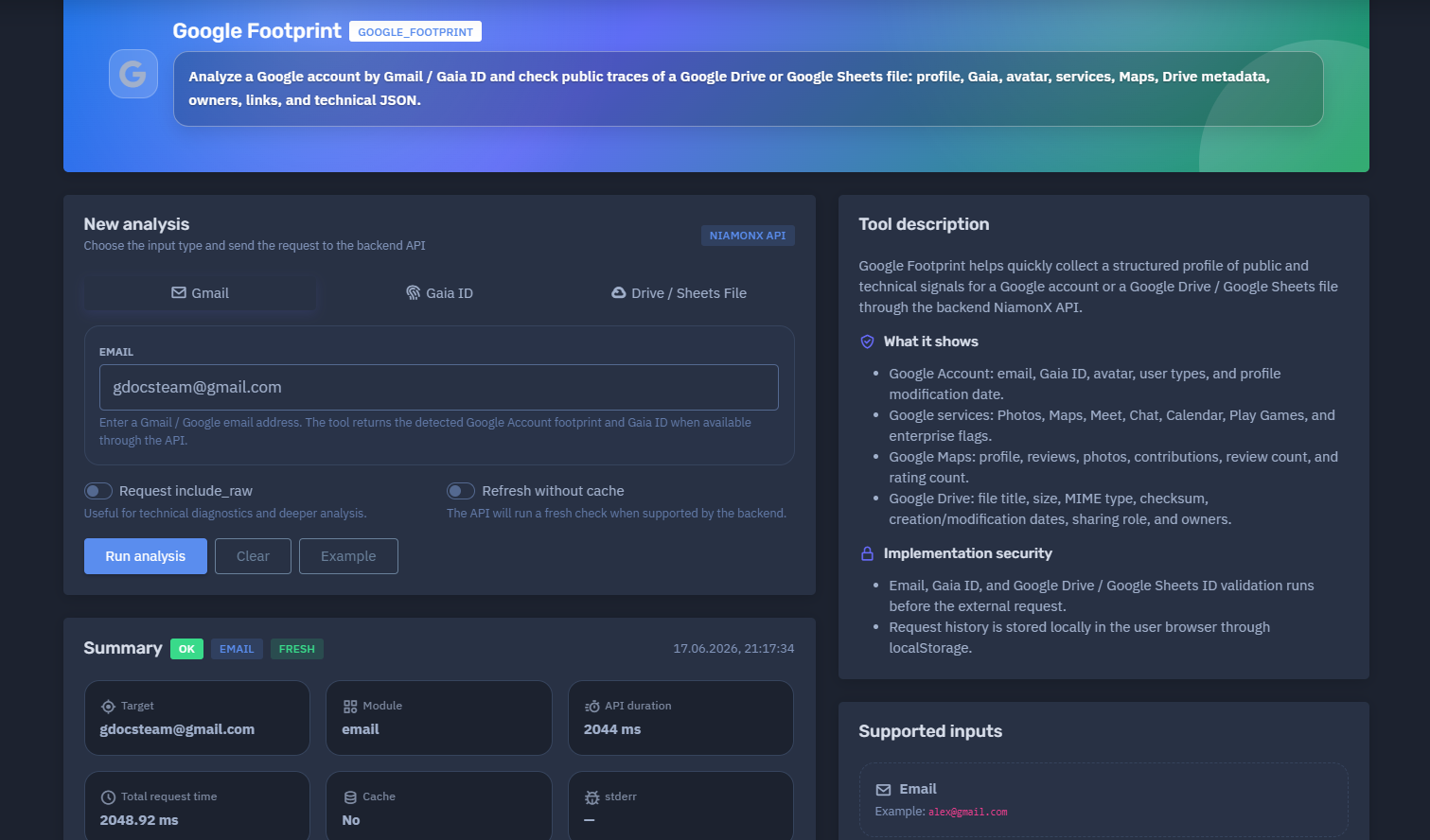
The platform available at dash.niamonx.io/google_footprint — known as Google Footprint — is a specialized intelligence module within the NiamonX platform designed to analyze public and technical traces of Google accounts, Gaia IDs, Google Drive files, and Google Sheets documents through the backend NiamonX API.
Overview of the Service
Google Footprint helps users collect a structured footprint of a Google identity or shared Google file. The tool can analyze a Gmail or Google email address, a Gaia ID, or a Google Drive / Google Sheets file identifier and return available public and technical signals.
The module is designed for cybersecurity analysts, OSINT researchers, SOC teams, compliance departments, fraud investigators, and authorized security professionals who need to validate Google-related public traces during an investigation.
Google Footprint can return information such as Google profile metadata, Gaia ID, avatar status, account type indicators, Google Chat signals, Maps profile availability, public contribution indicators, Drive file metadata, file owners, sharing role, technical JSON, and backend response diagnostics.
The tool does not provide unauthorized access to private Google data. It only returns signals available through supported public, technical, or backend-accessible checks.
🔍 How the Analysis Works
When a user starts a new analysis, the platform sends the selected input to the NiamonX backend API.
Supported input types include:
-
Gmail / Google email address
-
Gaia ID
-
Google Drive file ID
-
Google Sheets file ID
-
Full Google Drive or Google Sheets URL
Before the external request is performed, the system validates the input format. This helps prevent invalid requests, malformed values, unsupported identifiers, and accidental submission of unrelated data.
The backend then performs the supported checks and returns a structured response. The interface displays a summary, account profile information, Google service signals, Maps indicators, Drive metadata, links, and technical JSON when requested.
The result can be returned from cache or generated through a fresh backend check, depending on the request options and backend support.
🧩 What Can Be Analyzed
Google Footprint supports several Google-related input types.
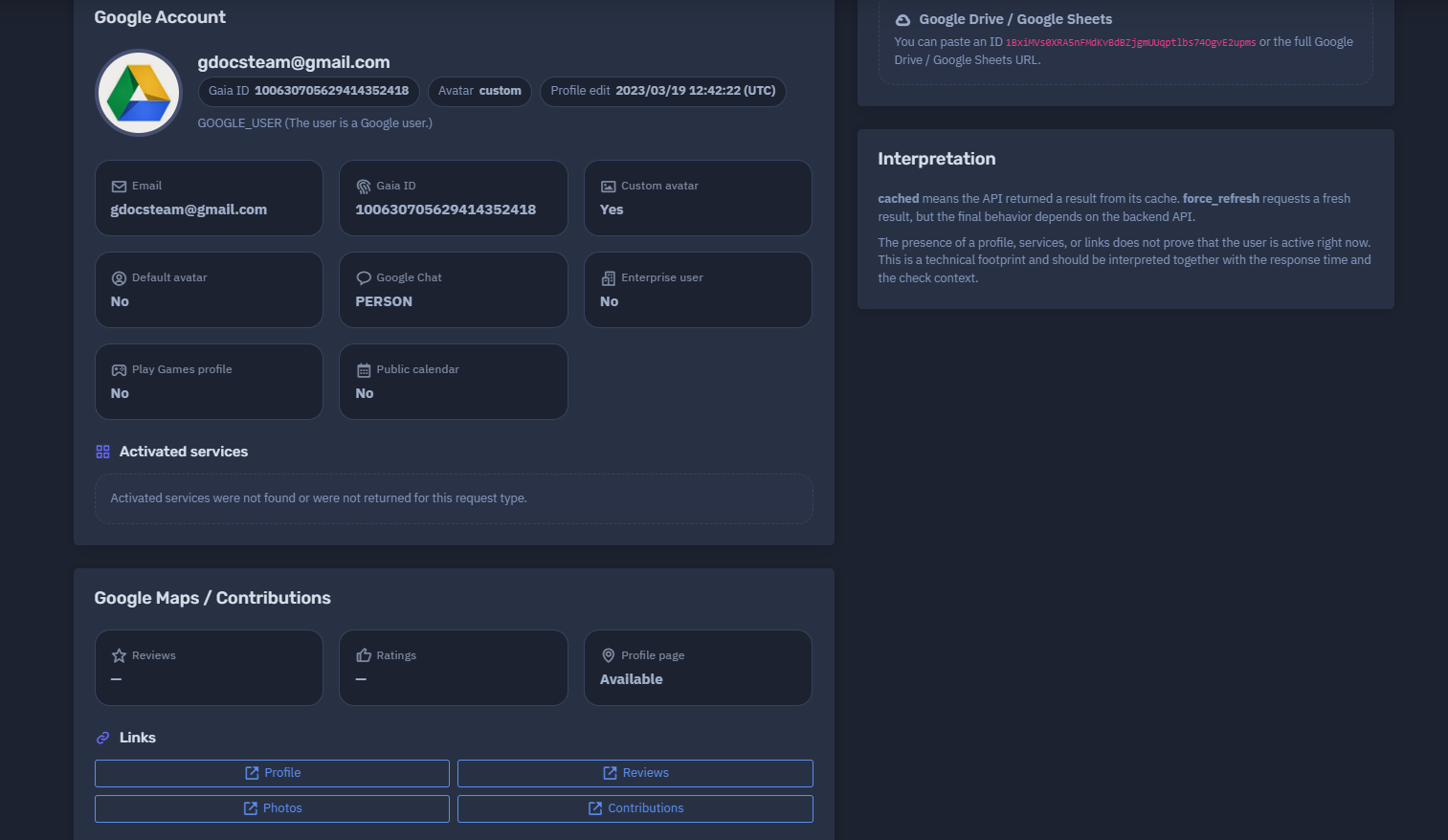
A Gmail or Google account email address.
Example:
alex@gmail.com
This mode checks the detected Google Account footprint and may return a Gaia ID when available through the API.
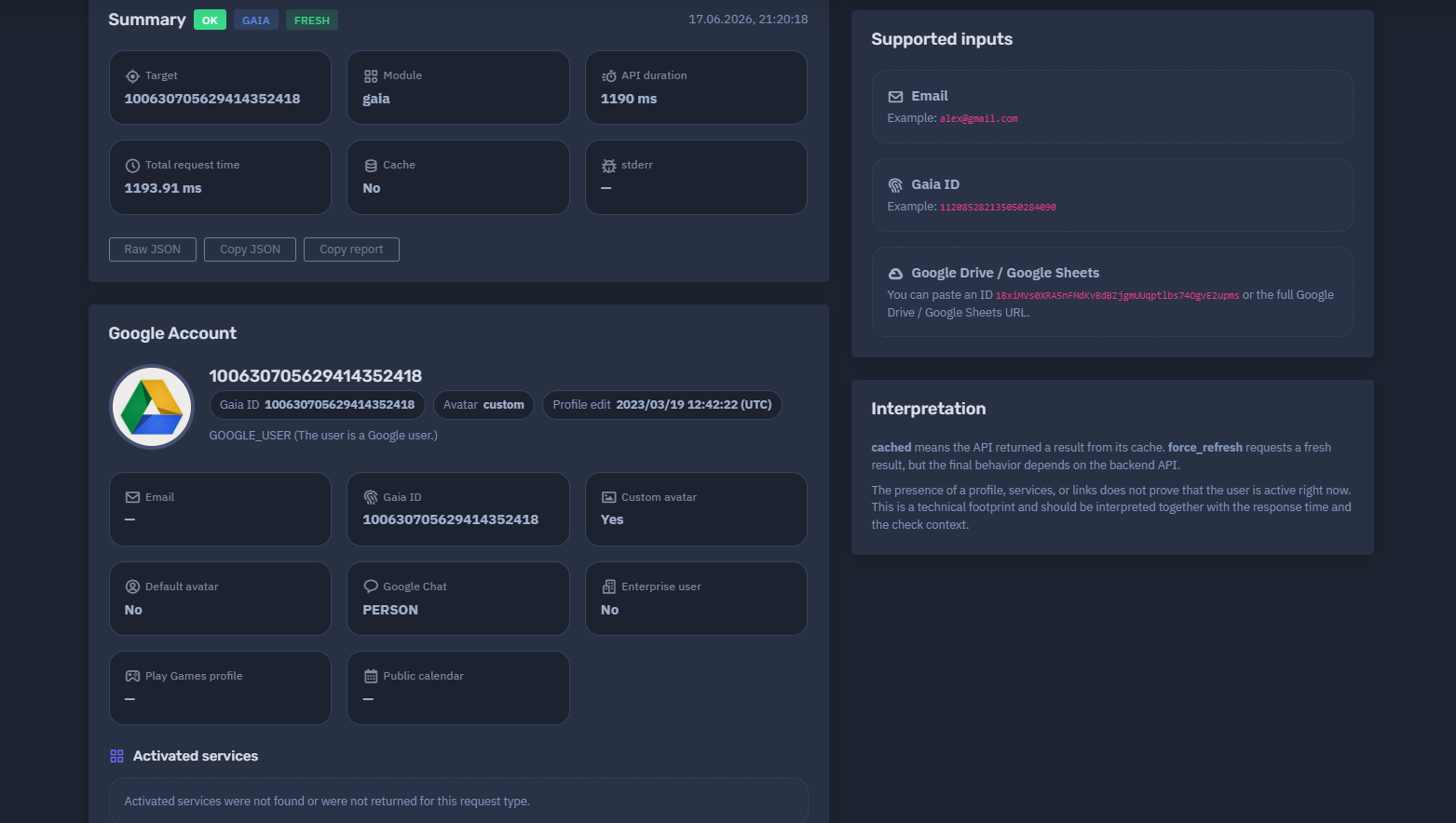
Gaia ID
A numeric Google Account identifier.
Example:
112085282135050284090
This mode is useful when the analyst already has a Gaia ID and needs to check related public or technical signals.
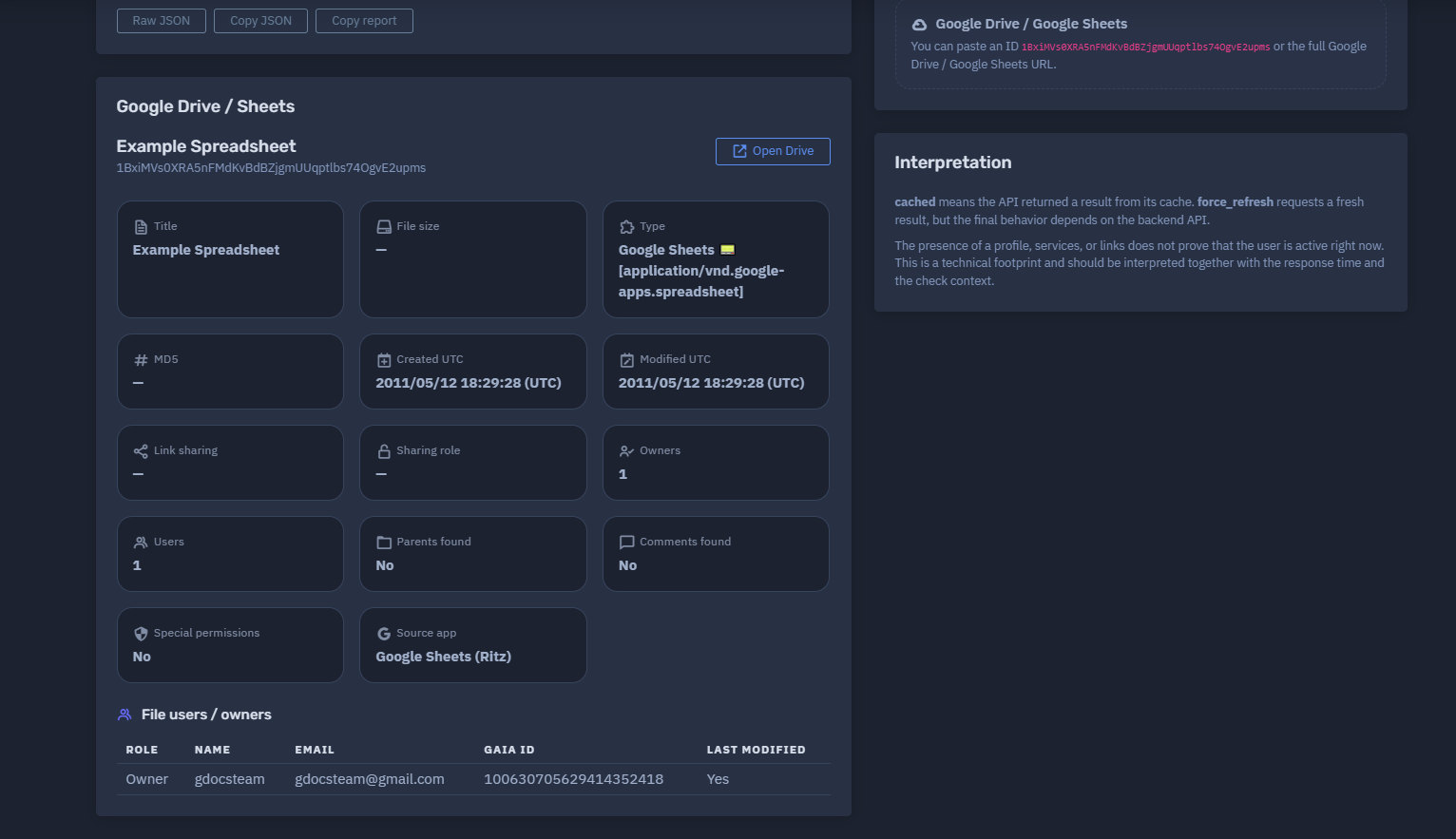
Google Drive / Google Sheets
A Google Drive or Google Sheets file can be analyzed by pasting either the file ID or the full URL.
Example file ID:
1BxiMVs0XRA5nFMdKvBdBZjgmUUqptlbs74OgvE2upms
Example supported inputs may include:
-
Google Drive file ID
-
Google Sheets document ID
-
Full Google Drive URL
-
Full Google Sheets URL
The tool may return file metadata, sharing role, owners, MIME type, checksum, title, size, creation date, modification date, and technical JSON depending on backend availability and file visibility.
⚙️ New Analysis Interface
The New Analysis section allows the user to choose the input type and submit the request to the backend API.
Main interface elements:
| Field | Description |
|---|---|
| Input type | Email, Gaia ID, Google Drive, or Google Sheets |
| Target value | The email, Gaia ID, file ID, or file URL to analyze |
Request include_raw |
Includes technical raw data for diagnostics and deeper analysis |
| Refresh without cache | Requests a fresh backend check when supported |
| Backend indicator | Shows that the request is processed through the NiamonX API |
🧠 Key Features
Google Account Analysis
The tool can analyze Google account signals connected to a Gmail or Google email address.
Possible returned fields include:
-
Email address
-
Gaia ID
-
Avatar type
-
Profile picture status
-
Profile modification date
-
Google user type
-
Google Chat entity type
-
Enterprise user flag
-
Public calendar flag
-
Play Games profile flag
Gaia ID Detection
When available, the tool returns the Google account’s Gaia ID.
A Gaia ID is a stable Google account identifier that can help analysts correlate technical Google signals across different public or semi-public contexts.
Avatar Analysis
Google Footprint can identify whether the account uses a custom avatar or a default Google avatar.
Possible values:
-
Custom avatar: Yes / No
-
Default avatar: Yes / No
-
Avatar URL or preview, when available
-
Profile picture availability
A custom avatar can be useful for manual correlation, but it should not be treated as proof of identity by itself.
Google Services Signals
The module may check for available signals connected to Google services.
Possible services and indicators include:
-
Google Photos
-
Google Maps
-
Google Meet
-
Google Chat
-
Google Calendar
-
Google Play Games
-
Enterprise account flags
Some service indicators may not be returned for every request type. If activated services are not found or not returned, the interface should clearly display that no service data was available for that request.
Google Maps / Contributions
The module can show available Google Maps public footprint signals.
Possible fields include:
-
Maps profile page availability
-
Reviews
-
Ratings
-
Photos
-
Contribution indicators
-
Review count
-
Rating count
The presence of a Maps profile does not prove current activity. It only indicates that a public or technical Maps-related signal was detected.
Google Drive / Sheets Metadata
For Google Drive or Google Sheets targets, the tool may return file-level metadata.
Possible fields include:
-
File title
-
File size
-
MIME type
-
Checksum
-
Creation date
-
Modification date
-
Sharing role
-
Owners
-
Links
-
Technical metadata
-
Raw JSON response
This is useful for validating public files, checking exposed shared documents, reviewing ownership indicators, and documenting Drive-related evidence.
Technical JSON
The tool can expose technical JSON for deeper diagnostics.
This is useful for:
-
SOC workflows
-
API integrations
-
Technical investigations
-
Internal documentation
-
Evidence preservation
-
Debugging backend responses
-
Comparing cached and fresh responses
Raw technical output should be handled carefully and shared only with authorized users.
📊 Summary Section
After an analysis is completed, Google Footprint displays a structured summary.
The summary may include:
-
Request status
-
Input type
-
Cache status
-
Timestamp
-
Target
-
Module type
-
API duration
-
Total request time
-
Backend stderr output, if any
Example structure:
Status: OK
Type: EMAIL
Cache: fresh
Module: email
API duration: 2044 ms
Total request time: 2048.92 ms
Cache: No
stderr: —
This section helps analysts understand how the result was generated and whether the response came from a fresh backend check or cached data.
👤 Google Account Section
The Google Account section displays the primary account-level findings.
Possible fields include:
| Field | Description |
|---|---|
| Google or Gmail address analyzed by the tool | |
| Gaia ID | Google account identifier returned by the backend |
| Avatar | Avatar status or profile picture availability |
| Custom avatar | Indicates whether a custom avatar exists |
| Default avatar | Indicates whether the account uses the default avatar |
| Profile edit | Last detected profile edit timestamp, when available |
| User type | Google account type signal |
| Google Chat | Chat entity signal, such as PERSON |
| Enterprise user | Indicates whether enterprise-related account signals are detected |
| Play Games profile | Indicates whether Play Games profile data was found |
| Public calendar | Indicates whether public calendar signals were found |
The exact returned fields depend on the input type, backend support, Google-side availability, and cache/fresh request behavior.
🧬 Google User Types and Signals
Google Footprint may return technical account-type indicators.
Example signal:
GOOGLE_USER
This indicates that the checked identity is detected as a Google user through the supported backend logic.
Other service-related fields may show whether specific Google ecosystem signals were available.
Important: these indicators are technical signals. They should not be interpreted as complete account activity logs or proof that the user is currently active.
🖼️ Avatar and Profile Picture Analysis
Avatar data can help analysts correlate a Google account with other public identity traces.
Possible avatar-related indicators:
-
Profile picture exists
-
Custom avatar is used
-
Default avatar is not used
-
Avatar preview is available
-
Avatar URL is returned by the backend
A custom avatar may be useful for manual comparison with other platforms, but it should always be validated with additional context.
Recommended correlation signals:
-
Same profile image across platforms
-
Similar display name
-
Matching username
-
Same public links
-
Consistent timestamps
-
Related account metadata
-
Similar profile content
Avatar matching alone should not be treated as identity proof.
🗺️ Google Maps / Contributions
The Google Maps / Contributions section helps identify whether Maps-related public signals are available.
Possible fields include:
| Field | Description |
|---|---|
| Profile page | Indicates whether a Maps profile page is available |
| Reviews | Review data or count, if available |
| Ratings | Rating data or count, if available |
| Photos | Public contribution photos, if available |
| Contributions | Public contribution indicators |
If the report shows that a profile page is available but reviews or ratings are empty, it means that a Maps profile signal exists but no review or rating details were returned for that request.
This section is useful for OSINT, fraud analysis, identity correlation, and digital footprint review.
📁 Google Drive and Google Sheets Analysis
When a Google Drive or Google Sheets file is submitted, the module can check public and technical metadata associated with the file.
Possible metadata includes:
-
File title
-
MIME type
-
File size
-
Checksum
-
Created time
-
Modified time
-
Owners
-
Sharing status
-
User role
-
Public links
-
Technical JSON
This feature is useful for:
-
Checking exposed public documents
-
Reviewing shared file metadata
-
Validating ownership signals
-
Investigating leaked links
-
Documenting OSINT evidence
-
Understanding whether a Drive or Sheets file exposes metadata
The tool does not bypass Google permissions. Returned data depends on what is available to the backend check.
🔗 Links Section
The Links section collects available profile, Maps, Drive, or technical links returned by the backend.
Links may include:
-
Google profile links
-
Google Maps profile links
-
Google Drive file links
-
Google Sheets links
-
Avatar links
-
Public service links
Links are useful for manual validation and evidence review.
Users should avoid opening suspicious or unknown links outside a safe analysis environment.
🧾 Request Options
Google Footprint includes additional request options for deeper analysis and diagnostics.
include_raw
The include_raw option returns additional technical data when supported.
Use cases:
-
Debugging backend responses
-
Reviewing raw API fields
-
Comparing normalized vs raw output
-
Preserving technical evidence
-
Advanced analyst workflows
Raw output may contain verbose or sensitive technical details and should be handled carefully.
Refresh Without Cache
The refresh option requests a fresh backend check when supported.
This is useful when:
-
The analyst needs the newest available response
-
Previous data may be outdated
-
Cache behavior needs to be bypassed
-
A file or profile may have changed recently
Important: forcing refresh requests a fresh result, but the final behavior depends on backend API support and Google-side response behavior.
💾 Local Request History
Google Footprint stores request history locally in the user’s browser through localStorage.
This helps users access recent checks without server-side history navigation.
Local storage may include:
-
Recent targets
-
Input types
-
Request timestamps
-
Basic request metadata
Because the history is browser-local, it may be cleared if the user clears browser data, switches devices, or uses another browser profile.
Sensitive targets should be handled carefully, especially on shared devices.
🚦 Cache and Fresh Results
The interface may show whether a result was returned from cache or generated fresh.
Possible cache states:
| State | Meaning |
|---|---|
| cached | The API returned a previously stored result |
| fresh | A new check was performed or fresh data was returned |
| no cache | The result was not served from cache |
| force refresh | The user requested a fresh check |
A cached result can be useful for speed and stability, but it may not reflect the latest available state.
A force-refresh request asks the backend to perform a fresh check, but backend rules, provider limitations, and Google-side behavior may still affect the final response.
🧠 Result Interpretation
Google Footprint results should be interpreted as technical footprint signals.
The presence of a profile, Gaia ID, avatar, service signal, Maps page, or Drive metadata does not prove that the account is currently active.
Important interpretation rules:
-
A Google profile signal means the account was detected, not necessarily recently used.
-
A custom avatar helps with correlation, but does not prove identity alone.
-
A Gaia ID is a technical identifier, not a complete identity profile.
-
Maps signals may indicate public availability, not current activity.
-
Drive metadata depends on file permissions and backend visibility.
-
Cached results may reflect earlier checks.
-
Missing service data does not always mean the service is absent.
-
Backend-supported checks may vary by input type.
Analysts should combine Google Footprint results with other evidence, such as breach data, public profiles, account activity logs, OSINT findings, and internal investigation context.
✅ Recommended Analyst Workflow
A careful analysis process should follow these steps.
1. Select the Correct Input Type
Use Email for Gmail or Google account addresses, Gaia ID for known numeric identifiers, and Drive / Sheets for file investigations.
2. Validate the Target
Make sure the submitted value is correctly formatted before running the check.
3. Review the Summary
Check status, cache state, API duration, total request time, and backend diagnostics.
4. Review Google Account Signals
Look for Gaia ID, avatar status, user type, profile modification date, and service indicators.
5. Check Maps and Service Data
Review Maps profile availability, contribution signals, Calendar, Chat, Play Games, and enterprise flags.
6. Analyze Drive Metadata
For file targets, review title, MIME type, owners, sharing role, creation date, modification date, and links.
7. Use Raw JSON Carefully
Enable raw output only when technical details are needed for deeper analysis.
8. Compare With Other Sources
Correlate results with Alias Radar, CrossTrace, breach intelligence, ULP data, and manual OSINT checks.
9. Avoid Overclaiming
Treat all signals as technical indicators unless supported by additional evidence.
10. Store Evidence Securely
Keep reports and JSON output in secure internal systems when used for investigations.
🛡️ Security, Privacy & Ethics
Google Footprint is intended for lawful OSINT, defensive cybersecurity, fraud prevention, compliance review, and authorized investigation.
Users must follow strict ethical rules:
-
Analyze only accounts, Gaia IDs, or files that you own or are authorized to investigate.
-
Do not use the tool to stalk, harass, intimidate, shame, or target individuals.
-
Do not claim identity ownership based on a single Google signal.
-
Do not attempt to access private Google data or bypass permissions.
-
Do not use discovered links for phishing, impersonation, fraud, or social engineering.
-
Do not publish personal information discovered through the tool.
-
Do not misuse avatar, Maps, or Drive metadata to deanonymize people.
-
Validate all findings before legal, HR, compliance, or operational decisions.
-
Treat technical JSON and reports as sensitive investigation material.
The tool provides technical footprint intelligence. Responsible interpretation is required to avoid false positives and privacy harm.
⚙️ Technical Highlights
-
Google account footprint analysis
-
Supports Gmail / Google email addresses
-
Supports Gaia ID lookup
-
Supports Google Drive and Google Sheets file IDs or URLs
-
Powered by backend NiamonX API
-
Input validation before external request
-
Optional raw technical output with
include_raw -
Optional cache bypass with refresh request
-
Summary with status, module, cache, timing, and diagnostics
-
Google Account section with email, Gaia ID, avatar, user type, and profile modification data
-
Google services indicators
-
Google Maps / Contributions section
-
Google Drive metadata extraction
-
Owners, links, MIME type, checksum, size, and timestamps when available
-
Local browser request history through
localStorage -
Clean analyst-friendly interface
-
Suitable for OSINT, SOC, fraud analysis, compliance, and digital footprint investigations
📌 Usage Hints
-
Use Email mode for Gmail or Google account addresses.
-
Use Gaia ID mode when you already have a numeric Google account identifier.
-
Use Drive / Sheets mode for Google file IDs or full Google Drive / Google Sheets URLs.
-
Enable
include_rawfor technical diagnostics and deeper analysis. -
Use refresh without cache when the latest available result is important.
-
Check cache status before interpreting freshness.
-
A profile or Gaia ID does not prove recent activity.
-
Missing services do not always mean the services are absent.
-
Treat Google Maps and avatar signals as correlation hints.
-
Validate Drive metadata manually when used as evidence.
-
Store reports securely when used in investigations.
📬 Contact Information
For technical, legal, abuse, privacy, or takedown-related inquiries, users can contact the NiamonX team directly:
support@niamonx.io — Technical Support
other@niamonx.io — General Inquiries
takedown@niamonx.io — Data Removal / Privacy Takedown Requests
legal@niamonx.io — Legal and Compliance Matters
Alternative contact channel:
🔗 Helpdesk: https://support.niamonx.io/
Summary
NiamonX Google Footprint is a Google account and file intelligence module that helps collect structured public and technical signals for Gmail accounts, Gaia IDs, Google Drive files, and Google Sheets documents.
It can return account metadata, Gaia identifiers, avatar information, Google service signals, Maps profile indicators, Drive file metadata, owners, links, timing information, cache state, and technical JSON.
The tool is designed for lawful OSINT, defensive cybersecurity, fraud analysis, compliance checks, SOC workflows, and digital footprint investigations. All findings should be treated as technical signals and validated with additional context before making conclusions.
CrossTrace | Username & Email Intelligence
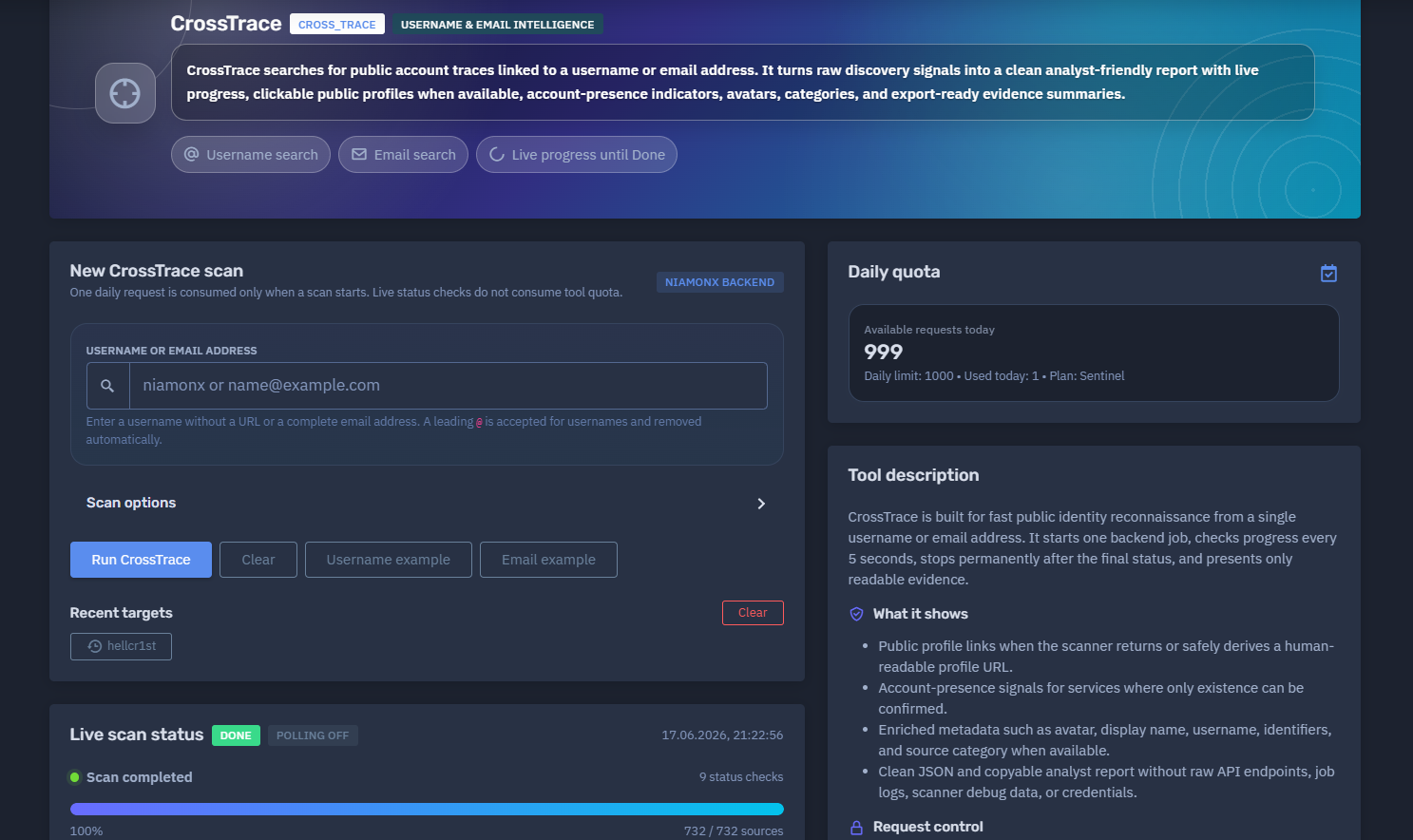
The platform available at dash.niamonx.io/cross_trace — known as CrossTrace — is a fast public identity intelligence module within the NiamonX platform. It is designed to search for public account traces connected to a username or email address and convert raw discovery signals into a clean, analyst-friendly report.
Overview of the Service
CrossTrace helps users discover public account-presence signals and profile traces associated with a single username or email address. The tool checks multiple public sources through the NiamonX backend, tracks scan progress live, removes technical scanner noise, and displays only readable, useful findings.
The module is designed for cybersecurity analysts, OSINT researchers, SOC teams, fraud investigators, compliance departments, brand protection teams, and authorized users who need to quickly understand where a username or email may appear across public platforms.
CrossTrace supports two main investigation modes:
-
Username search
-
Email search
The final report may include clickable public profiles, account-presence indicators, avatars, platform categories, confidence scores, extracted public details, clean JSON, and a copyable analyst report.
CrossTrace is not intended to prove account ownership automatically. A username match or email-presence signal should be treated as an investigative lead and manually verified using additional context.
🔍 How the Scan Works
When a user starts a CrossTrace scan, the system creates one backend job through the NiamonX infrastructure.
The backend checks supported public sources for traces linked to the submitted username or email address. While the job is running, the browser checks the scan status every few seconds using the existing scan ID.
Only the initial scan consumes one daily request. Live status checks do not consume additional tool quota.
Typical workflow:
-
The user enters a username or email address.
-
CrossTrace validates and normalizes the input.
-
A backend scan starts.
-
The interface displays live scan progress.
-
The backend checks supported public sources.
-
Raw scanner responses are cleaned and deduplicated.
-
Technical API endpoints, debug data, and noisy records are hidden.
-
The final report displays public traces, profile links, presence signals, categories, avatars, and scores.
Polling stops immediately after a final status is reached, such as Done, failed, cancelled, or error.
🧩 What Can Be Searched
CrossTrace supports two target types.
Username
A username can be entered with or without a leading @.
Examples:
niamonx
@niamonx
If the username starts with @, the symbol is accepted and removed automatically.
Allowed username characters:
-
Letters
-
Numbers
-
Dot
-
Underscore
-
Hyphen
The user should not enter a URL.
A complete email address can be submitted as an email target.
Example:
name@example.com
CrossTrace automatically detects the target as an email when the submitted value is a valid email address.
🚫 Unsupported Input
CrossTrace is focused on usernames and email addresses only.
The user should not submit:
-
Full URLs
-
Domains only
-
IP addresses
-
Phone numbers
-
Full names
-
Passwords
-
Wildcards
-
Search operators
-
Multi-field composite queries
-
Private tokens or API keys
For domain, IP, breach, ULP, Google, or advanced identity reports, users should use the appropriate dedicated NiamonX module.
⚙️ New CrossTrace Scan Interface
The scan interface contains the main controls required to start a new investigation.
Main fields and panels:
| Element | Description |
|---|---|
| Username or email address | Main target input field |
| Scan options | Optional scan configuration |
| Recent targets | Quick access to recent local targets |
| Live scan status | Real-time backend job progress |
| Summary | Final report statistics |
| Found traces | Cleaned and deduplicated results |
| Daily quota | Plan-based request usage |
The interface clearly states that one daily request is consumed only when a scan starts. Live status checks do not consume tool quota.
📡 Live Scan Status
The Live Scan Status section shows real-time progress until the scan reaches a final state.
It may display:
-
Current status
-
Polling state
-
Timestamp
-
Current scan phase
-
Number of status checks
-
Progress percentage
-
Number of checked sources
-
Completion state
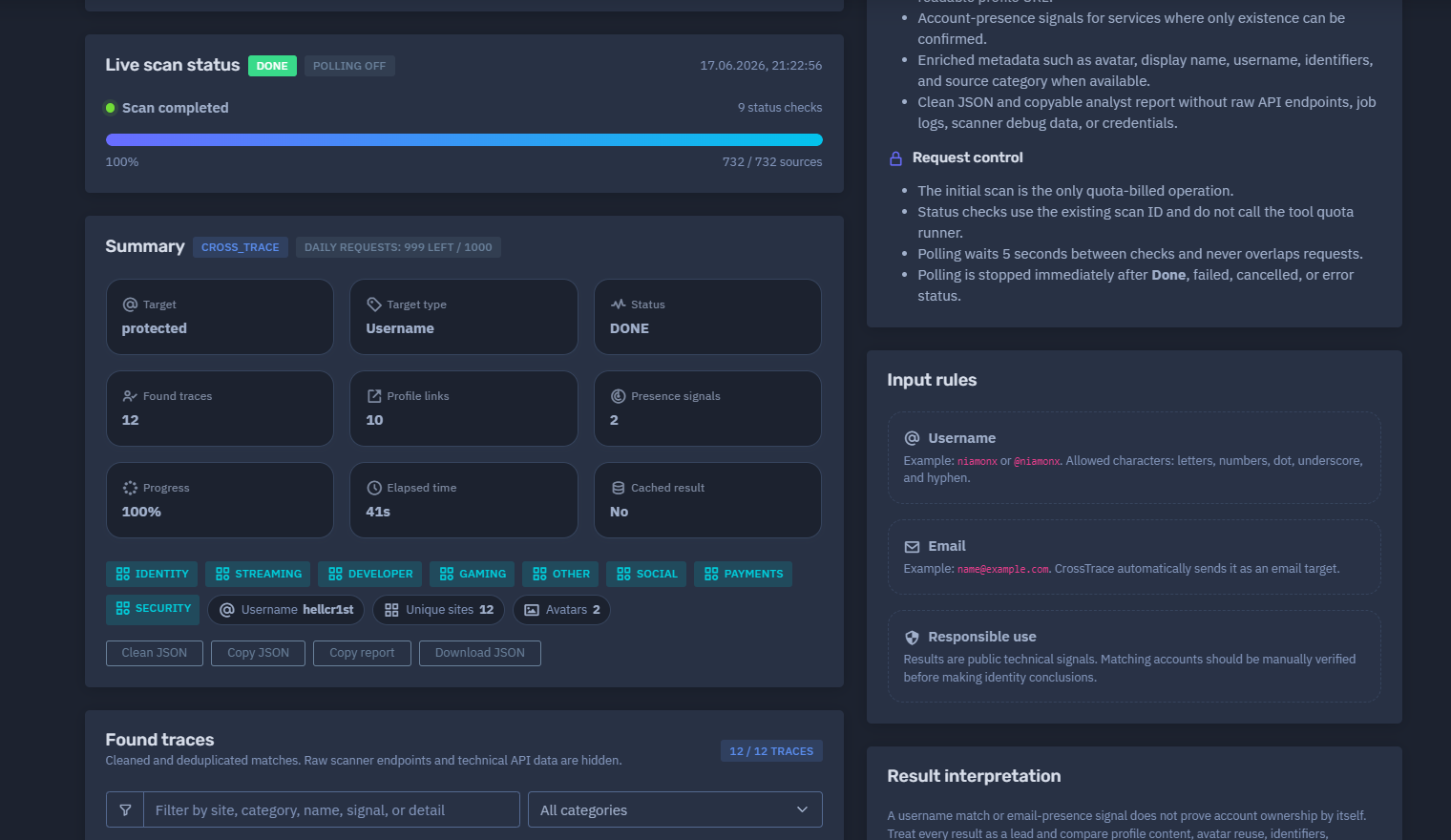
Example status structure:
DONE
Polling off
Scan completed
9 status checks
100%
732 / 732 sources
Polling behavior:
-
Waits several seconds between checks
-
Uses the existing scan ID
-
Does not consume additional quota
-
Does not overlap requests
-
Stops permanently after a final status
This makes CrossTrace suitable for live interactive analysis without wasting daily request limits on status checks.
📊 Summary Section
After the scan completes, CrossTrace generates a summary of the discovered traces.
The summary may include:
-
Tool name
-
Daily requests remaining
-
Target
-
Target type
-
Status
-
Found traces
-
Profile links
-
Presence signals
-
Progress
-
Elapsed time
-
Cache status
-
Identity categories
-
Unique sites
-
Avatar count
Example summary format:
Tool: cross_trace
Target: username
Target type: Username
Status: DONE
Found traces: 12
Profile links: 10
Presence signals: 2
Progress: 100%
Elapsed time: 41s
Cached result: No
Unique sites: 12
Avatars: 2
The summary helps analysts quickly understand how many useful public traces were found and how many of them include direct profile links.
🧠 Key Features
Username and Email Intelligence
CrossTrace can search public traces for both usernames and email addresses.
Fast Backend Scan
The tool starts one backend job and tracks it until completion.
Live Progress
The user can monitor scan progress in real time.
Quota-Safe Status Checks
Only the initial scan is quota-billed. Status checks use the existing scan ID and do not call the tool quota runner.
Cleaned Results
CrossTrace removes raw scanner endpoints, technical API data, debug logs, credentials, and noisy low-value records.
Deduplication
Repeated matches are merged into clean, unique traces.
Public Profile Links
When the scanner returns or safely derives a human-readable public profile URL, CrossTrace displays it as a clickable profile link.
Account-Presence Signals
Some services expose only whether an account appears to exist. CrossTrace labels these as account-presence signals.
Avatars
When available, public avatars are displayed for easier manual correlation.
Categories
Results are grouped into useful categories such as Identity, Streaming, Developer, Gaming, Social, Payments, Security, and Other.
Confidence Scores
Each trace may include a score to help analysts prioritize review.
Clean JSON and Copyable Report
CrossTrace can produce clean JSON and a copyable analyst report without raw API endpoints, job logs, scanner debug data, or credentials.
📋 Found Traces
The Found Traces section displays cleaned and deduplicated results only.
Each trace card may include:
| Field | Description |
|---|---|
| Site | Platform or source where the trace was found |
| Category | Source category, such as Identity, Gaming, Developer, or Social |
| Name | Public name or username shown by the source |
| Signal type | Direct profile or account-presence signal |
| Score | Confidence or relevance score |
| Avatar | Public avatar, if available |
| Details | Extra public metadata, if returned |
| Profile link | Clickable profile URL, when available |
The interface may also include filtering by:
-
Site
-
Category
-
Name
-
Signal
-
Detail
This helps analysts focus on specific source types or high-value findings.
🔗 Profile Links vs Presence Signals
CrossTrace separates findings into two important types.
Public Profile Links
A public profile link is a human-readable URL that can be opened and manually reviewed.
Examples of profile-link evidence may include:
-
Public user profile
-
Public developer profile
-
Public gaming profile
-
Public streaming profile
-
Public social profile
-
Public avatar profile
These links are useful because they allow the analyst to manually verify the account.
Account-Presence Signals
An account-presence signal means the system detected that a username or email appears to be associated with a service, but a public profile link may not be available.
This may happen when:
-
A service exposes only availability checks
-
A profile is not publicly accessible
-
The source confirms existence but does not return public metadata
-
The scanner can detect the account but cannot safely derive a readable profile URL
CrossTrace labels these results clearly as account signals.
Presence signals are useful leads, but they should be interpreted more cautiously than direct profile links.
🧮 Score and Confidence
Each trace may include a score.
The score helps prioritize review and indicates the strength of the public signal.
Example interpretation:
| Score Range | Interpretation |
|---|---|
| 90–100 | Very strong trace, usually a direct or enriched profile |
| 80–89 | Strong trace, often a direct profile with reliable matching |
| 70–79 | Useful trace, worth manual validation |
| 60–69 | Presence signal or weaker public account indicator |
| Below 60 | Low-confidence signal, if displayed |
A high score does not prove account ownership. It only indicates that the trace is technically strong or relevant enough to review first.
🏷️ Categories
CrossTrace groups results into categories to make the report easier to understand.
Common categories include:
| Category | Description |
|---|---|
| Identity | Identity or avatar-related services |
| Streaming | Streaming and creator platforms |
| Developer | Code, developer, and repository platforms |
| Gaming | Gaming accounts and game-related platforms |
| Social | Social networking services |
| Payments | Payment, donation, or monetization platforms |
| Security | Cybersecurity, breach, or threat-intelligence related sources |
| Other | Sources that do not fit a main category |
Categories help analysts understand the type of public footprint connected to the target.
For example, a username appearing across Developer and Gaming categories may suggest reuse across technical and gaming communities, while Identity or avatar services may help with cross-platform correlation.
🖼️ Avatars and Public Images
Some CrossTrace results may include public avatars.
Avatars can help analysts compare public profiles across platforms.
Useful avatar-based correlation signals:
-
Same image reused across multiple services
-
Similar image style
-
Matching display name
-
Matching profile bio
-
Same username and avatar combination
-
Same linked accounts
Avatar similarity should not be treated as proof of identity by itself. It should be combined with usernames, platform IDs, profile content, timelines, and additional evidence.
🧬 Enriched Metadata
When available, CrossTrace may show enriched metadata for a trace.
Possible metadata includes:
-
Display name
-
Username
-
Avatar
-
Platform identifier
-
Source category
-
Signal type
-
Profile URL
-
Public account details
Some traces may return no extra public details. In that case, the interface clearly indicates that no extra public details were returned for that trace.
This keeps the report transparent and avoids inventing unsupported information.
🧾 Clean JSON and Analyst Report
CrossTrace can provide export-ready evidence summaries.
The clean report may include:
-
Target
-
Target type
-
Scan status
-
Found traces
-
Unique sites
-
Profile links
-
Presence signals
-
Categories
-
Scores
-
Avatars
-
Public details
-
Timing information
-
Cache status
The clean JSON output is useful for:
-
SOC workflows
-
Case management systems
-
OSINT documentation
-
Fraud investigations
-
Threat intelligence pipelines
-
Compliance records
-
Internal reporting
-
Automation and enrichment pipelines
The output intentionally excludes raw API endpoints, job logs, scanner debug data, and credentials.
🚦 Daily Quota
CrossTrace uses plan-based daily request limits.
Example quota display:
Available requests today: 999
Daily limit: 1000
Used today: 1
Plan: Sentinel
Quota behavior:
-
One request is consumed when a scan starts.
-
Status checks do not consume quota.
-
Polling uses the existing scan ID.
-
Polling stops after a final status.
-
Daily limits depend on the user’s plan.
This prevents unnecessary quota usage while still allowing live progress tracking.
💾 Recent Targets
The interface may include a Recent Targets section.
This helps users quickly rerun or review recent username and email checks.
Recent target history should be treated carefully because usernames and emails may be sensitive in an investigation context.
🧠 Result Interpretation
CrossTrace results are public technical signals.
A username match or email-presence signal does not prove that an account belongs to a specific person.
Each result should be treated as a lead.
Recommended validation checks:
-
Open public profile links when available.
-
Compare display names.
-
Compare avatars.
-
Review usernames and spelling.
-
Check platform-specific identifiers.
-
Compare account creation dates when available.
-
Review public activity and linked accounts.
-
Check whether the profile references the same websites, locations, interests, or aliases.
-
Compare the result with other NiamonX modules such as Alias Radar, Google Footprint, Identity360, ULP Search, or breach intelligence.
Some services expose only account availability signals. CrossTrace labels those as account signals and hides technical endpoints to keep the report safe and readable.
✅ Recommended Analyst Workflow
A careful CrossTrace investigation should follow this process.
1. Choose the Correct Target Type
Use a username for alias-based checks or a complete email address for email-based traces.
2. Start the Scan
Submit the target and let the backend job complete.
3. Review the Summary
Check found traces, profile links, presence signals, unique sites, avatars, elapsed time, and cache status.
4. Prioritize Direct Profiles
Start with direct profile links because they allow manual review.
5. Review High-Score Results
High-score traces should be checked first.
6. Separate Profile Links From Presence Signals
Presence signals are useful but weaker than direct public profile links.
7. Compare Public Details
Use avatars, display names, usernames, linked accounts, and identifiers for correlation.
8. Avoid Overclaiming
Use cautious wording such as “possible trace,” “public signal,” or “account-presence indicator” unless ownership is verified.
9. Export Evidence
Use clean JSON or the copyable analyst report for internal documentation.
10. Store Results Securely
Treat reports as sensitive investigation data, especially when they contain emails, usernames, avatars, or account-presence signals.
🛡️ Security, Privacy & Ethics
CrossTrace is intended for lawful OSINT, defensive cybersecurity, fraud prevention, brand protection, compliance, and authorized investigation.
Users must follow strict ethical rules:
-
Search only usernames or email addresses that you own or are authorized to investigate.
-
Do not use CrossTrace to stalk, harass, shame, threaten, or target individuals.
-
Do not claim identity ownership based only on a username match or presence signal.
-
Do not use account traces for phishing, impersonation, social engineering, fraud, or extortion.
-
Do not attempt to access private accounts or bypass platform restrictions.
-
Do not publish personal information discovered through the tool.
-
Do not contact individuals aggressively based on unverified results.
-
Validate all findings before legal, HR, compliance, or operational decisions.
-
Treat exported reports as sensitive intelligence material.
Responsible interpretation is essential because public account discovery can produce false positives, especially when usernames are reused by different people.
⚙️ Technical Highlights
-
Username and email intelligence module
-
Powered by NiamonX Backend
-
Supports username search
-
Supports email search
-
Live progress until Done
-
One backend job per scan
-
One daily request consumed only when the scan starts
-
Status checks do not consume tool quota
-
Polling interval between checks
-
No overlapping status requests
-
Polling stops after Done, failed, cancelled, or error status
-
Checks hundreds of public sources
-
Cleaned and deduplicated matches
-
Raw scanner endpoints hidden
-
Technical API data hidden
-
Public profile links when available
-
Account-presence signal labeling
-
Avatars when available
-
Category grouping
-
Confidence scores
-
Clean JSON output
-
Copyable analyst report
-
Recent targets support
-
Suitable for OSINT, SOC, fraud, compliance, and identity correlation workflows
📌 Usage Hints
-
Enter a username without a URL.
-
A leading
@is accepted for usernames and removed automatically. -
Enter a complete email address for email-based checks.
-
Review direct profile links first.
-
Treat presence signals as weaker leads.
-
Use scores to prioritize review.
-
Compare avatars, names, identifiers, timelines, and linked accounts.
-
Do not assume all matching usernames belong to the same person.
-
Use clean JSON for internal workflows and evidence storage.
-
Treat exported results as sensitive investigation material.
-
Validate findings manually before taking action.
📬 Contact Information
For technical, legal, abuse, privacy, or takedown-related inquiries, users can contact the NiamonX team directly:
support@niamonx.io — Technical Support
other@niamonx.io — General Inquiries
takedown@niamonx.io — Data Removal / Privacy Takedown Requests
legal@niamonx.io — Legal and Compliance Matters
Alternative contact channel:
🔗 Helpdesk: https://support.niamonx.io/
Summary
NiamonX CrossTrace is a fast username and email intelligence module that searches for public account traces and account-presence signals across supported public sources.
It starts one backend scan, tracks progress live, cleans and deduplicates raw results, hides technical scanner data, and presents a readable analyst report with profile links, presence signals, avatars, categories, scores, clean JSON, and export-ready summaries.
The tool is designed for lawful OSINT, defensive cybersecurity, fraud investigation, brand protection, SOC workflows, compliance review, and identity correlation. All results should be treated as public technical signals and manually verified before making conclusions about identity or ownership.